Mastering the Technique: How to Drive Along a Linear Object in Civil 3D 🚗
Learn step-by-step methods to accurately follow and align along linear objects in Civil 3D. Perfect for civil engineers and designers looking to enhance their workflow and precision in AutoCAD Civil 3D projects.
Autodesk786
568 views • Feb 3, 2025
About this video
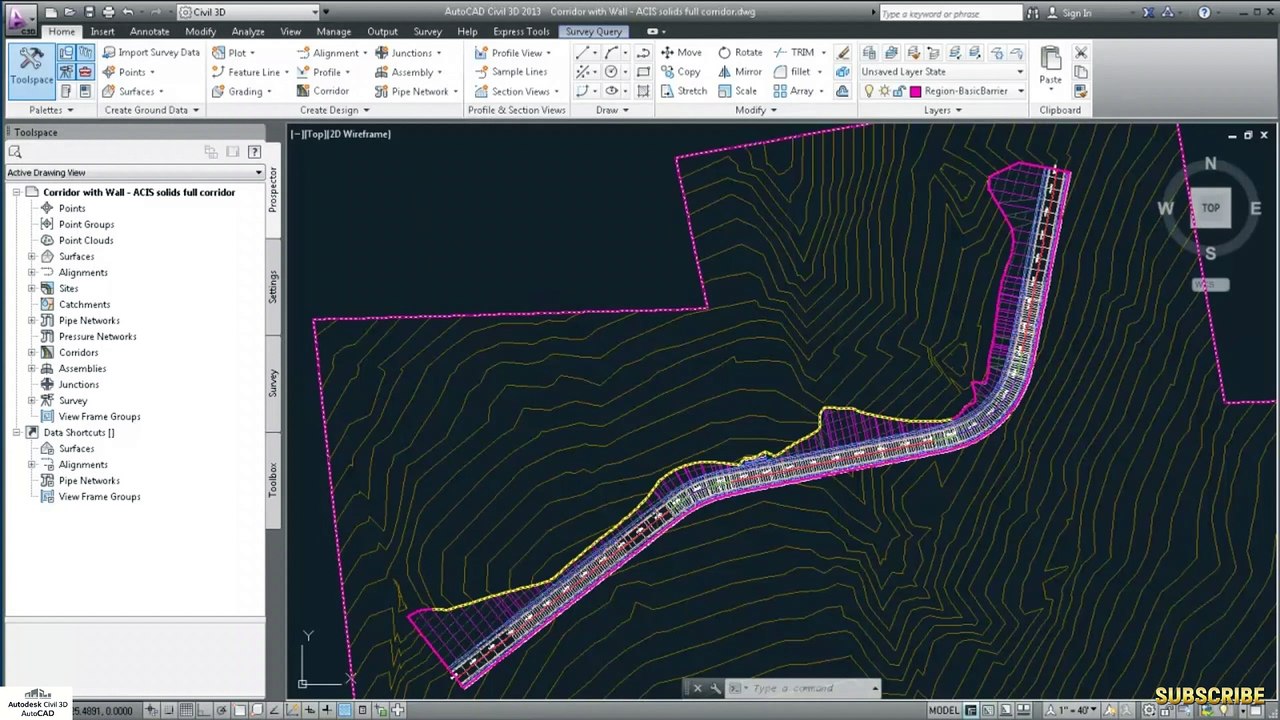
https://dai.ly/x9d58e0<br />https://dai.ly/x9d2fm6<br />https://dai.ly/x9d176m<br />https://dai.ly/x9cytxm<br />https://dai.ly/x9cyqdo<br />https://dai.ly/x9cyhh4<br />Driving along a linear object in Civil 3D can be done using the Drive command in the 3D View. This is useful for visualizing roads, railways, pipelines, or other linear objects. Here’s how you can do it:<br /><br />Steps to Drive Along a Linear Object in Civil 3D:<br />1. Create or Select Your Alignment<br />If you don’t have an alignment, create one using:<br />Home Tab → Create Design → Alignment → Create Alignment from Objects (for an existing polyline).<br />Home Tab → Create Design → Alignment → Create Alignment by Layout (for a new alignment).<br />2. Create a Profile View (Optional)<br />If you want elevation data, create a profile:<br />Home Tab → Create Design → Profile → Create Surface Profile.<br />Generate a profile view.<br />3. Open the 3D View<br />Type 3DORBIT in the command line and adjust your view.<br />Or go to View Tab → Views Panel → 3D View.<br />4. Use the "Drive" Command<br />Type DRIVE in the command line.<br />Select the Alignment or a 3D Polyline.<br />A Drive Settings window appears.<br />5. Adjust Drive Settings<br />Set speed, camera angle, and height.<br />Choose Perspective View for a realistic drive-through experience.<br />6. Start Driving<br />Click Play to start the simulation.<br />Use your mouse to adjust the view while driving.<br />Additional Tips:<br />If the movement is too fast or slow, adjust the speed.<br />For smoother navigation, create a 3D Corridor.<br />Use Visual Styles to enhance appearance.
Video Information
Views
568
Duration
3:15
Published
Feb 3, 2025
Related Trending Topics
LIVE TRENDSRelated trending topics. Click any trend to explore more videos.