Mastering Lines & Curves in Civil 3D: A Complete Guide 📐 (Part 23)
Learn how to efficiently create and edit 2D and 3D lines, curves, and polylines using the Lines and Curves command in Civil 3D. Enhance your design skills today!
Muhammad Ehsan ul Haque Ehsan
4 views • Aug 18, 2024
About this video
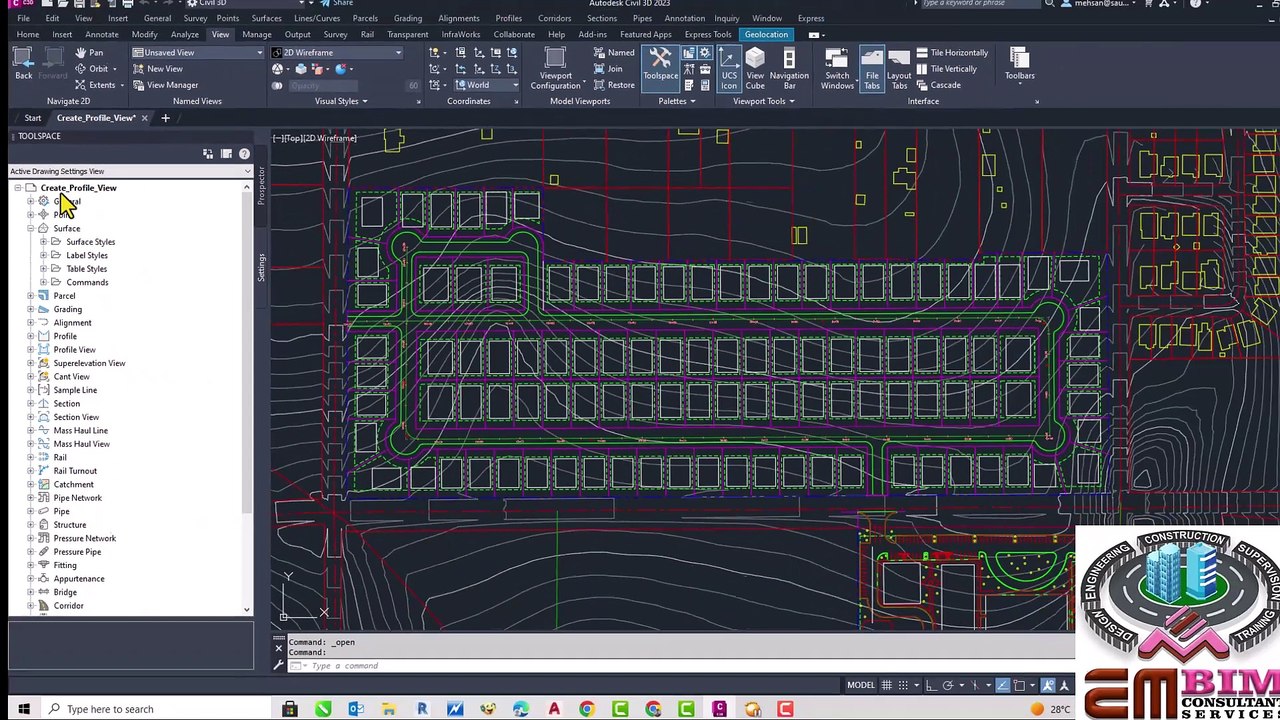
The Lines and Curves command in Civil 3D is a powerful tool for creating and editing 2D and 3D lines, curves, and polylines. Here's an overview of how to work with this command:<br /><br />Creating Lines and Curves:<br /><br />1. Start the command: Select the "Lines and Curves" command from the "Draw" menu or use the shortcut "LC".<br />2. Choose a method: Select from various creation methods, such as "Point, Point", "Point, Angle", or " Curve".<br />3. Specify points: Enter points to define the line or curve.<br />4. Add vertices: Add additional vertices to create a polyline.<br /><br />Editing Lines and Curves:<br /><br />1. Select the object: Choose the line or curve to edit.<br />2. Use grips: Use grips to move, add, or remove vertices.<br />3. Edit vertices: Use the "Edit Vertex" option to modify individual vertices.<br />4. Change properties: Modify properties like layer, color, or linetype.<br /><br />Tips and Tricks:<br /><br />- Use the " Curve" option to create smooth curves.<br />- Hold "Ctrl" while selecting points to create a straight line.<br />- Use the "Close" option to create a closed polyline.<br />- Experiment with different creation methods and editing techniques.<br /><br />Some popular searchable keywords related to working with the Lines and Curves command in Civil 3D include:<br /><br />- "Civil 3D Lines and Curves tutorial"<br />- "Create lines and curves in Civil 3D"<br />- "Edit lines and curves in Civil 3D"<br />- "Civil 3D curve creation"<br />- "Civil 3D polyline editing"
Video Information
Views
4
Duration
8:37
Published
Aug 18, 2024
Related Trending Topics
LIVE TRENDSRelated trending topics. Click any trend to explore more videos.