Mastering Featured Images in WordPress: A Step-by-Step Guide 📸
Learn how to easily assign and configure Featured Images in WordPress to enhance your posts and boost engagement. Watch the video tutorial now!
robcub
157 views • Dec 7, 2010
About this video
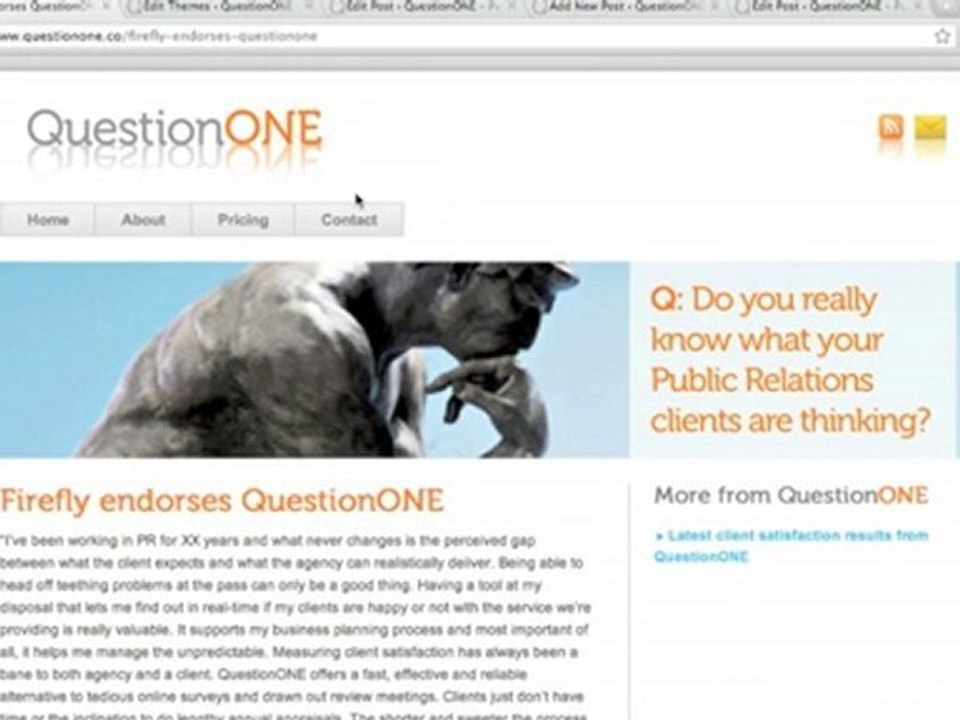
http://robcubbon.com/featured-images-wordpress The video explains how to assign a Featured Image to a post and how to set up Featured Images within a WordPress theme. It shows the example of displaying a string of logos that are linked to a blog post in a particular category. Featured Images in posts or pages is yet another example of how WordPress is not only a brilliant blogging platform but also an adaptable CMS (Content Management System). The basic idea behind Featured Images is the ability to set a thumbnail, or any size of image, to an article so that when that article is listed in the site the featured image can appear as well. It creates an easy visual reference (which is worth a thousand words!) alongside the text-based title and description of your post or page which is so much more enticing and will make your visitors more likely to stay and read more! My main blog page http://robcubbon.com/blog is an example of using Featured Images in WordPress. For every post I have set a generic thumbnail image that sums up the content of the article. So for each post you can see the image, the title and the excerpt. A really simple example of using Featured Images First of all, you need a theme that supports Featured Images. If so, you will see this box on the right-hand side when you create a new post or page. If you can’t see this box it means your theme isn’t set up to support Featured Images yet. You just need a small bit of code to put in your theme’s functions file which is located here: wp-content/themes/your-theme/functions.php – you can edit it by going to Appearance - Editor on the left-hand side of the WordPress back-end and then by clicking “functions.php” on the right-hand side in your theme’s template files.
add_theme_support( 'post-thumbnails' );
set_post_thumbnail_size( 150, 150, true );
The first line enables the use of Featured Images on your site. The second line determines their size (in this case 150 pixels square). So, when you’re adding a new post and want to assign a ...
Video Information
Views
157
Duration
6:03
Published
Dec 7, 2010
Related Trending Topics
LIVE TRENDSRelated trending topics. Click any trend to explore more videos.
No specific trending topics match this video yet.
Explore All Trends