Master the DGET Function in Excel with Easy Example 📊
Discover how to use the DGET function in Excel with step-by-step examples. Boost your spreadsheet skills and simplify data retrieval with this useful tip!
RabiGurungXybernetics
51 views • Jun 2, 2025
About this video
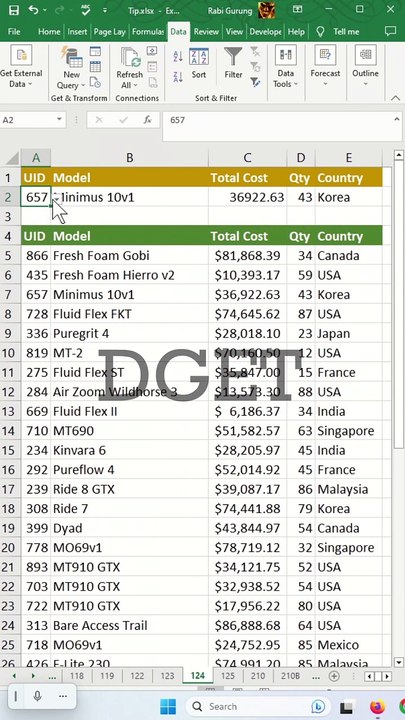
Learn how to use DGET function in Excel with example. <br /><br />Excel is a powerful spreadsheet software that offers a wide range of functions to help users manipulate and analyze data. One of the lesser-known but highly useful functions in Excel is DGET. This function allows users to retrieve a single value from a database or table based on specific criteria. By using DGET, users can quickly extract data that meets certain conditions without having to manually search through a large dataset. In this article, we will explore how to use the DGET function in Excel with an example to demonstrate its functionality and potential uses in various scenarios. <br /><br />Data From Database Table <br />1) Select cell A2 <br />2) Data ~ Data Tools ~ Data Validation <br />3) Setting tab <br />4) Allow set to List <br />5) Source set to =$A$5:$A$43 <br />6) Ok <br />7) Select cell B2 <br />8) =DGET($A$4:$E$43,B4,$A$1:$A$2) <br /> Press F4 to change absolute reference <br />9) Copy and paste formula to the remaining fields. <br /><br />excel dget multiple records,dget multiple criteria example,dget example,dget vs xlookup,dget google sheets,excel dget criteria array,how to use dget google sheets,excel dget multiple records,dget vs vlookup,dget multiple criteria example,dget example,dget vs xlookup,dget google sheets,Data Validation,Apply data validation to cells, <br />
Video Information
Views
51
Duration
1:00
Published
Jun 2, 2025
Related Trending Topics
LIVE TRENDSRelated trending topics. Click any trend to explore more videos.
No specific trending topics match this video yet.
Explore All Trends