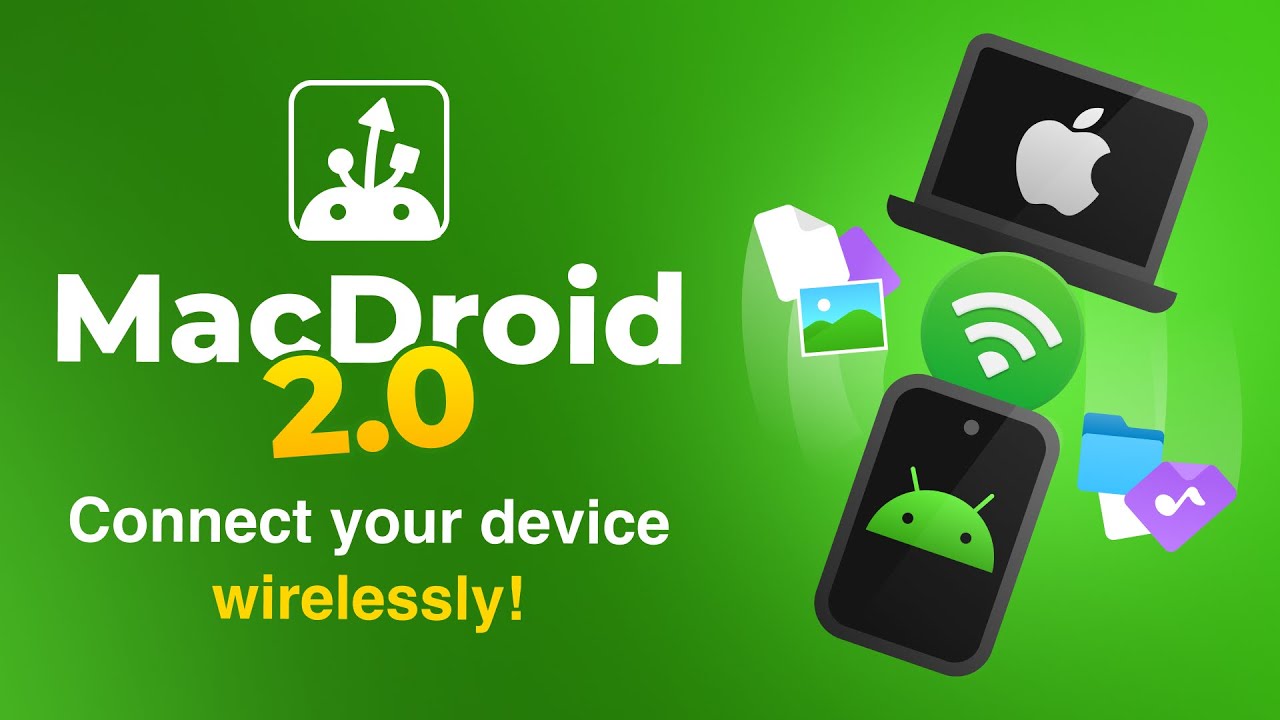
MacDroid 2.0: Wireless Android-Mac Connection 🚀
Experience seamless wireless file transfers between your Mac and Android devices with MacDroid 2.0. Say goodbye to cables!
Electronic Team, Inc.
37.6K views • May 23, 2024
About this video
Unlock a new era of connectivity with MacDroid 2.0!
🚀 Say goodbye to messy cables and hello to seamless wireless file transfers between your Mac and Android devices. Join us as we explore the innovative features of MacDroid 2.0, including MTP and ADB support, and our latest addition – Wi-Fi connection. Discover how easy it is to sync your devices without a single cable in sight!
Timestamps:
0:00 - Intro
0:07 - New Wireless Connectivity
0:32 - How to Connect Your Device Wirelessly
1:37 - Benefits of Using MacDroid 2.0
1:48 - Conclusion
MacDroid is a free solution for native file transfer between Android devices and Mac. It supports transfer technologies such as:
– MTP (Media Transfer Protocol): For exchanging information not only with Android but also with cameras, media players, and other devices supporting this protocol.
– ADB (Android Debug Bridge): A special mode for connecting Android devices that provides better stability and connection speed to your Mac. It supports multi-threaded transfer at maximum speed.
– And our latest feature: Connect via Wi-Fi for convenient wireless file transfer.
To set up the wireless connection:
1. Enable Developer Options on your Android device:
- Open Settings and go to About Phone.
- Locate the Build Number and tap it seven times.
- Enter your PIN code if prompted.
2. Enable USB Debugging:
- Return to Settings and access Developer Options.
- Find and switch on USB Debugging in the Debugging section.
3. Enable Wireless Debugging (for Android 11 and above):
- In Developer Options, enable Wireless Debugging.
- Tap on it and select Pair device with QR code.
- Scan the code displayed on your Mac screen and wait for the connection.
Your device will now be mounted in Finder without USB. You'll have full access to all the data on it and can edit files directly on the device. There's also no limit to the number of devices connected to your Mac; just add another one by clicking the “Plus” sign in the main menu of MacDroid 2.0.
👇 Download MacDroid 2.0 Now!
Website: https://www.macdroid.app/
Mac App Store: https://apple.co/3yzH1X8
Watch our other videos:
Tutorial: How to transfer files from Android to Maс - https://youtu.be/D_HgSpsYiBM
MacDroid Wi-Fi connection guide - https://youtu.be/JR523cCDiBo
How to transfer files from Android to Mac Wirelessly - https://youtu.be/znUuSadkDfg
#MacDroid #mac #macos #android #WirelessFileTransfer #AndroidToMac
🚀 Say goodbye to messy cables and hello to seamless wireless file transfers between your Mac and Android devices. Join us as we explore the innovative features of MacDroid 2.0, including MTP and ADB support, and our latest addition – Wi-Fi connection. Discover how easy it is to sync your devices without a single cable in sight!
Timestamps:
0:00 - Intro
0:07 - New Wireless Connectivity
0:32 - How to Connect Your Device Wirelessly
1:37 - Benefits of Using MacDroid 2.0
1:48 - Conclusion
MacDroid is a free solution for native file transfer between Android devices and Mac. It supports transfer technologies such as:
– MTP (Media Transfer Protocol): For exchanging information not only with Android but also with cameras, media players, and other devices supporting this protocol.
– ADB (Android Debug Bridge): A special mode for connecting Android devices that provides better stability and connection speed to your Mac. It supports multi-threaded transfer at maximum speed.
– And our latest feature: Connect via Wi-Fi for convenient wireless file transfer.
To set up the wireless connection:
1. Enable Developer Options on your Android device:
- Open Settings and go to About Phone.
- Locate the Build Number and tap it seven times.
- Enter your PIN code if prompted.
2. Enable USB Debugging:
- Return to Settings and access Developer Options.
- Find and switch on USB Debugging in the Debugging section.
3. Enable Wireless Debugging (for Android 11 and above):
- In Developer Options, enable Wireless Debugging.
- Tap on it and select Pair device with QR code.
- Scan the code displayed on your Mac screen and wait for the connection.
Your device will now be mounted in Finder without USB. You'll have full access to all the data on it and can edit files directly on the device. There's also no limit to the number of devices connected to your Mac; just add another one by clicking the “Plus” sign in the main menu of MacDroid 2.0.
👇 Download MacDroid 2.0 Now!
Website: https://www.macdroid.app/
Mac App Store: https://apple.co/3yzH1X8
Watch our other videos:
Tutorial: How to transfer files from Android to Maс - https://youtu.be/D_HgSpsYiBM
MacDroid Wi-Fi connection guide - https://youtu.be/JR523cCDiBo
How to transfer files from Android to Mac Wirelessly - https://youtu.be/znUuSadkDfg
#MacDroid #mac #macos #android #WirelessFileTransfer #AndroidToMac
Tags and Topics
Browse our collection to discover more content in these categories.
Video Information
Views
37.6K
Likes
133
Duration
1:58
Published
May 23, 2024
User Reviews
4.0
(7) Related Trending Topics
LIVE TRENDSRelated trending topics. Click any trend to explore more videos.
No specific trending topics match this video yet.
Explore All Trends