How to View All Installed Apps and Software on Windows 10 PC or Laptop
Learn a straightforward method to see every app and software installed on your Windows 10 device with this beginner-friendly guide.

Discover You
323.3K views • Jun 16, 2025
About this video
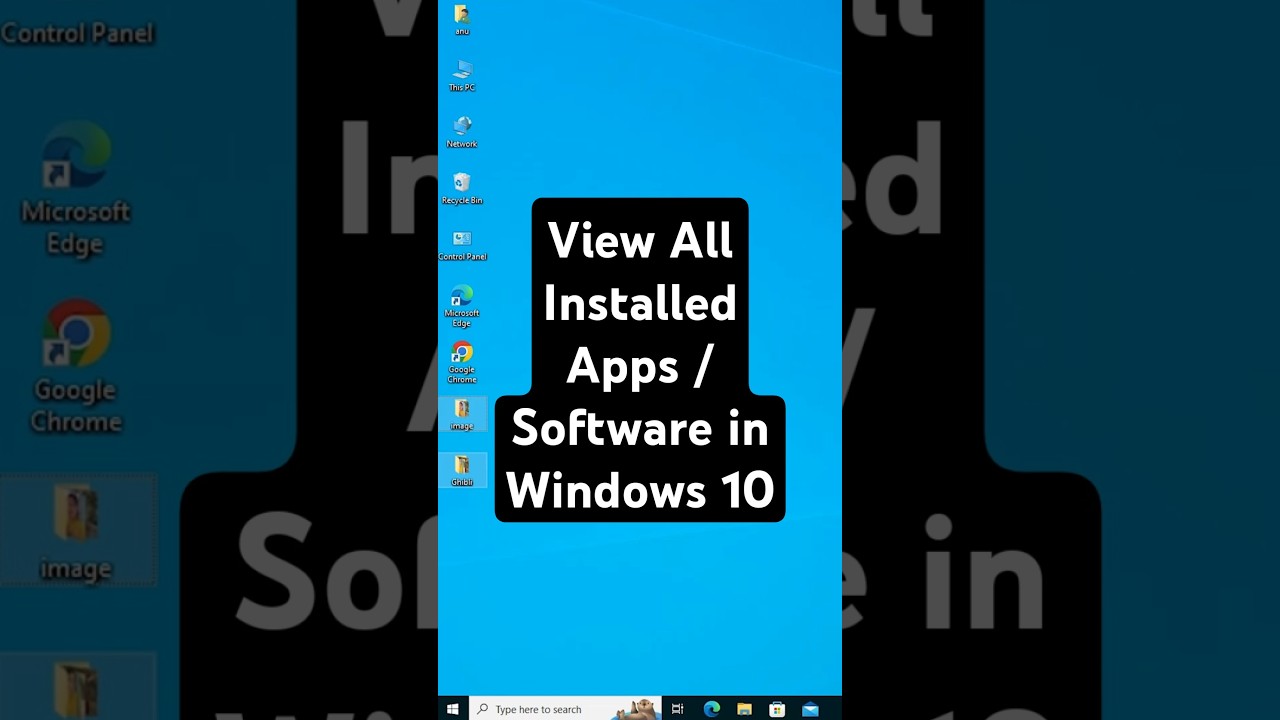
Want to see every app and software installed on your Windows 10 PC or laptop? This beginner-friendly tutorial shows you a simple trick to view all installed apps, including Microsoft Store apps, system apps, and desktop programs, in one place! Follow these easy steps to get started.
📝 Steps to View All Installed Apps in Windows 10:
Click the Start button (Windows icon) on the Taskbar.
Type Run in the search bar and press Enter to open the Run dialog box.
In the Run box, type shell:appsfolder and press Enter or click OK.
A File Explorer window will open, showing all installed apps (system apps, Microsoft Store apps, and desktop programs).
💡 Pro Tip: Pin frequently used apps to the Start menu or Taskbar for quick access!
👍 Like, subscribe, and hit the bell 🔔 for more Windows 10 tips and tech tutorials!
#Windows10 #InstalledApps #ViewSoftware #TechTutorial #WindowsTips
📝 Steps to View All Installed Apps in Windows 10:
Click the Start button (Windows icon) on the Taskbar.
Type Run in the search bar and press Enter to open the Run dialog box.
In the Run box, type shell:appsfolder and press Enter or click OK.
A File Explorer window will open, showing all installed apps (system apps, Microsoft Store apps, and desktop programs).
💡 Pro Tip: Pin frequently used apps to the Start menu or Taskbar for quick access!
👍 Like, subscribe, and hit the bell 🔔 for more Windows 10 tips and tech tutorials!
#Windows10 #InstalledApps #ViewSoftware #TechTutorial #WindowsTips
Tags and Topics
Browse our collection to discover more content in these categories.
Video Information
Views
323.3K
Likes
2.8K
Duration
0:23
Published
Jun 16, 2025
User Reviews
4.4
(64) Related Trending Topics
LIVE TRENDSRelated trending topics. Click any trend to explore more videos.
Trending Now