How to use stego pdf
Stego PDF Editor is an AI-native student productivity platform where the assistant lives inside the document itself, transforming PDFs into interactive, inte...

Stegopdf
41 views • Feb 14, 2026
About this video
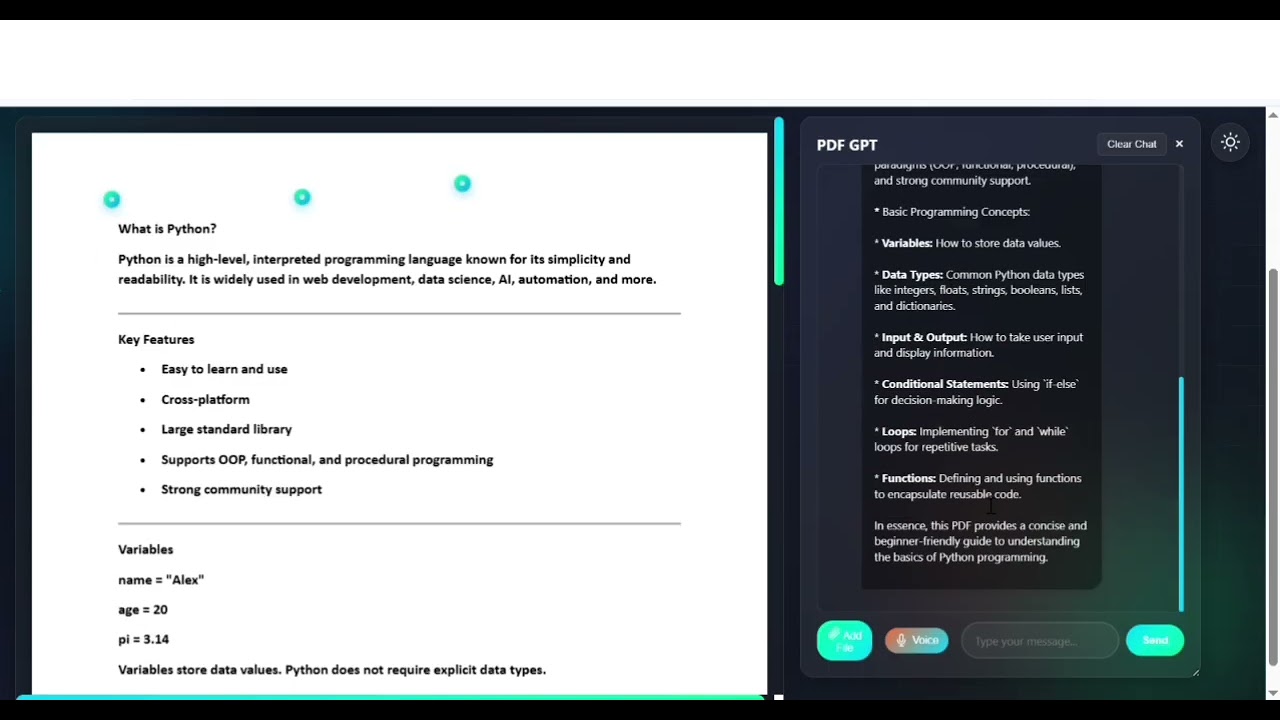
Stego PDF Editor is an AI-native student productivity platform where the assistant lives inside the document itself, transforming PDFs into interactive, intelligent study environments. The interface uses a split-view layout with an AI-aware PDF canvas on the left and an integrated chatbot on the right, where the AI automatically treats the currently opened PDF along with any uploaded PDFs, images, audio notes, and user selections as persistent contextual memory. Interactive context markers, visualized as small glowing nodes pinned to exact coordinates in the document, function as AI context anchors rather than simple annotations, enabling highly specific, content-aware questioning. A core snipping tool allows users to drag-select text or visuals from the PDF and instantly inject them into the chatbot with context tags for immediate explanation, discussion, or summarization without copy-pasting. A floating add-marker menu supports text notes, image uploads, and live voice recordings, all of which are automatically indexed into the AI’s understanding. In the background, each document undergoes a deep context scan that leverages binary object steganography, GZIP-compressed text, Base64-encoded images, and embedded audio memos stored within the document’s metadata to ensure no meaningful information is invisible to the AI. Designed to eliminate tab-switching, Stego PDF Editor creates a focused, continuous workflow where reading, annotating, and AI-driven comprehension happen seamlessly within a single academic workspace.
Video Information
Views
41
Likes
2
Duration
3:56
Published
Feb 14, 2026
Related Trending Topics
LIVE TRENDSRelated trending topics. Click any trend to explore more videos.
No specific trending topics match this video yet.
Explore All Trends