iMovie Tips for iPhone 📱
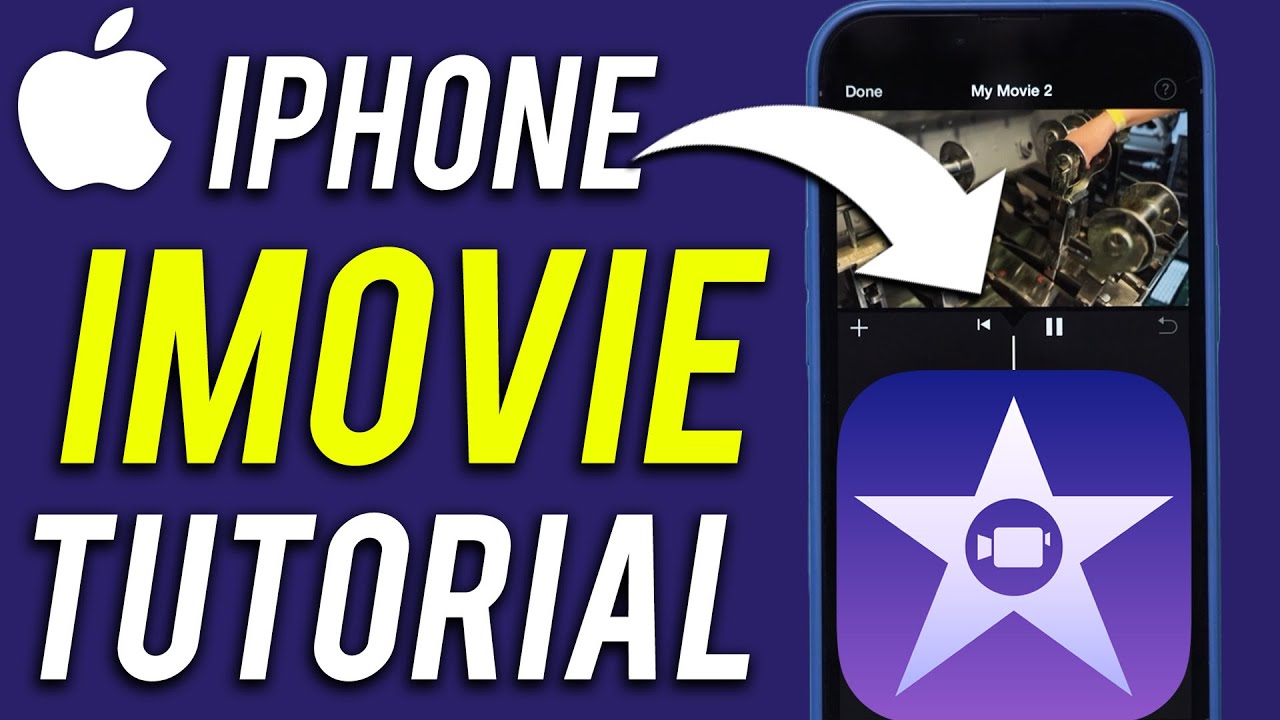
Learn how to use iMovie on your iPhone to create impressive videos with this easy guide.

Howfinity
483.5K views • Aug 21, 2022
About this video
iMovie is a simple yet powerful video editing app that can be used to produce great results on iPhone.
In this video, I'll walk you through the process of using iMovie on an iPhone in 10 simple steps and show off some tips for doing so!
1 - download and update iMovie from the App Store to the latest version.
2 - Start a new project. You can choose between Magic Movie, Storyboard, or Movie. I recommend choosing the movie to get flexible editing controls.
3 - import your footage into a project. You can use any footage you took with your iPad. But you can also sync up your iPad to iCloud and use footage your tool from your iPhone as well.
4 - get to know the iMove interface
5 - Start editing
Basic editing includes trimming footage, changing the order of clips, and so on.
6 - working with audio
You can change the audio volume to make it sound louder or turn it down to make it background music.
7 - apply transitions
Transitions could be a great way to go from one clip to another using fade, dissolve, slide, and more.
8 - apply filters
Filters can be applied per clip or to the entire project using the theme filters under project settings.
9 - add music
iMovie comes with music that you can use in your projects.
10 - exporting and sharing
Once you are done, export your video and save it to your photo library.
You can share it from there.
iMovie Tutorial for iPad:
https://youtu.be/e3-9o4Yxx-U
iMovie Tutorial for Mac:
https://youtu.be/5xsIH_7q6OQ
Full iMovie Course:
https://bit.ly/imoviecourse
Thank you for watching this video! Subscribe to see more simple and easy to follow how-to videos.
https://www.youtube.com/c/howfinity?sub_confirmation=1
Recommended YouTube Gear and tool: (includes affiliate links)
✅ YouTube gear checklist https://bit.ly/youtubestudioguide
▶️ Tubebuddy https://www.tubebuddy.com/howfinity
📲 More Tutorials https://howfinity.com
Software/platforms:
💻 Envato Elements https://1.envato.market/c/2500859/298927/4662
📷 Adobe Photoshop https://bit.ly/HowfinityCC
🎞 Adobe Premiere https://bit.ly/PremiereProHowfinityYT
🔐 VPN https://nordvpn.org/howfinity
Courses:
▶️ Grow Your Own YouTube Channel - Free Training https://bit.ly/tubementorwebinar
🎨 Photoshop Masterclass https://bit.ly/Photoshopcourse-howfinity
In this video, I'll walk you through the process of using iMovie on an iPhone in 10 simple steps and show off some tips for doing so!
1 - download and update iMovie from the App Store to the latest version.
2 - Start a new project. You can choose between Magic Movie, Storyboard, or Movie. I recommend choosing the movie to get flexible editing controls.
3 - import your footage into a project. You can use any footage you took with your iPad. But you can also sync up your iPad to iCloud and use footage your tool from your iPhone as well.
4 - get to know the iMove interface
5 - Start editing
Basic editing includes trimming footage, changing the order of clips, and so on.
6 - working with audio
You can change the audio volume to make it sound louder or turn it down to make it background music.
7 - apply transitions
Transitions could be a great way to go from one clip to another using fade, dissolve, slide, and more.
8 - apply filters
Filters can be applied per clip or to the entire project using the theme filters under project settings.
9 - add music
iMovie comes with music that you can use in your projects.
10 - exporting and sharing
Once you are done, export your video and save it to your photo library.
You can share it from there.
iMovie Tutorial for iPad:
https://youtu.be/e3-9o4Yxx-U
iMovie Tutorial for Mac:
https://youtu.be/5xsIH_7q6OQ
Full iMovie Course:
https://bit.ly/imoviecourse
Thank you for watching this video! Subscribe to see more simple and easy to follow how-to videos.
https://www.youtube.com/c/howfinity?sub_confirmation=1
Recommended YouTube Gear and tool: (includes affiliate links)
✅ YouTube gear checklist https://bit.ly/youtubestudioguide
▶️ Tubebuddy https://www.tubebuddy.com/howfinity
📲 More Tutorials https://howfinity.com
Software/platforms:
💻 Envato Elements https://1.envato.market/c/2500859/298927/4662
📷 Adobe Photoshop https://bit.ly/HowfinityCC
🎞 Adobe Premiere https://bit.ly/PremiereProHowfinityYT
🔐 VPN https://nordvpn.org/howfinity
Courses:
▶️ Grow Your Own YouTube Channel - Free Training https://bit.ly/tubementorwebinar
🎨 Photoshop Masterclass https://bit.ly/Photoshopcourse-howfinity
Tags and Topics
Browse our collection to discover more content in these categories.
Video Information
Views
483.5K
Likes
8.8K
Duration
9:34
Published
Aug 21, 2022
User Reviews
4.8
(96) Related Trending Topics
LIVE TRENDSRelated trending topics. Click any trend to explore more videos.
No specific trending topics match this video yet.
Explore All Trends