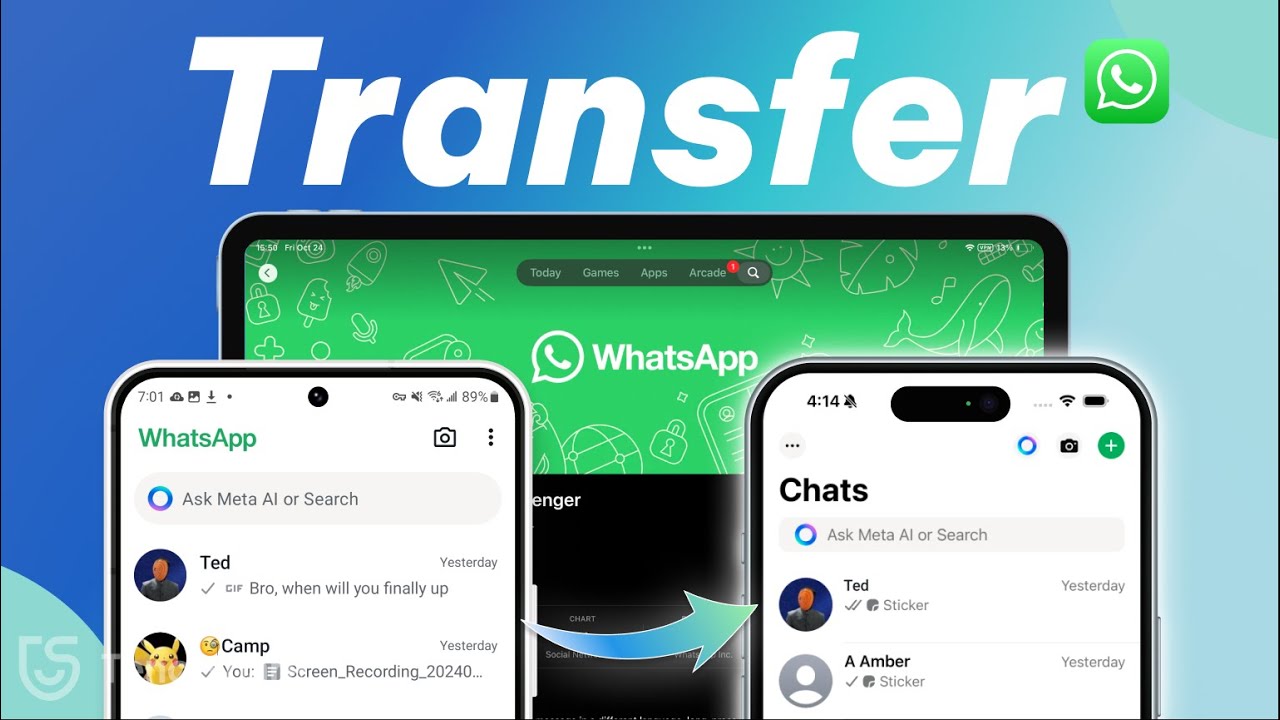
Transfer WhatsApp from Android to iPhone 17 (2025) 📱
Learn how to move WhatsApp chats from Android to iPhone 17/iPad without factory reset. Step-by-step guide for 2025.

TenorshareOfficial
3.1K views • Oct 24, 2025
About this video
✅Transfer WhatsApp from Android to iPhone 17👉 https://bit.ly/3WlwTtO
Read Text Guide Here: https://www.tenorshare.com/whatsapp-tips/how-to-transfer-whatsapp-from-android-to-iphone.html
This video is a step-by-step tutorial on how to **transfer WhatsApp data from Android to iPhone 17 or iPad without performing a factory reset**. It first introduces Apple’s **Move to iOS** app, which works for new iPhones but requires resetting, and then focuses on **iCareFone Transfer** — a professional tool that allows seamless WhatsApp migration between Android and iOS without data loss. The video guides users through connecting both devices, enabling USB debugging, generating and entering the 64-digit encryption key, and completing the transfer. It also explains how to **log in to WhatsApp on an iPad** by linking it via QR code or using iCareFone for multi-device synchronization, ensuring all chats and media are safely restored.
⏱ *TIMESTAMP*
0:00 intro
0:26 Utilize the Move to iOS App
1:01 Use iCareFone Transfer
3:03 How to Log in to WhatsApp on iPad
💡 *How to xxxx Summary / How to xxxx text guide*
Method 1: Transfer WhatsApp Using Move to iOS
Download the Move to iOS app on your Android device and connect both phones to the same Wi-Fi network. During the setup process on the new iPhone, select Move Data from Android, then enter the displayed code on your Android device. Choose WhatsApp to begin transferring chats and media. This method works well for brand-new iPhones but requires a full factory reset if the device has already been set up.
Method 2: Transfer WhatsApp Using iCareFone Transfer
Install iCareFone Transfer on your computer and connect both devices. Enable USB debugging on your Android phone, back up your WhatsApp data, and generate the 64-digit encryption key. Enter this key in iCareFone, select the data you want to move, and click Transfer. The program will copy all your chats, photos, and videos to your iPhone 17 or iPad — no reset required and no data loss.
Additional Section: How to Log In to WhatsApp on iPad
After completing the transfer, you can access WhatsApp on your iPad in two ways: by scanning a QR code through Linked Devices on your iPhone or by using iCareFone to sync WhatsApp data across multiple Apple devices. This ensures your chats and media remain accessible on both your iPhone and iPad seamlessly.
👇 *You might also want to know*
[No Factory Reset] Transfer Whatsapp:https://youtu.be/DtFw4hzB8QQ
Download WhatsApp for iPad:https://youtu.be/SV4rXp-2CwI
#tenorshare #icarefone #whatsapp #ipad
🔔 Subscribe Here (it's FREE!): https://bit.ly/30eZwvG
----------Social Media-------------
Facebook: https://www.facebook.com/TenorshareOfficial/
Twitter: https://twitter.com/Tenorshare_Inc
Pinterest: https://www.pinterest.com/Tenorshare
Instagram: https://www.instagram.com/tenorsharesoftware
TikTok: https://www.tiktok.com/@tenorshare_tech_tips
Tenorshare Official Website: https://www.tenorshare.com
Tenorshare AI Youtube: https://www.youtube.com/@TenorshareAI
Tenorshare AI Bypass: https://ai.tenorshare.com/
Free Image Background Remove: pixpretty.tenorshare.ai
Get more freebies on Discord: https://discord.com/invite/qDFjcjsDXe
Read Text Guide Here: https://www.tenorshare.com/whatsapp-tips/how-to-transfer-whatsapp-from-android-to-iphone.html
This video is a step-by-step tutorial on how to **transfer WhatsApp data from Android to iPhone 17 or iPad without performing a factory reset**. It first introduces Apple’s **Move to iOS** app, which works for new iPhones but requires resetting, and then focuses on **iCareFone Transfer** — a professional tool that allows seamless WhatsApp migration between Android and iOS without data loss. The video guides users through connecting both devices, enabling USB debugging, generating and entering the 64-digit encryption key, and completing the transfer. It also explains how to **log in to WhatsApp on an iPad** by linking it via QR code or using iCareFone for multi-device synchronization, ensuring all chats and media are safely restored.
⏱ *TIMESTAMP*
0:00 intro
0:26 Utilize the Move to iOS App
1:01 Use iCareFone Transfer
3:03 How to Log in to WhatsApp on iPad
💡 *How to xxxx Summary / How to xxxx text guide*
Method 1: Transfer WhatsApp Using Move to iOS
Download the Move to iOS app on your Android device and connect both phones to the same Wi-Fi network. During the setup process on the new iPhone, select Move Data from Android, then enter the displayed code on your Android device. Choose WhatsApp to begin transferring chats and media. This method works well for brand-new iPhones but requires a full factory reset if the device has already been set up.
Method 2: Transfer WhatsApp Using iCareFone Transfer
Install iCareFone Transfer on your computer and connect both devices. Enable USB debugging on your Android phone, back up your WhatsApp data, and generate the 64-digit encryption key. Enter this key in iCareFone, select the data you want to move, and click Transfer. The program will copy all your chats, photos, and videos to your iPhone 17 or iPad — no reset required and no data loss.
Additional Section: How to Log In to WhatsApp on iPad
After completing the transfer, you can access WhatsApp on your iPad in two ways: by scanning a QR code through Linked Devices on your iPhone or by using iCareFone to sync WhatsApp data across multiple Apple devices. This ensures your chats and media remain accessible on both your iPhone and iPad seamlessly.
👇 *You might also want to know*
[No Factory Reset] Transfer Whatsapp:https://youtu.be/DtFw4hzB8QQ
Download WhatsApp for iPad:https://youtu.be/SV4rXp-2CwI
#tenorshare #icarefone #whatsapp #ipad
🔔 Subscribe Here (it's FREE!): https://bit.ly/30eZwvG
----------Social Media-------------
Facebook: https://www.facebook.com/TenorshareOfficial/
Twitter: https://twitter.com/Tenorshare_Inc
Pinterest: https://www.pinterest.com/Tenorshare
Instagram: https://www.instagram.com/tenorsharesoftware
TikTok: https://www.tiktok.com/@tenorshare_tech_tips
Tenorshare Official Website: https://www.tenorshare.com
Tenorshare AI Youtube: https://www.youtube.com/@TenorshareAI
Tenorshare AI Bypass: https://ai.tenorshare.com/
Free Image Background Remove: pixpretty.tenorshare.ai
Get more freebies on Discord: https://discord.com/invite/qDFjcjsDXe
Tags and Topics
Browse our collection to discover more content in these categories.
Video Information
Views
3.1K
Likes
15
Duration
4:39
Published
Oct 24, 2025
User Reviews
4.0
(3) Related Trending Topics
LIVE TRENDSRelated trending topics. Click any trend to explore more videos.
No specific trending topics match this video yet.
Explore All Trends