Transfer Disk Space from D to C Drive 🖥️
Learn how to allocate disk space from the D drive to the C drive using Windows Computer Management step-by-step.

EvilComp
236.3K views • Feb 24, 2023
About this video
How to Transfer Disk Space from the D to C Drive
steps
1-Press the Windows key on the keyboard and type computer management. Don't click any search results just yet—just run the search for now.
2-Right-click Computer Management in the search results. A context menu will expand.
3-Click Run as administrator. This opens the Computer Management tool with administrative rights.
4-Click Disk Management. It's in the left panel. A list of disks and partitions will appear on the right.
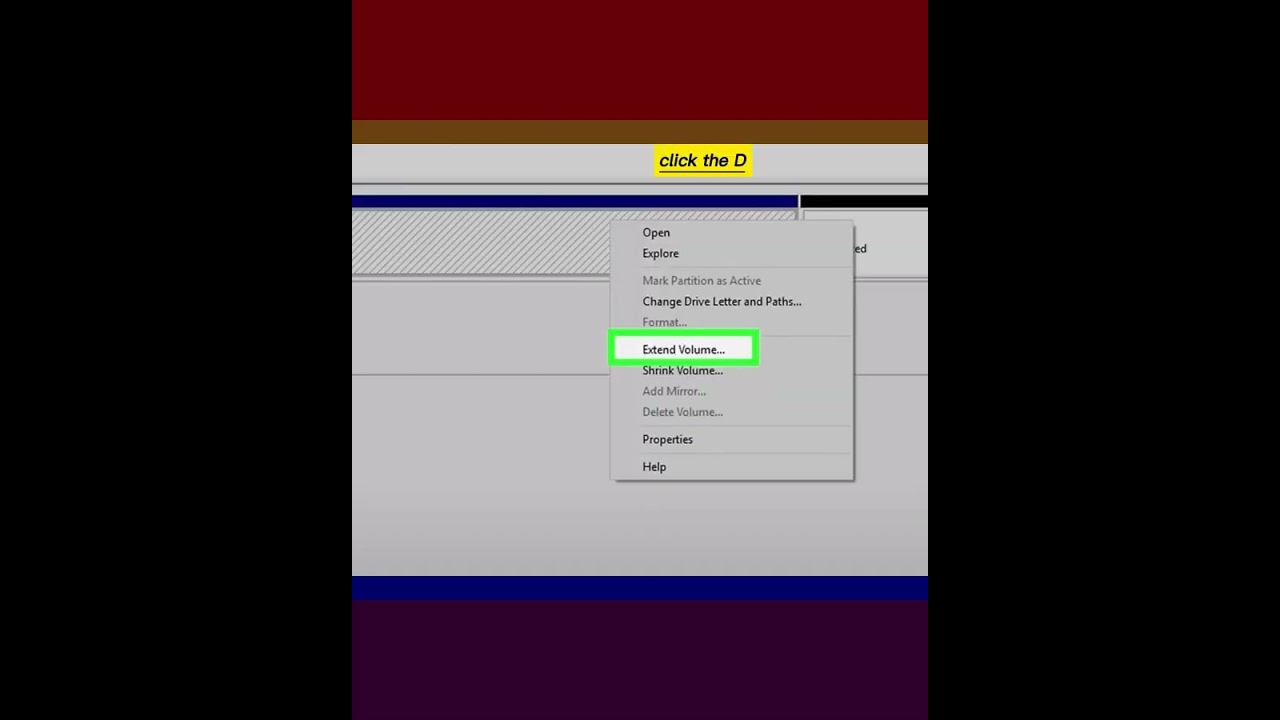
5-Right-click the D drive and select Extend Volume. This opens the Extend Volume Wizard.
6-Click Next on the Extend Volume Wizard.
7-Choose how much space you want to allocate to the C drive. The default value selects all available free space, but you can always customize this if you want to allocate less.
8-Click Next to continue. Now you'll see a confirmation screen.
9-Click Finish to extend the space to the C drive. After a few moments, the selected amount of space will be added to your C drive.
#windows #transfer #diskmanagement #diskstatus #space #drive #cdrive #ddrive #ddriver #diskspace
steps
1-Press the Windows key on the keyboard and type computer management. Don't click any search results just yet—just run the search for now.
2-Right-click Computer Management in the search results. A context menu will expand.
3-Click Run as administrator. This opens the Computer Management tool with administrative rights.
4-Click Disk Management. It's in the left panel. A list of disks and partitions will appear on the right.
5-Right-click the D drive and select Extend Volume. This opens the Extend Volume Wizard.
6-Click Next on the Extend Volume Wizard.
7-Choose how much space you want to allocate to the C drive. The default value selects all available free space, but you can always customize this if you want to allocate less.
8-Click Next to continue. Now you'll see a confirmation screen.
9-Click Finish to extend the space to the C drive. After a few moments, the selected amount of space will be added to your C drive.
#windows #transfer #diskmanagement #diskstatus #space #drive #cdrive #ddrive #ddriver #diskspace
Tags and Topics
Browse our collection to discover more content in these categories.
Video Information
Views
236.3K
Likes
6.9K
Duration
0:56
Published
Feb 24, 2023
User Reviews
4.7
(47) Related Trending Topics
LIVE TRENDSRelated trending topics. Click any trend to explore more videos.
No specific trending topics match this video yet.
Explore All Trends