How to Swap Views on a Sheet in Revit | Part 29
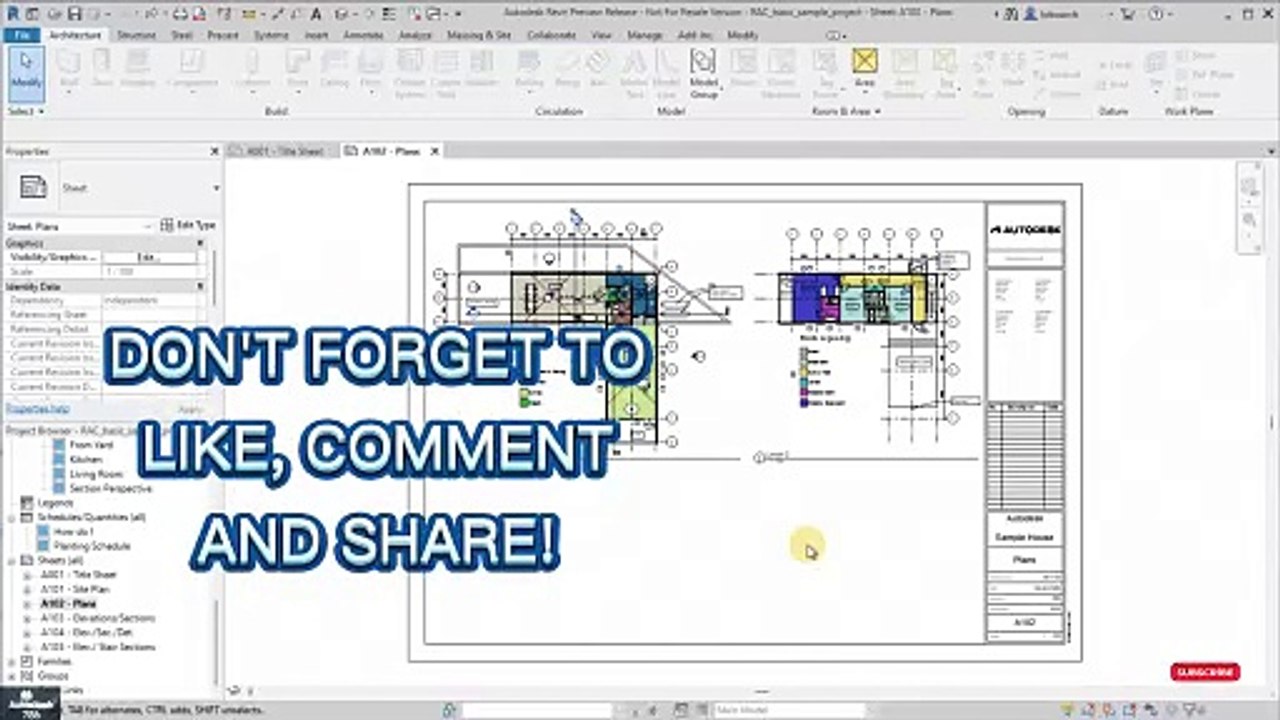
Learn the method to swap views on a sheet in Revit, including drag and drop techniques and other tips for efficient view management.
Autodesk786
684 views • Feb 27, 2025
About this video
https://dai.ly/x9dob6c<br />https://dai.ly/x9dob38<br />https://dai.ly/x9dgqem<br />https://dai.ly/x9d58e0<br />https://dai.ly/x9d2fm6<br />https://dai.ly/x9dob6c<br />Method 1: Drag and Drop (Quick Method)<br />Open the Sheet where you want to swap views.<br />In the Project Browser, go to Views and find the new view you want to place.<br />Drag the new view onto the sheet.<br />Revit will prompt:<br />"A view is already placed here. Do you want to replace it?"<br />Click Yes to swap the view.<br />Method 2: Manually Replace the View<br />Delete the existing view from the sheet.<br />Drag the new view from the Project Browser onto the sheet.<br />Adjust its position to match the previous placement.<br />Method 3: Using Guide Grids (For Accurate Placement)<br />Enable Guide Grids on the sheet for alignment.<br />Place the new view using the grid as a reference.<br />📌 Tip: Revit does not have a direct "swap" button, but these methods allow you to replace views easily while maintaining alignment
Video Information
Views
684
Duration
1:34
Published
Feb 27, 2025
Related Trending Topics
LIVE TRENDSRelated trending topics. Click any trend to explore more videos.
Trending Now