How To Split Excel Sheets Into Separate Files | Session 6
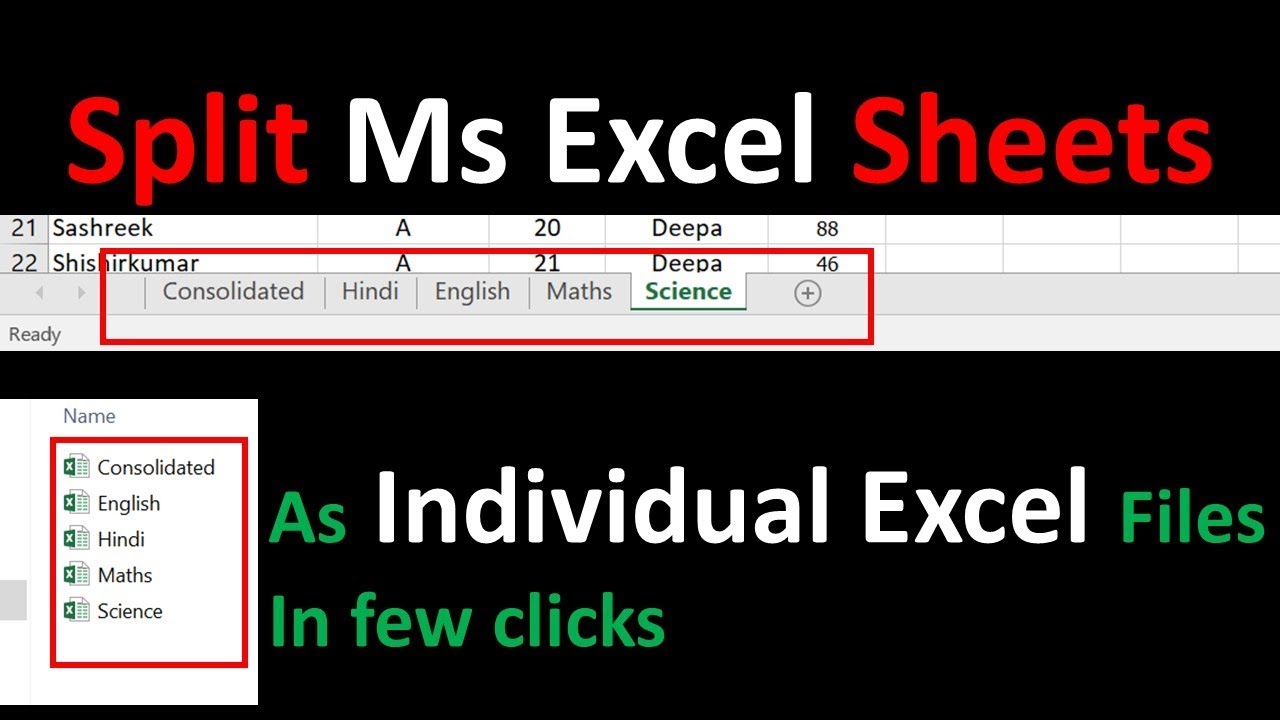
This video will show you how to separate excel sheets into separate files. Below VBA code can help to split multiple sheets of excel workbook to separate Ex...

Tech Today
79.9K views • Aug 5, 2017
About this video
This video will show you how to separate excel sheets into separate files.
Below VBA code can help to split multiple sheets of excel workbook to separate Excel files in very quick time :
1. Copy your file in a new folder which you want to split, because the split Excel files will be created at the same folder as this master file.
2. Press ALT + F11 keys on key board, and it opens the Microsoft Visual Basic Applications window.
3. Click Insert tab and select Module, paste the below mentioned code in the Module Window.
4. Press F5 key to run the commend, and the file is splited into separate Excel files in the same folder along with the original master file.
Note: Name of Main master file and names of sheets has to be always different otherwise this command will not work.
VBA Code :
Sub Splitbook()
'UpdatedbyTechtoday
Dim xPath As String
xPath = Application.ActiveWorkbook.Path
Application.ScreenUpdating = False
Application.DisplayAlerts = False
For Each xWs In ThisWorkbook.Sheets
xWs.Copy
Application.ActiveWorkbook.SaveAs Filename:=xPath & "\" & xWs.Name & ".xlsx"
Application.ActiveWorkbook.Close False
Next
Application.DisplayAlerts = True
Application.ScreenUpdating = True
End Sub
Below VBA code can help to split multiple sheets of excel workbook to separate Excel files in very quick time :
1. Copy your file in a new folder which you want to split, because the split Excel files will be created at the same folder as this master file.
2. Press ALT + F11 keys on key board, and it opens the Microsoft Visual Basic Applications window.
3. Click Insert tab and select Module, paste the below mentioned code in the Module Window.
4. Press F5 key to run the commend, and the file is splited into separate Excel files in the same folder along with the original master file.
Note: Name of Main master file and names of sheets has to be always different otherwise this command will not work.
VBA Code :
Sub Splitbook()
'UpdatedbyTechtoday
Dim xPath As String
xPath = Application.ActiveWorkbook.Path
Application.ScreenUpdating = False
Application.DisplayAlerts = False
For Each xWs In ThisWorkbook.Sheets
xWs.Copy
Application.ActiveWorkbook.SaveAs Filename:=xPath & "\" & xWs.Name & ".xlsx"
Application.ActiveWorkbook.Close False
Next
Application.DisplayAlerts = True
Application.ScreenUpdating = True
End Sub
Tags and Topics
Browse our collection to discover more content in these categories.
Video Information
Views
79.9K
Likes
851
Duration
2:38
Published
Aug 5, 2017
User Reviews
4.4
(15) Related Trending Topics
LIVE TRENDSRelated trending topics. Click any trend to explore more videos.
No specific trending topics match this video yet.
Explore All Trends