Send Files Over 25MB via Gmail on Android/iOS 📤
Learn how to send large files exceeding 25MB on Gmail using cloud storage options on Android and iOS devices.

Genie Guide
476 views • May 16, 2025
About this video
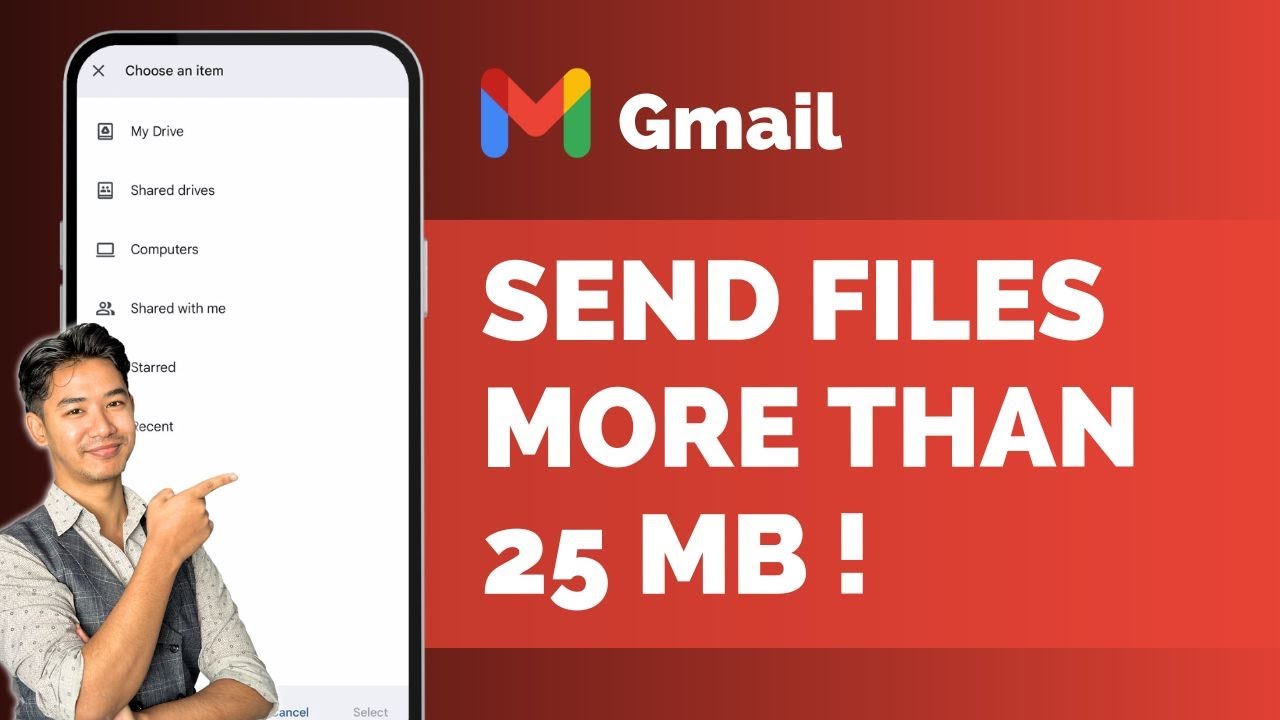
Sending large files over Gmail that exceed the 25 MB limit requires using cloud storage solutions, since Gmail itself does not allow direct attachments over that size. This tutorial shows how to send files larger than 25 MB using Google Drive, which integrates seamlessly with Gmail and works across both Android and iOS devices.
When you attempt to attach a file larger than 25 MB in Gmail, the app automatically prompts you to use Google Drive. However, to manually upload and share large files, open the Google Drive app or visit drive.google.com on your browser. Make sure you're logged in to the same Google account that you're using in Gmail.
Once inside Google Drive, tap the plus icon to upload your file. Select “Upload” and choose the large file you want to send. After the file uploads successfully, locate it in your Drive and check its sharing settings. By default, the file may be restricted, meaning only you can access it.
To make the file accessible to others, tap the three-dot menu next to the file, select “Manage access,” then tap “Change” under the access settings. Choose “Anyone with the link” to make it publicly accessible to those you send the link to. Copy the sharing link provided.
Now return to the Gmail app and compose a new email. Instead of attaching the file, paste the copied Google Drive link into the body of your email. You can include a message such as “Download the file from this Drive link,” and the recipient will be able to access and download the file directly from Google Drive.
This method is quick, secure, and supported on both iPhone and Android. While Google Drive is the most convenient option due to Gmail integration, other cloud services like iCloud, Dropbox, or MediaFire can also be used as long as they offer shareable links.
Timestamps:
0:00 Introduction
0:06 Gmail attachment limit overview
0:21 Uploading file to Google Drive
0:41 Changing file access settings
1:09 Copying and pasting Drive link into Gmail
1:26 Alternate file sharing services
1:38 Conclusion
Hashtags:
\#Gmail #SendLargeFiles #GoogleDrive #iPhoneTips #AndroidTips #EmailHelp #CloudStorage #TechTutorial
We hope this video was beneficial to you. If it did help you either, then leave a like and subscribe to the channel. If you have any more questions, queries or doubts, leave them in the comments section. Thank you very much for watching and see you soon in our next video. #genieguide
When you attempt to attach a file larger than 25 MB in Gmail, the app automatically prompts you to use Google Drive. However, to manually upload and share large files, open the Google Drive app or visit drive.google.com on your browser. Make sure you're logged in to the same Google account that you're using in Gmail.
Once inside Google Drive, tap the plus icon to upload your file. Select “Upload” and choose the large file you want to send. After the file uploads successfully, locate it in your Drive and check its sharing settings. By default, the file may be restricted, meaning only you can access it.
To make the file accessible to others, tap the three-dot menu next to the file, select “Manage access,” then tap “Change” under the access settings. Choose “Anyone with the link” to make it publicly accessible to those you send the link to. Copy the sharing link provided.
Now return to the Gmail app and compose a new email. Instead of attaching the file, paste the copied Google Drive link into the body of your email. You can include a message such as “Download the file from this Drive link,” and the recipient will be able to access and download the file directly from Google Drive.
This method is quick, secure, and supported on both iPhone and Android. While Google Drive is the most convenient option due to Gmail integration, other cloud services like iCloud, Dropbox, or MediaFire can also be used as long as they offer shareable links.
Timestamps:
0:00 Introduction
0:06 Gmail attachment limit overview
0:21 Uploading file to Google Drive
0:41 Changing file access settings
1:09 Copying and pasting Drive link into Gmail
1:26 Alternate file sharing services
1:38 Conclusion
Hashtags:
\#Gmail #SendLargeFiles #GoogleDrive #iPhoneTips #AndroidTips #EmailHelp #CloudStorage #TechTutorial
We hope this video was beneficial to you. If it did help you either, then leave a like and subscribe to the channel. If you have any more questions, queries or doubts, leave them in the comments section. Thank you very much for watching and see you soon in our next video. #genieguide
Tags and Topics
Browse our collection to discover more content in these categories.
Video Information
Views
476
Likes
1
Duration
1:46
Published
May 16, 2025
Related Trending Topics
LIVE TRENDSRelated trending topics. Click any trend to explore more videos.
Trending Now