How to Screen Record & Enable Microphone on iPhone?
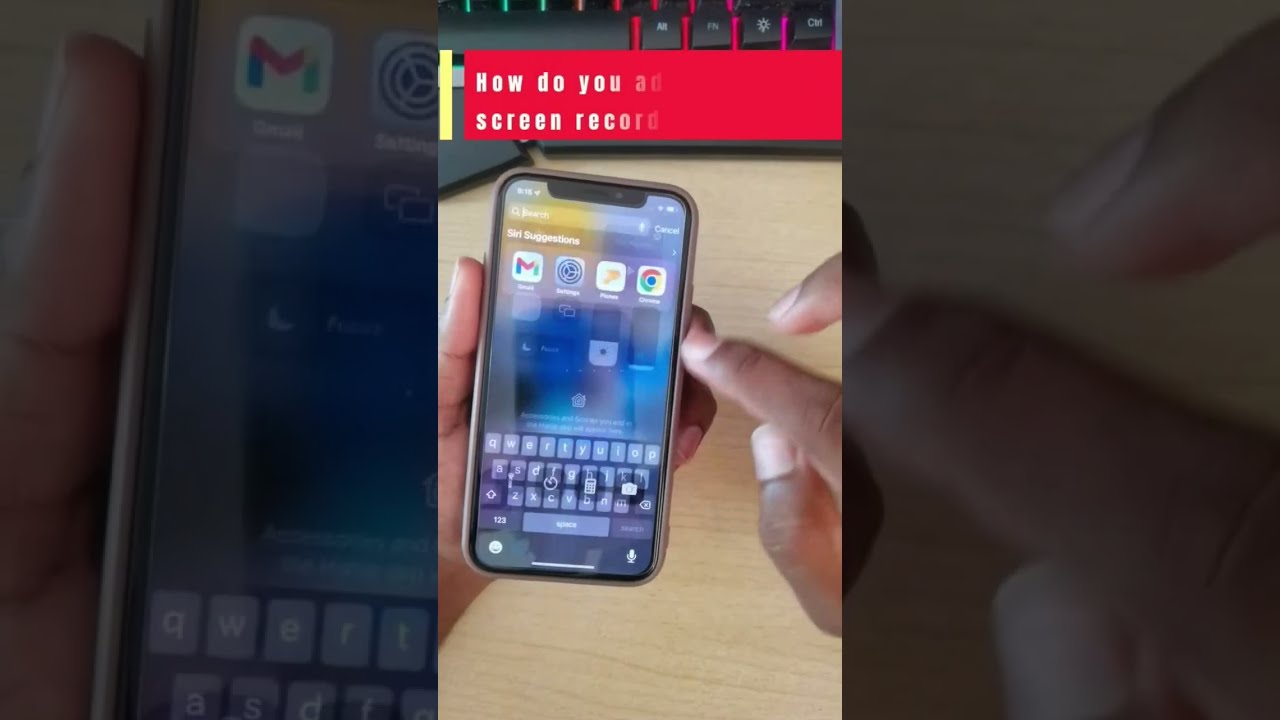
This video shows you how to enable screen recording on iPhone and the mic. Open the Settings app on your iPhone. Tap Control Center. Tap Customize Controls...
Roarion
9.2M views • Jul 29, 2022
About this video
This video shows you how to enable screen recording on iPhone and the mic.
Open the Settings app on your iPhone.
Tap Control Center.
Tap Customize Controls.
Tap the green "+" next to Screen Recording.
Now, when you open Control Center, you'll see the Screen Recording icon next to the other shortcuts. Tap it, then tap Start Recording. Your recording will start immediately. To stop, open Control Center and tap the Screen Recording shortcut again.
To record your voice during the recording, tap the Microphone button in Control Center before you start recording. A blue microphone icon will appear onscreen to let you know that sound is being recorded.
You can also enable the screen recording feature by long-pressing the Screen Recording shortcut in Control Center. A menu will appear with options to turn on the microphone, start the recording immediately, or cancel the action.
Open the Settings app on your iPhone.
Tap Control Center.
Tap Customize Controls.
Tap the green "+" next to Screen Recording.
Now, when you open Control Center, you'll see the Screen Recording icon next to the other shortcuts. Tap it, then tap Start Recording. Your recording will start immediately. To stop, open Control Center and tap the Screen Recording shortcut again.
To record your voice during the recording, tap the Microphone button in Control Center before you start recording. A blue microphone icon will appear onscreen to let you know that sound is being recorded.
You can also enable the screen recording feature by long-pressing the Screen Recording shortcut in Control Center. A menu will appear with options to turn on the microphone, start the recording immediately, or cancel the action.
Tags and Topics
Browse our collection to discover more content in these categories.
Video Information
Views
9.2M
Likes
34.3K
Duration
0:16
Published
Jul 29, 2022
User Reviews
4.3
(1839) Related Trending Topics
LIVE TRENDSRelated trending topics. Click any trend to explore more videos.