How To Reverse Indent On Google Docs
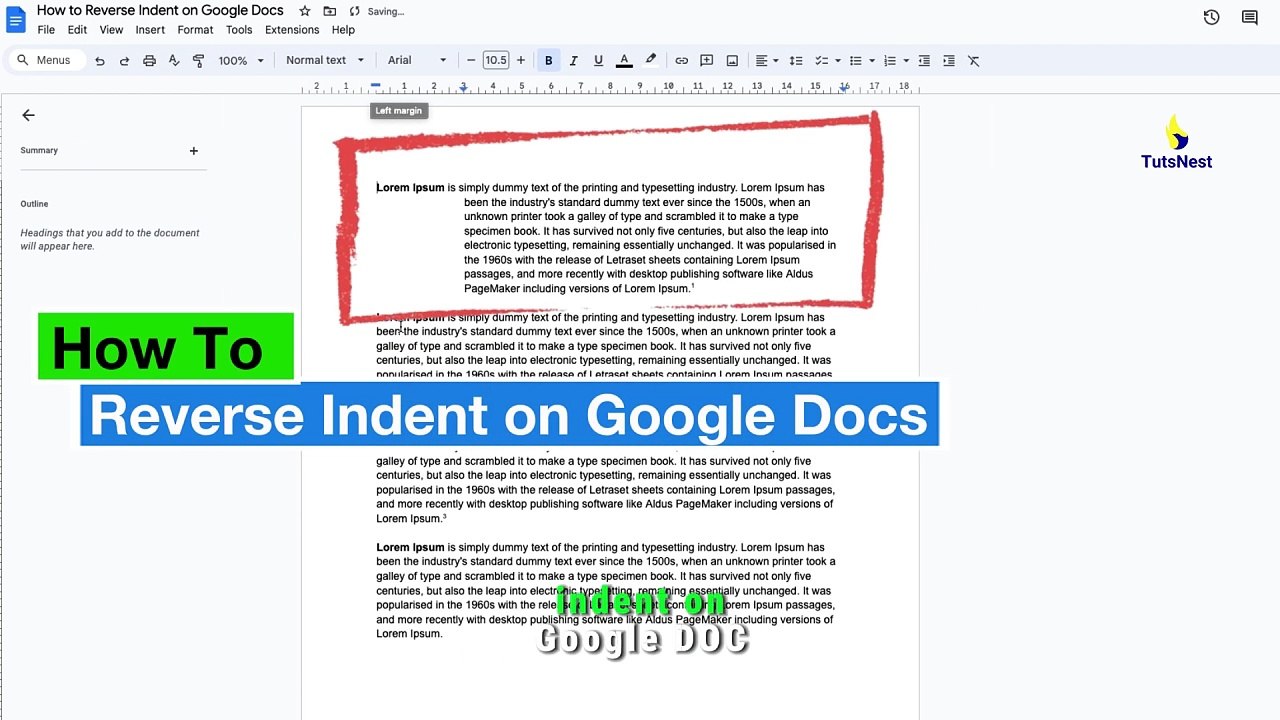
How To Reverse Indent On Google DocsWelcome to Tuts Nest! In this tutorial, we'll guide you through the process of reverse indenting in Google Docs. Whether...
TutsNest
14 views • Feb 17, 2024
About this video
How To Reverse Indent On Google Docs<br /><br />Welcome to Tuts Nest! In this tutorial, we'll guide you through the process of reverse indenting in Google Docs. Whether you're formatting a block quote, creating a hanging indent for citations, or simply want to adjust the indentation of specific paragraphs, mastering reverse indentation is a useful skill. Let's dive into the step-by-step guide!<br /><br /> Key Points Covered:<br />- Introduction to reverse indenting in Google Docs<br />- Step-by-step guide on applying reverse indents<br />- Customizing the level of reverse indentation<br />- Tips for efficient use of reverse indentation in documents<br /><br /> Timestamps:<br />0:00 - Introduction to Reverse Indenting in Google Docs<br />0:10 - Accessing Paragraph Formatting Options<br />0:20 - Applying Reverse Indents<br /><br />Step 1: Open Your Document<br />Begin by opening the Google Docs document where you want to apply reverse indents. If you're starting a new document, create one by navigating to 'File' - 'New' - 'Document.'<br /><br />Step 2: Access Paragraph Formatting Options<br />"Next, explore the 'Format' option in the top menu bar. Click on it and find 'Paragraph' in the dropdown menu."<br /><br />Step 3: Applying Reverse Indents<br />"In the 'Paragraph' options, locate and click on 'Special indentation.' Choose 'Hanging' to create a reverse indent for the selected paragraphs."<br /><br />Step 4: Customize Reverse Indent Levels<br />"Learn how to customize the level of reverse indentation by adjusting the 'Before' spacing to achieve the desired layout."<br /><br />Step 5: Tips for Efficient Use of Reverse Indentation<br />"Explore tips for using reverse indentation efficiently, such as creating professional-looking documents, emphasizing key points, or formatting quotes."<br /><br />Reverse indenting in Google Docs is now a seamless process, and with these simple steps, you'll be enhancing the visual appeal of your documents in no time.<br /><br />If you found this tutorial helpful, don't forget to give it a thumbs up, subscribe for more tutorials, and hit the notification bell to stay updated.<br /><br />Thanks for watching, and happy document editing!<br /><br />#GoogleDocsTutorial #ReverseIndenting #DocumentEditing #TutsNestTutorial #FormattingTips #LearnWithTutsNest #TechTutorial #GoogleDocsHowTo #DocumentTips #ProductivityHacks #DigitalProductivity #GoogleWorkspace #TutsNestTips
Video Information
Views
14
Duration
0:40
Published
Feb 17, 2024
Related Trending Topics
LIVE TRENDSRelated trending topics. Click any trend to explore more videos.
No specific trending topics match this video yet.
Explore All Trends