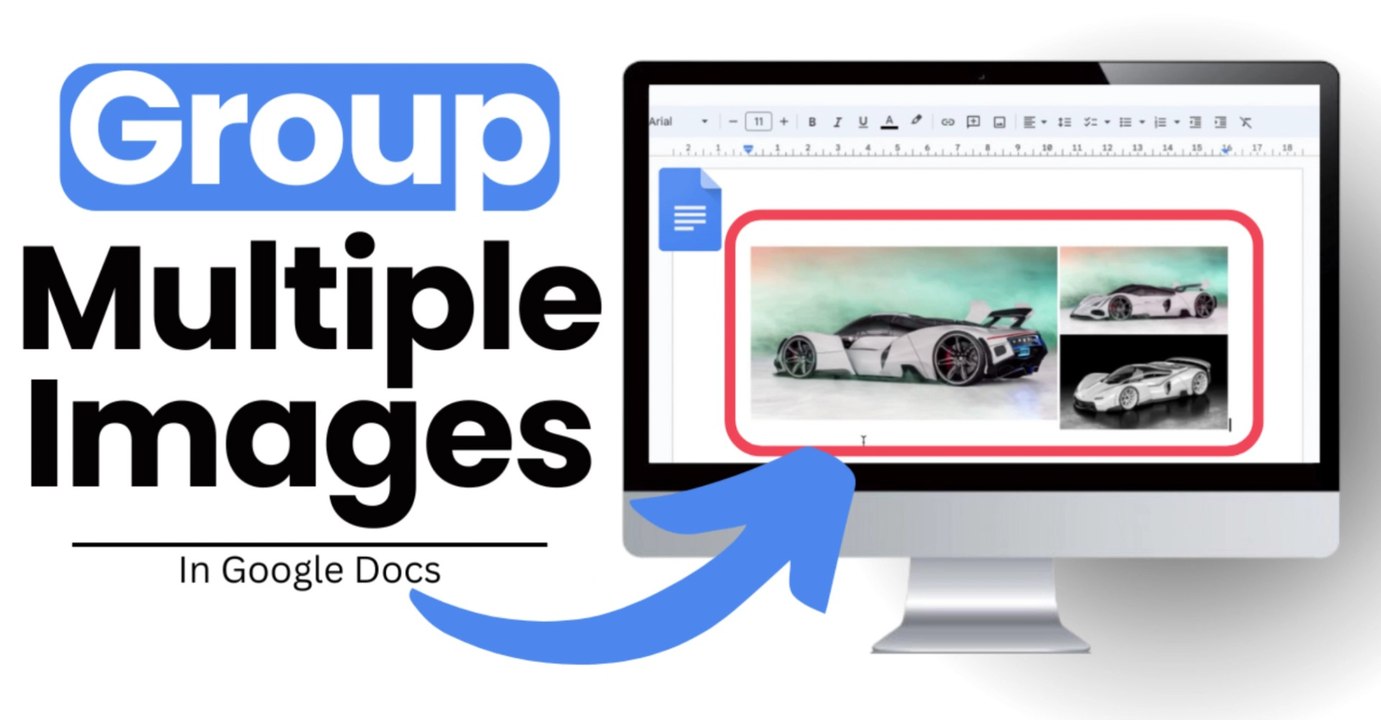
How to Put Multiple Images Together in Google Docs
How to Put Multiple Images Together in Google DocsWelcome to Tuts Nest!In this video, I'll show you the easiest way to put multiple images together in Google...
TutsNest
517 views • Jul 15, 2024
About this video
How to Put Multiple Images Together in Google Docs<br /><br />Welcome to Tuts Nest!<br /><br />In this video, I'll show you the easiest way to put multiple images together in Google Docs using the Drawing tool. This method allows you to treat multiple images as a single element, making your document editing process more efficient.<br /><br />**Timestamps:**<br /><br />00:00 - Intro <br />00:08 - Opening a New Document <br />00:22 - Inserting a Drawing <br />00:33 - Adding Images to the Drawing Canvas <br />00:48 - Resizing and Arranging Images <br />01:25 - Saving and Closing the Drawing <br />01:35 - Applying Text Wrapping <br />01:48 - Editing the Grouped Images <br />02:15 - Outro and CTA<br /><br />**Steps to Put Multiple Images Together in Google Docs:**<br /><br />1. Introduction<br /> <br />2. Opening a New Document<br /> - Start with a blank new document or use your existing document if you have one.<br /><br />3. Inserting a Drawing<br /> - Go to "Insert," then "Drawing," and select "New."<br /><br />4. Adding Images to the Drawing Canvas<br /> - Click on the image icon and select images from your desired source (e.g., internet, computer).<br /> - Insert each image one at a time.<br /><br />5. Resizing and Arranging Images<br /> - Resize each image as needed and arrange them on the drawing canvas.<br /> - Repeat the process to insert multiple images.<br /><br />6. Saving and Closing the Drawing<br /> - Once done, click "Save and Close" to merge the images together into a single element.<br /><br />7. Applying Text Wrapping<br /> - Apply text wrapping to the grouped images to make them easier to move around in the document.<br /><br />8. Editing the Grouped Images<br /> - To add or remove images, click on the grouped element and select "Edit." This will bring you back to the Drawing Canvas where you can modify the images.<br /><br />9. Final Thoughts and Outro<br /> - That's it! Thank you for watching. <br /><br /><br /> , : <br /> !<br /><br />' , , ! <br /><br />#GoogleDocs #ImageEditing #TutsNest #DrawingTool #GoogleDocsTutorial #Subscribe #Like #Comment #Share<br />#Tutorial #GoogleDocsTutorial #TutsNest #GoogleDocsHowTo #ProductivityHacks #DigitalProductivity #GoogleWorkspace
Video Information
Views
517
Duration
2:47
Published
Jul 15, 2024
Related Trending Topics
LIVE TRENDSRelated trending topics. Click any trend to explore more videos.
No specific trending topics match this video yet.
Explore All Trends