Master Rotating Text in After Effects: Create Circular Animations Easily 🎨
Learn step-by-step how to rotate text around a circle or object in Adobe After Effects. Perfect your animations and add dynamic motion to your projects!

David Lindgren
759 views • Jun 9, 2025
About this video
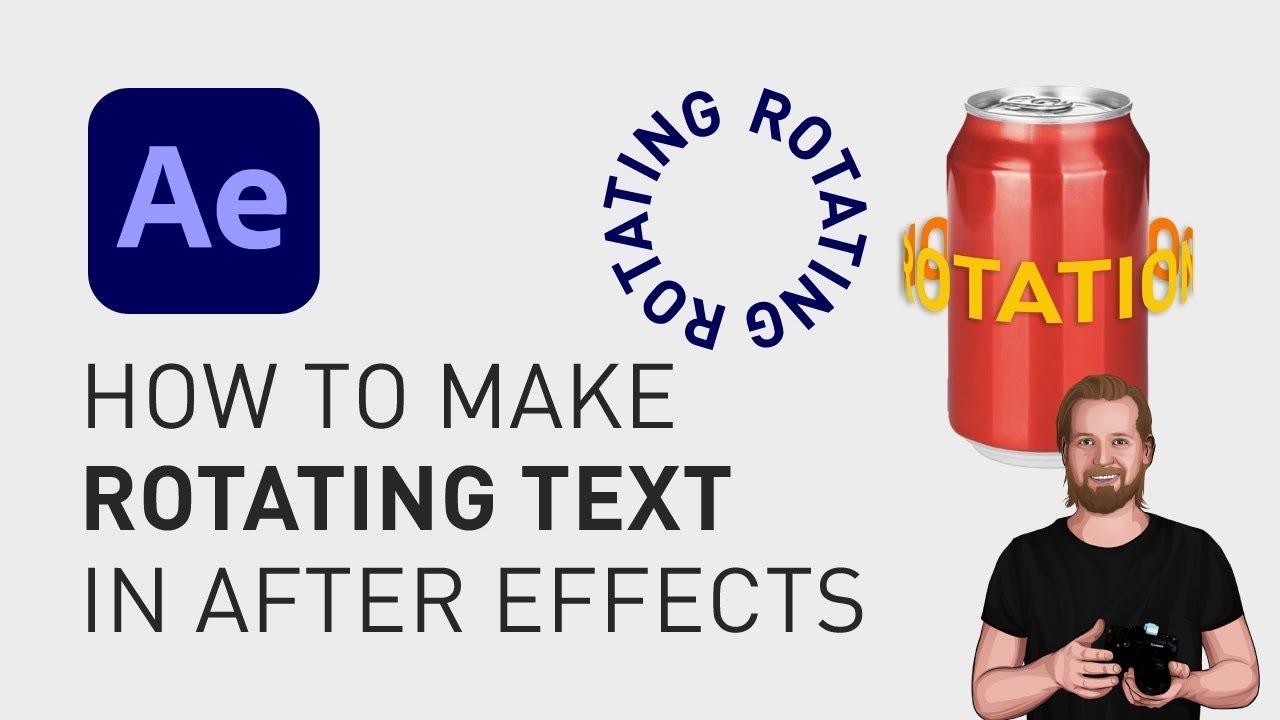
How do you rotate a text around a circle or an object in Adobe After Effects? Well let’s find out!
First, to rotate a text around a circle, select your text in the timeline window and create a circle in the “Composition” window using the “Shape tool”.
Doing this while having the text selected will create a mask inside your text layer and if you don’t have the text selected, it will create a shape in a separate layer instead.
Now, in the text layer, go to “Text”, “Path Options”, and change “Path” to the Mask you just created to place the text on the inside of the circle.
To move the text to the outside of the circle, simply click on the text “Off” next to “Reverse Path” so it says “On” instead.
Then, to wrap the text around the whole circle, click on the text “Off” next to “Force Alignment”.
And if you want to adjust the gap between the characters, you can just switch to the “Type tool” and type in the same word again in the same text layer, and then go back to the text layer and click and drag the number next to “First margin” to adjust the gap between the first and the last character.
Now, to make the text rotate, go “Transform” at the bottom of the “Text layer” and click the stopwatch next to “Rotation” to set a starting keyframe and then move the playhead to the end of the composition and change the value to add a second keyframe.
To make a text rotate around an object i 3D space, start by adding the effect “CC Cylinder” to the text.
Then, inside that effect, go to “Rotation” and change “Rotation X” to match the angle of the object you want it to rotate around.
The color of the text will get a bit of a “shade” when you add this effect, to “sell” the effect even more, but if you want to remove the “Shading”, just go to “Shading” (underneath “Rotation”) and change “Ambient” to 100.
Then, go down to “Transform” and change “Scale” to adjust the size of the text and if the text doesn’t go all the way around the object now, just type the word again in the same layer to “fill out” the circle.
To rotate this text, add keyframes to the “Rotation Y” property at the start and end of the composition.
And finally, to place your object in the middle of this text, duplicate the “Text layer”, place your object or image between the two text layers in the “Timeline” window and then select the “Text layer” above the object, go to the “CC Cylinder” effect inside that layer and change the “Render” to “Outside”.
And to learn more text animations in After Effects, check the video I will link here on the screen and don’t forget to subscribe!
**********
EXCLUSIVE RESOURCES FOR VIDEO CREATORS:
🎞 FREE (and paid) digital products for video creators:
https://davidlindgren89.gumroad.com/
🎁 FREE browser extension for YouTube Growth:
https://www.tubebuddy.com/davidlindgren1989&x=homepage
🎵 2 extra months of music library "Artlist" for FREE:
https://artlist.io/David-121249
🧠 Learn more about Adobe Premiere Pro:
https://www.youtube.com/watch?v=ExOzQ6uCso0&list=PLgJlbAYg0mEkXrbeSUcXFU8ax-y-21Ndb
🧠 Learn more about Adobe After Effects:
https://www.youtube.com/playlist?list=PLgJlbAYg0mEnZDvh9LUAz-t0rAjCgH8IQ
**********
📲 CONNECT WITH ME HERE:
► https://youtube.com/davidlindgren89
► https://facebook.com/davidlindgren89
► https://instagram.com/davidlindgren89
► https://twitter.com/davidlindgren89
► https://medium.com/@davidlindgren89
**********
DISCLAIMER: This video and description might contain affiliate links, meaning if you click any of the product links, I'll receive a small commission. This helps support the channel and allows me to continue making videos like this. Thank You for your support! 🙏
(All links are my genuine recommendations.)
#AfterEffects #RotateText #HowToAfterEffects #AfterEffectsTutorials
First, to rotate a text around a circle, select your text in the timeline window and create a circle in the “Composition” window using the “Shape tool”.
Doing this while having the text selected will create a mask inside your text layer and if you don’t have the text selected, it will create a shape in a separate layer instead.
Now, in the text layer, go to “Text”, “Path Options”, and change “Path” to the Mask you just created to place the text on the inside of the circle.
To move the text to the outside of the circle, simply click on the text “Off” next to “Reverse Path” so it says “On” instead.
Then, to wrap the text around the whole circle, click on the text “Off” next to “Force Alignment”.
And if you want to adjust the gap between the characters, you can just switch to the “Type tool” and type in the same word again in the same text layer, and then go back to the text layer and click and drag the number next to “First margin” to adjust the gap between the first and the last character.
Now, to make the text rotate, go “Transform” at the bottom of the “Text layer” and click the stopwatch next to “Rotation” to set a starting keyframe and then move the playhead to the end of the composition and change the value to add a second keyframe.
To make a text rotate around an object i 3D space, start by adding the effect “CC Cylinder” to the text.
Then, inside that effect, go to “Rotation” and change “Rotation X” to match the angle of the object you want it to rotate around.
The color of the text will get a bit of a “shade” when you add this effect, to “sell” the effect even more, but if you want to remove the “Shading”, just go to “Shading” (underneath “Rotation”) and change “Ambient” to 100.
Then, go down to “Transform” and change “Scale” to adjust the size of the text and if the text doesn’t go all the way around the object now, just type the word again in the same layer to “fill out” the circle.
To rotate this text, add keyframes to the “Rotation Y” property at the start and end of the composition.
And finally, to place your object in the middle of this text, duplicate the “Text layer”, place your object or image between the two text layers in the “Timeline” window and then select the “Text layer” above the object, go to the “CC Cylinder” effect inside that layer and change the “Render” to “Outside”.
And to learn more text animations in After Effects, check the video I will link here on the screen and don’t forget to subscribe!
**********
EXCLUSIVE RESOURCES FOR VIDEO CREATORS:
🎞 FREE (and paid) digital products for video creators:
https://davidlindgren89.gumroad.com/
🎁 FREE browser extension for YouTube Growth:
https://www.tubebuddy.com/davidlindgren1989&x=homepage
🎵 2 extra months of music library "Artlist" for FREE:
https://artlist.io/David-121249
🧠 Learn more about Adobe Premiere Pro:
https://www.youtube.com/watch?v=ExOzQ6uCso0&list=PLgJlbAYg0mEkXrbeSUcXFU8ax-y-21Ndb
🧠 Learn more about Adobe After Effects:
https://www.youtube.com/playlist?list=PLgJlbAYg0mEnZDvh9LUAz-t0rAjCgH8IQ
**********
📲 CONNECT WITH ME HERE:
► https://youtube.com/davidlindgren89
► https://facebook.com/davidlindgren89
► https://instagram.com/davidlindgren89
► https://twitter.com/davidlindgren89
► https://medium.com/@davidlindgren89
**********
DISCLAIMER: This video and description might contain affiliate links, meaning if you click any of the product links, I'll receive a small commission. This helps support the channel and allows me to continue making videos like this. Thank You for your support! 🙏
(All links are my genuine recommendations.)
#AfterEffects #RotateText #HowToAfterEffects #AfterEffectsTutorials
Tags and Topics
Browse our collection to discover more content in these categories.
Video Information
Views
759
Likes
35
Duration
2:36
Published
Jun 9, 2025
Related Trending Topics
LIVE TRENDSRelated trending topics. Click any trend to explore more videos.
No specific trending topics match this video yet.
Explore All Trends