Enable Auto-Calculation in Excel 2010
Learn how to set Excel 2010 formulas to calculate automatically for seamless updates. Visit http://howtech.tv/ for more tips! 📊
Excel, Word and PowerPoint Tutorials from Howtech
704.6K views • Jan 16, 2013
About this video
This tutorial will show you how to make your formulas calculate automatically in Microsoft Excel
Don't forget to check out our site http://howtech.tv/ for more free how-to videos!
http://youtube.com/ithowtovids - our feed
http://www.facebook.com/howtechtv - join us on facebook
https://plus.google.com/103440382717658277879 - our group in Google+
The default setting is for formulas to automatically calculate in Excel. This tutorial will show you how to make excel formulas calculate automatically if this setting has become deactivated.
Step # 1 -- Opening a Simple Spreadsheet
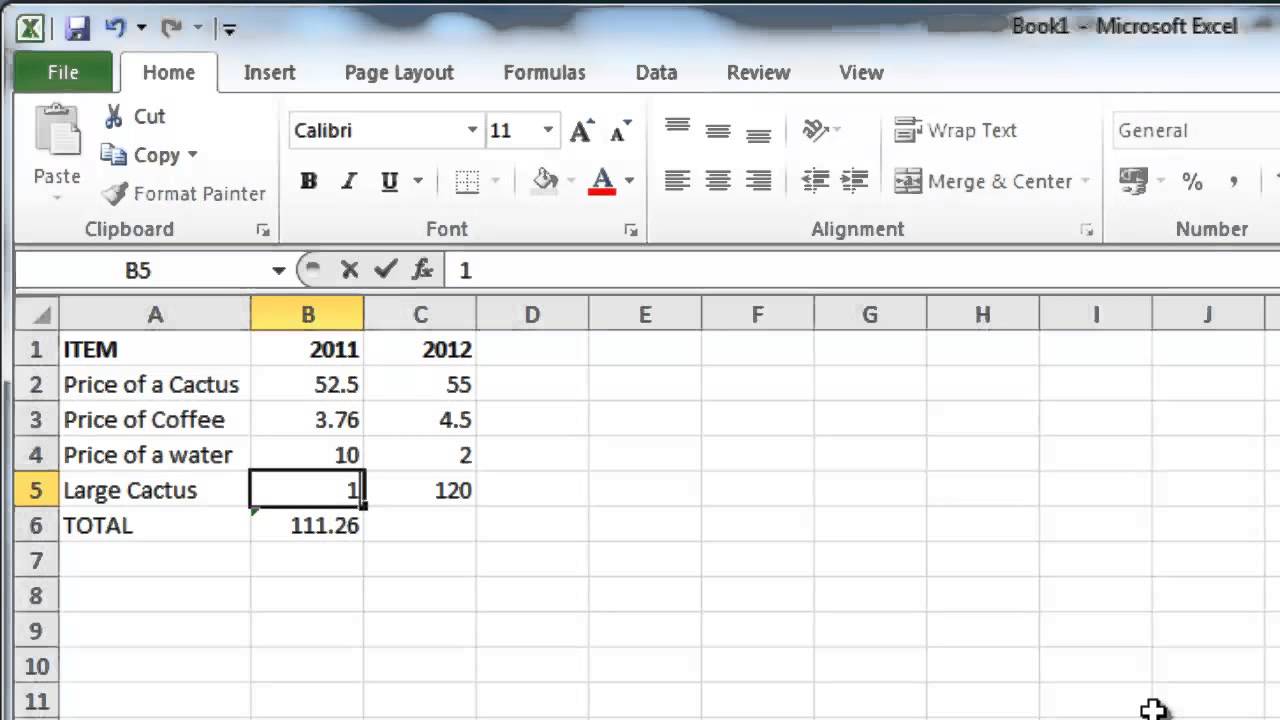
Start MS Excel and load a sheet with some information. Here you can see some price information about some simple goods and a total row utilizing the SUM formula. Normally when we change one of the values, the "TOTAL" will change as the SUM formula will update it automatically. Here we can see that this is not happening, even when we change a value to "100".
Step # 2 -- Switching on Automatic Formulas
To enable the automatic calculation of formulas you need to click on the "Formulas" tab in the main menu, from here you need to go to the "Calculation" area and click on the "Calculation Options" icon, in the drop down list click on the "Automatic" option.
Step # 3 -- Seeing the Changes Applied
As formulas will now be calculating automatically you will see the "TOTAL" column automatically adjust to a larger number as the SUM formula takes into account the new figures. From this point on all formulas will calculate on their own and that is how to make excel formulas calculate automatically.
Don't forget to check out our site http://howtech.tv/ for more free how-to videos!
http://youtube.com/ithowtovids - our feed
http://www.facebook.com/howtechtv - join us on facebook
https://plus.google.com/103440382717658277879 - our group in Google+
The default setting is for formulas to automatically calculate in Excel. This tutorial will show you how to make excel formulas calculate automatically if this setting has become deactivated.
Step # 1 -- Opening a Simple Spreadsheet
Start MS Excel and load a sheet with some information. Here you can see some price information about some simple goods and a total row utilizing the SUM formula. Normally when we change one of the values, the "TOTAL" will change as the SUM formula will update it automatically. Here we can see that this is not happening, even when we change a value to "100".
Step # 2 -- Switching on Automatic Formulas
To enable the automatic calculation of formulas you need to click on the "Formulas" tab in the main menu, from here you need to go to the "Calculation" area and click on the "Calculation Options" icon, in the drop down list click on the "Automatic" option.
Step # 3 -- Seeing the Changes Applied
As formulas will now be calculating automatically you will see the "TOTAL" column automatically adjust to a larger number as the SUM formula takes into account the new figures. From this point on all formulas will calculate on their own and that is how to make excel formulas calculate automatically.
Tags and Topics
Browse our collection to discover more content in these categories.
Video Information
Views
704.6K
Likes
1.2K
Duration
1:13
Published
Jan 16, 2013
User Reviews
4.1
(140) Related Trending Topics
LIVE TRENDSRelated trending topics. Click any trend to explore more videos.
No specific trending topics match this video yet.
Explore All Trends