How to Make an Image Full Page in Google Docs
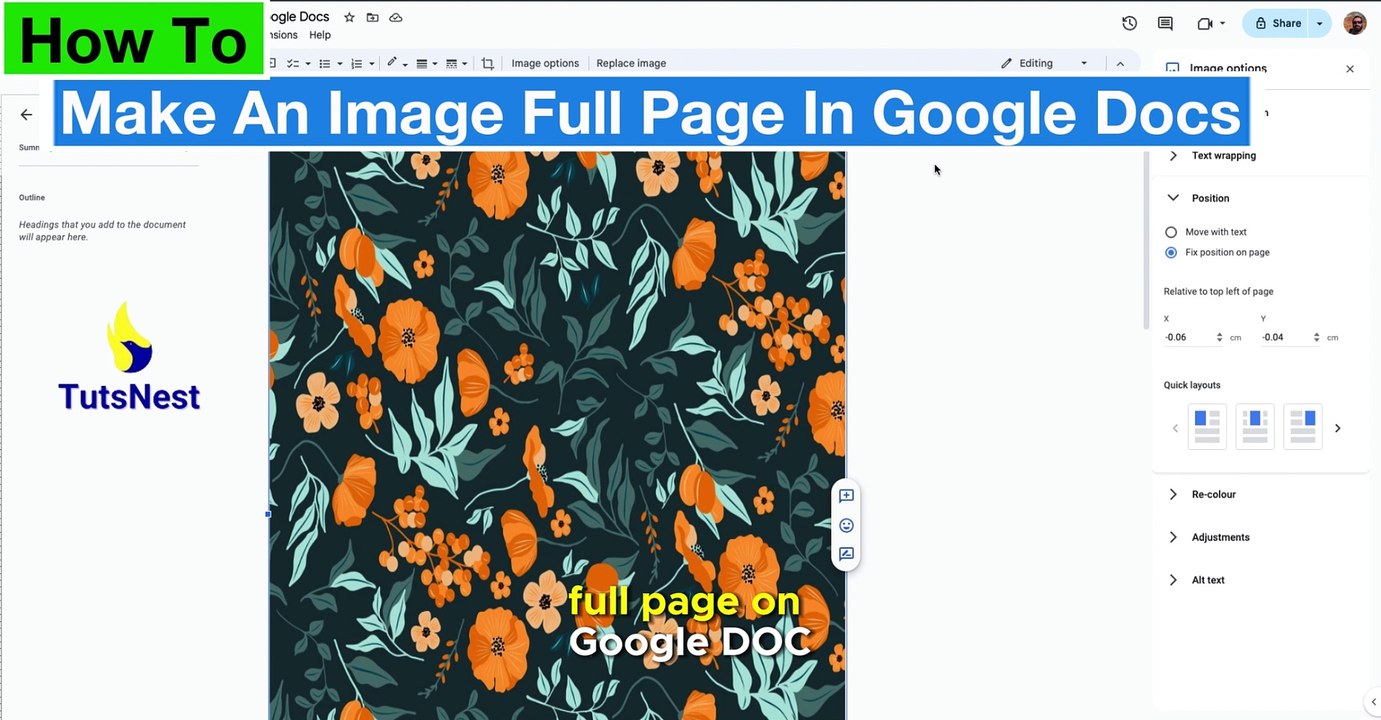
Learn how to easily make an image fill the entire page in Google Docs with this simple tutorial from Tuts Nest.
TutsNest
540 views • Mar 24, 2024
About this video
How To Make An Image Full Page In Google Docs .<br />Transform your Google Docs with this easy tutorial from Tuts Nest! Learn how to make an image fill the entire page effortlessly.<br /><br />There may be a time you want to add a photo or picture and have it fill up the entire page of a Google Doc. <br /><br />Follow the simple steps in the video to learn how:<br /><br />1. Adding the Image: Insert your image into the document (Insert - Image - Upload from computer).<br />2. Adjusting Image Options: Click on the image and select "Image Options".<br />3. Setting Text Wrapping: In the settings panel, navigate to "Text Wrapping" and select "Wrap Text".<br />4. Zeroing Margins: Adjust the "Margins from text" settings to all zeros.<br />5. Fixing Position: Set the Position to "Fix position to page".<br />6. Resize to Fit: Finally, drag the corners of the image to resize it to the full page.<br /><br />Don't forget to hit like if you found this tutorial helpful, comment with any questions or feedback, and subscribe to Tuts Nest for more insightful Google Docs tips and tricks! #googledocstutorial <br /> #Tutorial #ImageEditing #TutsNest
Video Information
Views
540
Duration
1:22
Published
Mar 24, 2024
Related Trending Topics
LIVE TRENDSRelated trending topics. Click any trend to explore more videos.
No specific trending topics match this video yet.
Explore All Trends