Mail Merge in Gmail & Google Sheets 📧
Learn how to send bulk emails using Mail Merge in Gmail with Google Sheets for efficient communication.

Technologiate
77.4K views • Dec 4, 2023
About this video
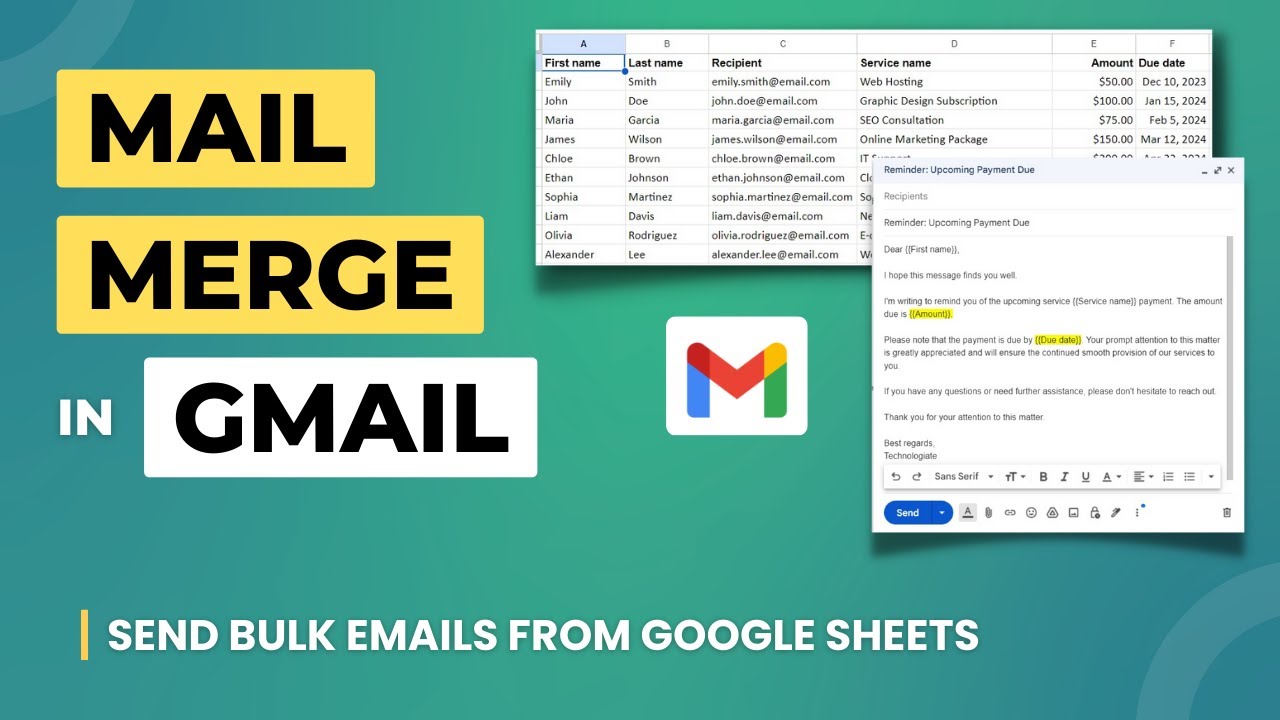
In this video, I have explained how to Mail Merge in Gmail.
Sometimes, we need to send one email in Gmail to multiple people in one go. However, the email body should have some variants depending on the recipients. You can achieve this using Mail Merge.
Mail Merge in Outlook: https://youtu.be/NikC2cJ_tHQ
There are a lot of add-ons and extensions for mail merge in Gmail. But I have explained the free method. This method is offered by Google itself.
For this, you need to copy a Google sheet on your Google account.
Here is the link to the page explained in the video: https://developers.google.com/apps-script/samples/automations/mail-merge
The copied Google sheet contains an Appscript, which connects with your Gmail account and sends the email with the data on the sheet.
To run the app script, you need to authorize some access. This is required because the script will connect with the Gmail account.
For the email body, create a draft with the fields you want; each field should be inside double curly brackets {{field}}.
You can have multiple drafts, this script will send the mail merge emails for the subject you provide when sending running it.
Timestamps:
0:00 Mail merge in Gmail
0:30 Copy Mail Merge Google Sheet
1:15 Assign column names on the Sheet
2:20 Create the email body
3:30 Authorize the app script
3:50 Send Mail merge emails
5:39 Subscribe to Technologiate
Subscribe to the channel:
https://www.youtube.com/channel/UCQdbJgo3DZKkW8VK5HbjzrA?sub_confirmation=1
Follow and engage on social media:
Facebook: https://www.facebook.com/technologiate
Instagram: https://www.instagram.com/technologiate
#mailmerge #gmail #googlesheets #bulkemail #emailmarketing #emailcampaigns #gmailtips #mailmerge #personalization #emailautomation
Sometimes, we need to send one email in Gmail to multiple people in one go. However, the email body should have some variants depending on the recipients. You can achieve this using Mail Merge.
Mail Merge in Outlook: https://youtu.be/NikC2cJ_tHQ
There are a lot of add-ons and extensions for mail merge in Gmail. But I have explained the free method. This method is offered by Google itself.
For this, you need to copy a Google sheet on your Google account.
Here is the link to the page explained in the video: https://developers.google.com/apps-script/samples/automations/mail-merge
The copied Google sheet contains an Appscript, which connects with your Gmail account and sends the email with the data on the sheet.
To run the app script, you need to authorize some access. This is required because the script will connect with the Gmail account.
For the email body, create a draft with the fields you want; each field should be inside double curly brackets {{field}}.
You can have multiple drafts, this script will send the mail merge emails for the subject you provide when sending running it.
Timestamps:
0:00 Mail merge in Gmail
0:30 Copy Mail Merge Google Sheet
1:15 Assign column names on the Sheet
2:20 Create the email body
3:30 Authorize the app script
3:50 Send Mail merge emails
5:39 Subscribe to Technologiate
Subscribe to the channel:
https://www.youtube.com/channel/UCQdbJgo3DZKkW8VK5HbjzrA?sub_confirmation=1
Follow and engage on social media:
Facebook: https://www.facebook.com/technologiate
Instagram: https://www.instagram.com/technologiate
#mailmerge #gmail #googlesheets #bulkemail #emailmarketing #emailcampaigns #gmailtips #mailmerge #personalization #emailautomation
Tags and Topics
Browse our collection to discover more content in these categories.
Video Information
Views
77.4K
Likes
777
Duration
5:52
Published
Dec 4, 2023
User Reviews
4.4
(15) Related Trending Topics
LIVE TRENDSRelated trending topics. Click any trend to explore more videos.
Trending Now