How to Install Eclipse IDE on Windows 11 (2025)
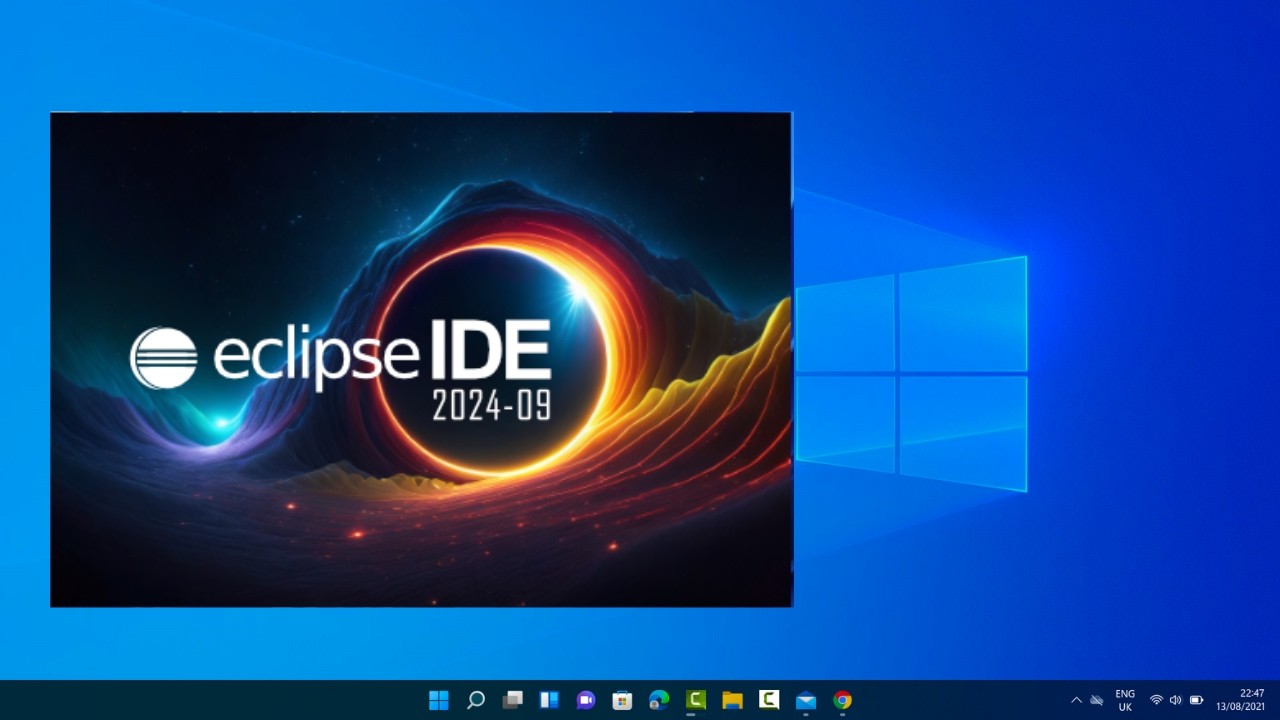
How to Install Eclipse IDE on Windows 11 | Step-by-Step Guide Learn how to install Eclipse IDE on Windows 11 with this detailed step-by-step guide. Eclips...

ProgrammingKnowledge
46.4K views • Jan 7, 2025
About this video
How to Install Eclipse IDE on Windows 11 | Step-by-Step Guide
Learn how to install Eclipse IDE on Windows 11 with this detailed step-by-step guide. Eclipse is a powerful, open-source Integrated Development Environment (IDE) widely used for Java development and other programming languages like Python, C++, and more. Whether you're a beginner or a professional developer, follow this tutorial to set up Eclipse IDE on your system effortlessly.
---
### Steps to Install Eclipse IDE on Windows 11
#### 1. **Download Eclipse Installer**
- Visit the official Eclipse website: [https://www.eclipse.org/downloads/](https://www.eclipse.org/downloads/).
- Click **Download** to get the Eclipse Installer.
#### 2. **Run the Eclipse Installer**
- Locate the downloaded `.exe` file in your Downloads folder.
- Double-click the file to launch the installer.
#### 3. **Select Your Installation Package**
- Choose the version of Eclipse you want to install. Common options include:
- **Eclipse IDE for Java Developers**
- **Eclipse IDE for C/C++ Developers**
- **Eclipse IDE for Enterprise Java and Web Developers**
- Click the appropriate package to proceed.
#### 4. **Customize Installation Settings**
- Choose the installation folder or use the default directory.
- Ensure you have a compatible Java Development Kit (JDK) installed. If not, download and install one before proceeding.
#### 5. **Start Installation**
- Click **Install** and wait for the process to complete.
- Accept the Eclipse Foundation's user agreement if prompted.
#### 6. **Launch Eclipse IDE**
- Once the installation is complete, click **Launch** to open Eclipse.
#### 7. **Set Up Workspace**
- Upon first launch, Eclipse will ask for a workspace location.
- Choose a folder to store your projects or leave the default selection, then click **Launch**.
---
### Why Use Eclipse IDE?
- **Versatility**: Supports multiple programming languages.
- **Extensibility**: Easily add plugins to extend functionality.
- **Community Support**: Access a vast range of tutorials and resources.
---
Get started with Eclipse IDE today and supercharge your coding projects. If you found this tutorial helpful, like, share, and subscribe for more!
#EclipseIDE #JavaDevelopment #Windows11 #CodingTutorial #Programming #TechGuide
Learn how to install Eclipse IDE on Windows 11 with this detailed step-by-step guide. Eclipse is a powerful, open-source Integrated Development Environment (IDE) widely used for Java development and other programming languages like Python, C++, and more. Whether you're a beginner or a professional developer, follow this tutorial to set up Eclipse IDE on your system effortlessly.
---
### Steps to Install Eclipse IDE on Windows 11
#### 1. **Download Eclipse Installer**
- Visit the official Eclipse website: [https://www.eclipse.org/downloads/](https://www.eclipse.org/downloads/).
- Click **Download** to get the Eclipse Installer.
#### 2. **Run the Eclipse Installer**
- Locate the downloaded `.exe` file in your Downloads folder.
- Double-click the file to launch the installer.
#### 3. **Select Your Installation Package**
- Choose the version of Eclipse you want to install. Common options include:
- **Eclipse IDE for Java Developers**
- **Eclipse IDE for C/C++ Developers**
- **Eclipse IDE for Enterprise Java and Web Developers**
- Click the appropriate package to proceed.
#### 4. **Customize Installation Settings**
- Choose the installation folder or use the default directory.
- Ensure you have a compatible Java Development Kit (JDK) installed. If not, download and install one before proceeding.
#### 5. **Start Installation**
- Click **Install** and wait for the process to complete.
- Accept the Eclipse Foundation's user agreement if prompted.
#### 6. **Launch Eclipse IDE**
- Once the installation is complete, click **Launch** to open Eclipse.
#### 7. **Set Up Workspace**
- Upon first launch, Eclipse will ask for a workspace location.
- Choose a folder to store your projects or leave the default selection, then click **Launch**.
---
### Why Use Eclipse IDE?
- **Versatility**: Supports multiple programming languages.
- **Extensibility**: Easily add plugins to extend functionality.
- **Community Support**: Access a vast range of tutorials and resources.
---
Get started with Eclipse IDE today and supercharge your coding projects. If you found this tutorial helpful, like, share, and subscribe for more!
#EclipseIDE #JavaDevelopment #Windows11 #CodingTutorial #Programming #TechGuide
Tags and Topics
Browse our collection to discover more content in these categories.
Video Information
Views
46.4K
Likes
383
Duration
10:06
Published
Jan 7, 2025
User Reviews
4.3
(9) Related Trending Topics
LIVE TRENDSRelated trending topics. Click any trend to explore more videos.
No specific trending topics match this video yet.
Explore All Trends