How To Install Adobe Acrobat Reader On Samsung Galaxy A16
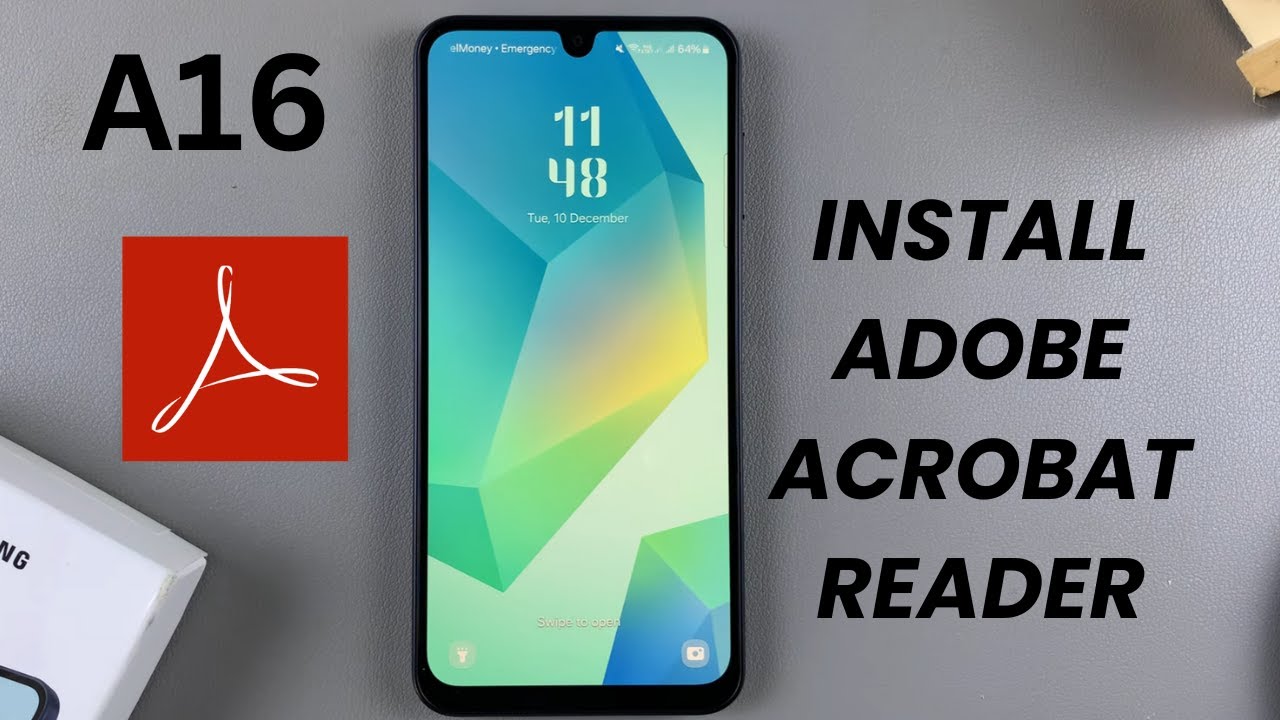
Learn how to install Adobe Acrobat Reader on Samsung Galaxy A16 to easily view, manage, and share PDF files on your device. Installing Adobe Acrobat Reader...
WebPro Education
874 views • Dec 17, 2024
About this video
Learn how to install Adobe Acrobat Reader on Samsung Galaxy A16 to easily view, manage, and share PDF files on your device.
Installing Adobe Acrobat Reader on Samsung Galaxy A16 ensures you can access important documents anytime, anywhere with ease. With this reliable app, handling PDFs becomes seamless on your Galaxy A16.
How To Install Adobe Acrobat Reader On Samsung Galaxy A16;
-Open Google Play Store
-Tap on the search button and type Adobe Acrobat Reader.
-Look for Adobe Acrobat Reader in the search results. Ensure it is published by the company Adobe.
-Tap on Install to download the app.
-Wait for the app to finish downloading and installing.
-Once installed, tap Open to launch the app. Alternatively, you can open it later from the home screen.
-When prompted, sign in with your account if you have one. If not, you can skip this step and use the app for free without creating an account.
#AdobeAcrobatReader #SamsungGalaxyA16 #PDFViewer #InstallApps #GalaxyA16Tips #AndroidApps #MobileTutorial #TechGuide #SamsungTips #AdobeReaderInstall #HowToInstallApps #PDFReaderApp #TechTutorial #GalaxyA16Help #MobileGuide
-----My Gear for Youtube videos-----
Main Camera (iPhone 13 pro): https://amzn.to/3GZztve
Tripod: https://amzn.to/35acqRa
Cell Phone Tripod Adapter: https://amzn.to/3v3wFuI
Lights: https://amzn.to/3vkoGK7
As full disclosure, I use affiliate links on this channel and purchasing through these links earns me a small commission. The price you pay will be the same!
Website: https://www.webproeducation.org
Facebook: https://www.facebook.com/webproeducation.org
Twitter: https://twitter.com/WebPro_E
Instagram: https://www.instagram.com/webproeducation/
Installing Adobe Acrobat Reader on Samsung Galaxy A16 ensures you can access important documents anytime, anywhere with ease. With this reliable app, handling PDFs becomes seamless on your Galaxy A16.
How To Install Adobe Acrobat Reader On Samsung Galaxy A16;
-Open Google Play Store
-Tap on the search button and type Adobe Acrobat Reader.
-Look for Adobe Acrobat Reader in the search results. Ensure it is published by the company Adobe.
-Tap on Install to download the app.
-Wait for the app to finish downloading and installing.
-Once installed, tap Open to launch the app. Alternatively, you can open it later from the home screen.
-When prompted, sign in with your account if you have one. If not, you can skip this step and use the app for free without creating an account.
#AdobeAcrobatReader #SamsungGalaxyA16 #PDFViewer #InstallApps #GalaxyA16Tips #AndroidApps #MobileTutorial #TechGuide #SamsungTips #AdobeReaderInstall #HowToInstallApps #PDFReaderApp #TechTutorial #GalaxyA16Help #MobileGuide
-----My Gear for Youtube videos-----
Main Camera (iPhone 13 pro): https://amzn.to/3GZztve
Tripod: https://amzn.to/35acqRa
Cell Phone Tripod Adapter: https://amzn.to/3v3wFuI
Lights: https://amzn.to/3vkoGK7
As full disclosure, I use affiliate links on this channel and purchasing through these links earns me a small commission. The price you pay will be the same!
Website: https://www.webproeducation.org
Facebook: https://www.facebook.com/webproeducation.org
Twitter: https://twitter.com/WebPro_E
Instagram: https://www.instagram.com/webproeducation/
Tags and Topics
Browse our collection to discover more content in these categories.
Video Information
Views
874
Likes
2
Duration
1:33
Published
Dec 17, 2024
Related Trending Topics
LIVE TRENDSRelated trending topics. Click any trend to explore more videos.
No specific trending topics match this video yet.
Explore All Trends