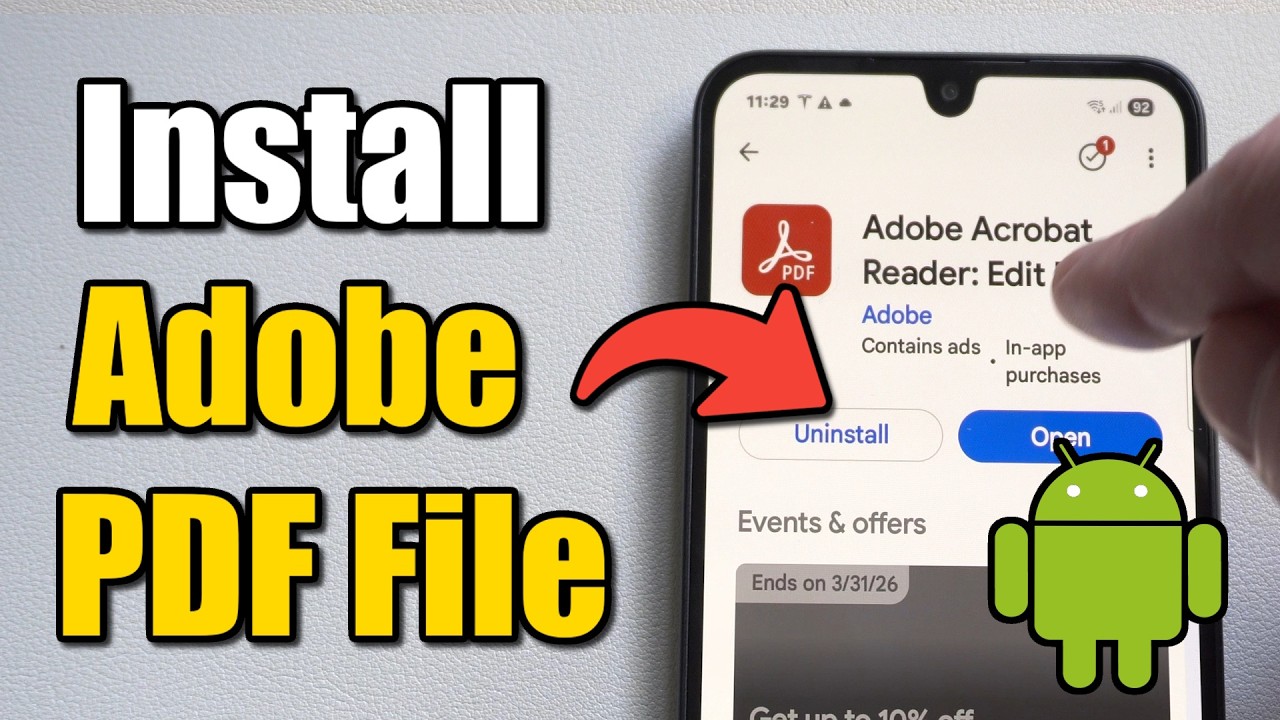
How to Install Adobe Acrobat Reader on Android (Easy Tutorial)
Installing Adobe Acrobat Reader on your Android device is quick and straightforward: download it from the Google Play Store, install it, and start reading or...

YourSixStudios
285 views • Apr 21, 2026
About this video
Installing Adobe Acrobat Reader on your Android device is quick and straightforward: download it from the Google Play Store, install it, and start reading or editing PDFs in minutes.
Step 1 — Download the App
Open the Google Play Store on your Android device. The icon looks like a multicolored triangle on a white background
Tap the search bar at the top of the screen and type Adobe Acrobat Reader. Select it from the dropdown results, which should display the Adobe logo as the top option
Tap the INSTALL button (green) to begin downloading the app
Wait for the download and installation to complete. You may see a progress indicator or a notification once the app is installed
Step 2 — Launch the App
Open Adobe Acrobat Reader by tapping OPEN in the Google Play Store or the app icon in your App Drawer
Swipe through any introductory tutorial screens and tap Get Started to access the main interface
Step 3 — Open PDF Files
Tap the Files option located on the bottom menu bar to browse your device for PDFs
Select your PDF file from the list to open it. If prompted, grant Adobe Acrobat permission to access your device storage
You can adjust viewing, scrolling, and zoom settings according to your preference
For PDFs contained in a .zip file, first unzip the file using Files by Google or another file manager, then open the unzipped PDF in Acrobat Reader
Step 4 — Optional Features
Adobe Acrobat Reader allows you to annotate, highlight, add comments, and sign PDFs
You can also use Adobe online services to compress, convert, or merge PDFs, though some advanced editing features may require a subscription
If you want Adobe Acrobat Reader to be your default PDF viewer, choose it when prompted after tapping any PDF file, and select Always
...
Twitter: https://twitter.com/YourSixStudios?lang=en
Twitch: https://www.twitch.tv/yoursixstudios
Discord: https://discord.gg/6DfFDnK6
Instagram: https://www.instagram.com/yoursixstudios/ -
((( Subscribe to my LIVE STREAMING )))
((( Gaming Channel "YourSixGaming" )))
https://www.youtube.com/channel/UCvgTpqI_3ZF8XL-jmwLXYKw?sub_confirmation=1 ...
((( Subscribe to my ADVENTURE CHANNEL )))
((( Travel, Cameras & More "YourSixAdventures)))
https://www.youtube.com/channel/UCvnlEu1SSvbBUcnn2RTgMbA?sub_confirmation=1
Step 1 — Download the App
Open the Google Play Store on your Android device. The icon looks like a multicolored triangle on a white background
Tap the search bar at the top of the screen and type Adobe Acrobat Reader. Select it from the dropdown results, which should display the Adobe logo as the top option
Tap the INSTALL button (green) to begin downloading the app
Wait for the download and installation to complete. You may see a progress indicator or a notification once the app is installed
Step 2 — Launch the App
Open Adobe Acrobat Reader by tapping OPEN in the Google Play Store or the app icon in your App Drawer
Swipe through any introductory tutorial screens and tap Get Started to access the main interface
Step 3 — Open PDF Files
Tap the Files option located on the bottom menu bar to browse your device for PDFs
Select your PDF file from the list to open it. If prompted, grant Adobe Acrobat permission to access your device storage
You can adjust viewing, scrolling, and zoom settings according to your preference
For PDFs contained in a .zip file, first unzip the file using Files by Google or another file manager, then open the unzipped PDF in Acrobat Reader
Step 4 — Optional Features
Adobe Acrobat Reader allows you to annotate, highlight, add comments, and sign PDFs
You can also use Adobe online services to compress, convert, or merge PDFs, though some advanced editing features may require a subscription
If you want Adobe Acrobat Reader to be your default PDF viewer, choose it when prompted after tapping any PDF file, and select Always
...
Twitter: https://twitter.com/YourSixStudios?lang=en
Twitch: https://www.twitch.tv/yoursixstudios
Discord: https://discord.gg/6DfFDnK6
Instagram: https://www.instagram.com/yoursixstudios/ -
((( Subscribe to my LIVE STREAMING )))
((( Gaming Channel "YourSixGaming" )))
https://www.youtube.com/channel/UCvgTpqI_3ZF8XL-jmwLXYKw?sub_confirmation=1 ...
((( Subscribe to my ADVENTURE CHANNEL )))
((( Travel, Cameras & More "YourSixAdventures)))
https://www.youtube.com/channel/UCvnlEu1SSvbBUcnn2RTgMbA?sub_confirmation=1
Video Information
Views
285
Likes
2
Duration
1:15
Published
Apr 21, 2026
Related Trending Topics
LIVE TRENDSRelated trending topics. Click any trend to explore more videos.
No specific trending topics match this video yet.
Explore All Trends