Hide or Unhide Files & Folders via Command Prompt on Windows 10
Learn how to quickly hide or unhide files and folders using Command Prompt in Windows 10 with simple steps. 🔒
TechMeSpot
114.1K views • Jan 25, 2020
About this video
How to Hide or Unhide Files and Folders with Command Prompt on Windows 10?
To hide:
Step 1: Go to the folder or directory where you have your files that you want to hide.
Step 2: Click on the address bar, delete the path. After that, type 'cmd' without quotes, and then hit enter key on the keyboard. You will see command prompt is now opened in that folder.
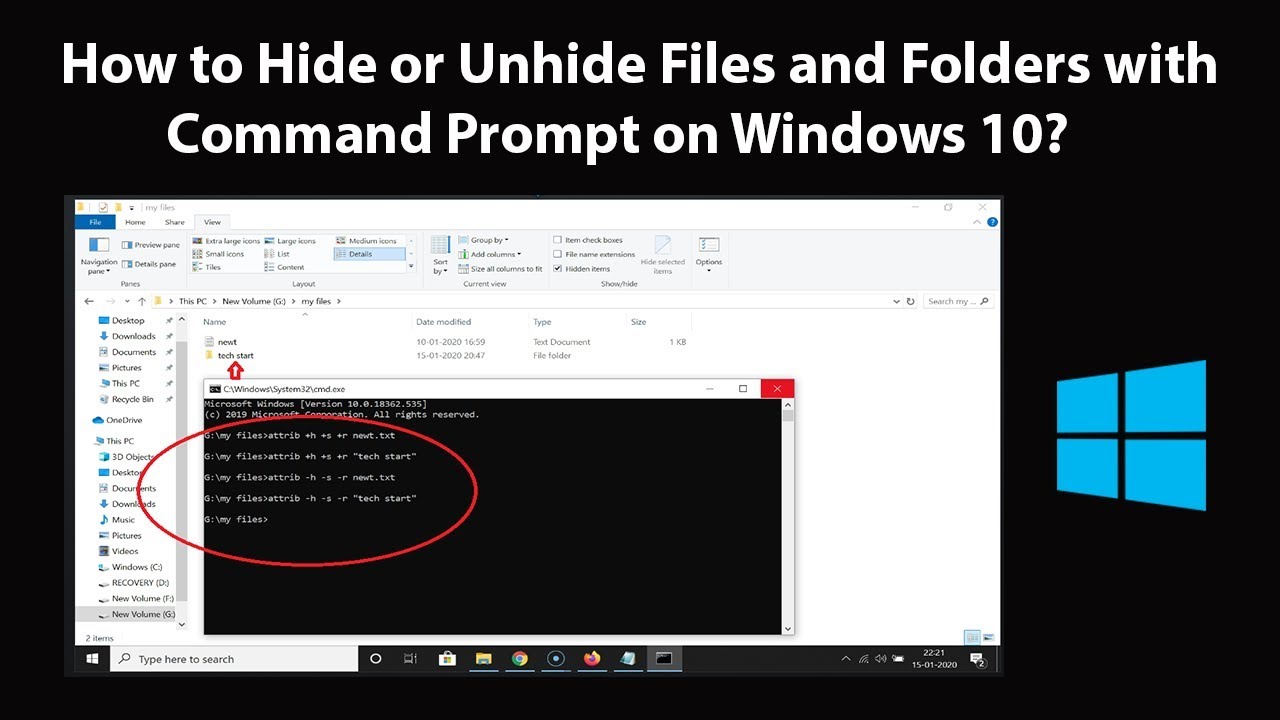
Step 3: To hide, type the command below, and then hit enter key on the keyboard.
attrib +h +s +r name_of_the_file_with_extension
i) attrib means attributes.
ii) + means we are adding an attribute.
iii) h means hidden, s means system file, r means read only.
Note: If there is any space between your file or folder name, provide the name in quotes.
To Unhide:
Step 1: Follow till steps 2 from above.
Step 2: To Unhide, type the command below, and then hit enter key on the keyboard.
attrib -h -s -r name_of_the_file_with_extension
i) - Means we are removing an attribute.
ii) For explanation of other terms used in command, check hide method above.
If you want to only show the hidden files and folder, follow below steps.
Step 1: Open File explorer, and then click on 'View' tab.
Step 2: Click on 'options,' and then click on 'Change Folder and search options.'
Step 3: Click on 'view' tab.
Step 4: Click on 'show hidden files, folder, and drives.'
Step 5: Scroll down, and then Uncheck 'Hide protected operating system files(recommended).'
Step 6: Click on 'yes' button at the warning. After that, click on 'Apply' button, and then 'ok' button.
It's done.
Thanks for watching, please like and subscribe
==============================================
YouTube Subscribe: https://goo.gl/4lCCN8
Patreon: https://www.patreon.com/TechMeSpot
Facebook: https://www.facebook.com/techmespot
Twitter: https://twitter.com/techmespot
Website: http://techmespot.com
#howto #HideFiles #UnhideFiles
To hide:
Step 1: Go to the folder or directory where you have your files that you want to hide.
Step 2: Click on the address bar, delete the path. After that, type 'cmd' without quotes, and then hit enter key on the keyboard. You will see command prompt is now opened in that folder.
Step 3: To hide, type the command below, and then hit enter key on the keyboard.
attrib +h +s +r name_of_the_file_with_extension
i) attrib means attributes.
ii) + means we are adding an attribute.
iii) h means hidden, s means system file, r means read only.
Note: If there is any space between your file or folder name, provide the name in quotes.
To Unhide:
Step 1: Follow till steps 2 from above.
Step 2: To Unhide, type the command below, and then hit enter key on the keyboard.
attrib -h -s -r name_of_the_file_with_extension
i) - Means we are removing an attribute.
ii) For explanation of other terms used in command, check hide method above.
If you want to only show the hidden files and folder, follow below steps.
Step 1: Open File explorer, and then click on 'View' tab.
Step 2: Click on 'options,' and then click on 'Change Folder and search options.'
Step 3: Click on 'view' tab.
Step 4: Click on 'show hidden files, folder, and drives.'
Step 5: Scroll down, and then Uncheck 'Hide protected operating system files(recommended).'
Step 6: Click on 'yes' button at the warning. After that, click on 'Apply' button, and then 'ok' button.
It's done.
Thanks for watching, please like and subscribe
==============================================
YouTube Subscribe: https://goo.gl/4lCCN8
Patreon: https://www.patreon.com/TechMeSpot
Facebook: https://www.facebook.com/techmespot
Twitter: https://twitter.com/techmespot
Website: http://techmespot.com
#howto #HideFiles #UnhideFiles
Tags and Topics
Browse our collection to discover more content in these categories.
Video Information
Views
114.1K
Likes
1.2K
Duration
6:44
Published
Jan 25, 2020
User Reviews
4.5
(22) Related Trending Topics
LIVE TRENDSRelated trending topics. Click any trend to explore more videos.
No specific trending topics match this video yet.
Explore All Trends