Accurate Internet Speed Tests with Speedtest Desktop 📶
Learn how to get precise internet speed results using the Speedtest desktop app and CLI. Read more on our website.

OnlineComputerTips
10.0K views • Jun 27, 2025
About this video
Check out the writeup of the Speedtest desktop app and CLI on our website.
https://onlinecomputertips.com/support-categories/networking/speedtest-desktop-app-and-command-line-tool/
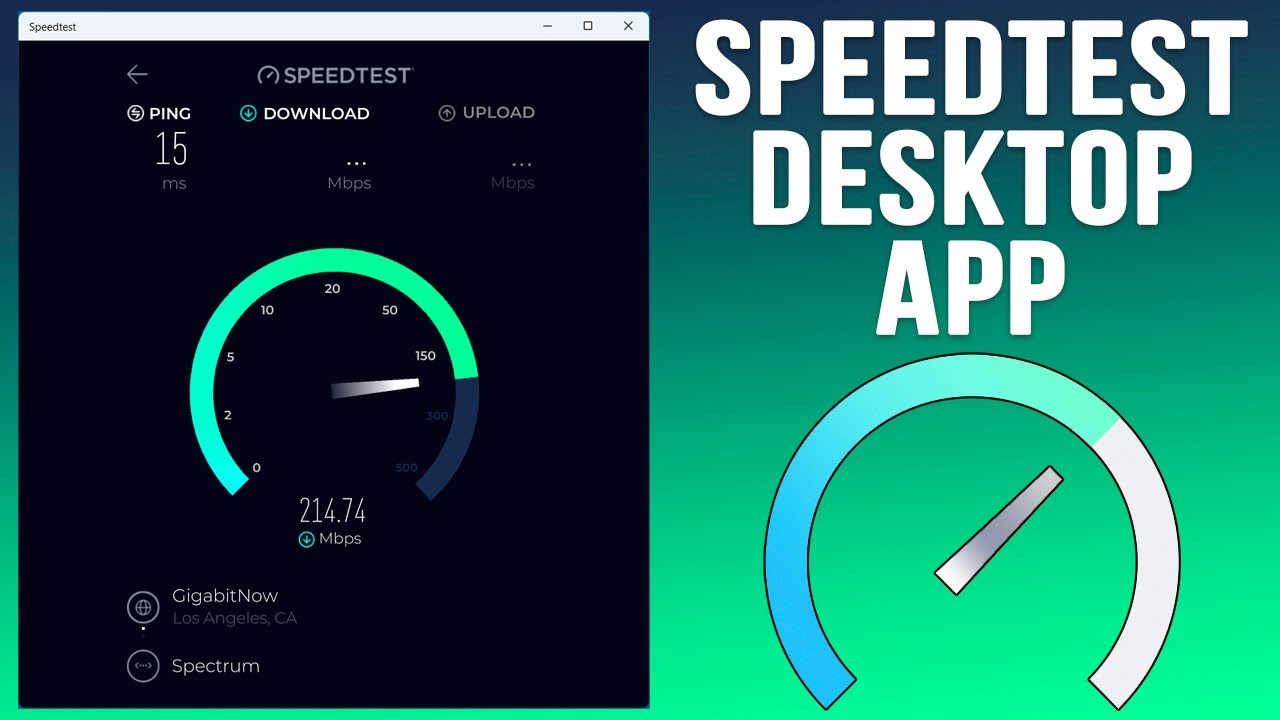
Are you getting inconsistent or slow results when testing your internet speed in a web browser? In this video, we compare the Speedtest by Ookla web interface against the dedicated Windows desktop app to see which provides a more accurate reading. Browser extensions, cache, and general overhead can often throttle your results, making it look like your connection is slower than it actually is.
We demonstrate how to install the Speedtest app from the Microsoft Store and run side-by-side tests against Chrome and Edge. You'll see a significant difference in performance and learn how to choose the best server for your location. If you want the most reliable data on your ping, download, and upload speeds, the desktop app (or the CLI version) is the way to go.
0:00 Issues with Browser-Based Speed Tests
0:40 Installing the Speedtest App from the Microsoft Store
1:00 Running a Speed Test in Google Chrome (Results)
1:40 Testing the Same Server in the Desktop App
2:15 Comparing Results Across Different Browsers (Edge vs. Chrome)
3:15 How to Change Servers in the Speedtest App
3:45 Viewing Your Speed Test Result History
Step-by-Step Instructions
1 - Open the Microsoft Store on your Windows computer and search for "Speedtest by Ookla."
2 - Click Get or Install to download the official app to your desktop.
3 - Launch the application; you will see a simple interface with a large GO button.
4 - Before testing, you can click the server name at the bottom to manually select a different host if the auto-selected one is underperforming.
5 - Click GO to begin the test. The app will measure your Ping (latency), Download speed, and Upload speed without the interference of browser extensions.
6 - To compare results, try running a test on the Speedtest website in a browser like Chrome and notice the impact of browser overhead.
7 - To view your past performance, click the Results icon (the clock or list symbol) to see a history of all tests conducted within the app.
8 - If you are looking for an even more "pure" result, check out our other video on using the Speedtest CLI (Command Line Interface).
You can also try the Speedtest CLI (Command Line Interface).
https://www.youtube.com/watch?v=BHoZFXy3hwQ
🎓 Step up your skills with our online training courses:
http://madeeasytraining.com
📘 Get our book "Windows 11 Made Easy" on Amazon:
https://www.amazon.com/dp/B09HFXWXRY
📚 Explore our full library of tech and computer books:
https://www.madeeasybookseries.com/home
🚀 Master your software and hardware with our latest tech tips:
https://onlinecomputertips.com
#Speedtest #Ookla #InternetSpeed #Windows11 #NetworkTips #TechTutorial #Broadband #WebBrowser
https://onlinecomputertips.com/support-categories/networking/speedtest-desktop-app-and-command-line-tool/
Are you getting inconsistent or slow results when testing your internet speed in a web browser? In this video, we compare the Speedtest by Ookla web interface against the dedicated Windows desktop app to see which provides a more accurate reading. Browser extensions, cache, and general overhead can often throttle your results, making it look like your connection is slower than it actually is.
We demonstrate how to install the Speedtest app from the Microsoft Store and run side-by-side tests against Chrome and Edge. You'll see a significant difference in performance and learn how to choose the best server for your location. If you want the most reliable data on your ping, download, and upload speeds, the desktop app (or the CLI version) is the way to go.
0:00 Issues with Browser-Based Speed Tests
0:40 Installing the Speedtest App from the Microsoft Store
1:00 Running a Speed Test in Google Chrome (Results)
1:40 Testing the Same Server in the Desktop App
2:15 Comparing Results Across Different Browsers (Edge vs. Chrome)
3:15 How to Change Servers in the Speedtest App
3:45 Viewing Your Speed Test Result History
Step-by-Step Instructions
1 - Open the Microsoft Store on your Windows computer and search for "Speedtest by Ookla."
2 - Click Get or Install to download the official app to your desktop.
3 - Launch the application; you will see a simple interface with a large GO button.
4 - Before testing, you can click the server name at the bottom to manually select a different host if the auto-selected one is underperforming.
5 - Click GO to begin the test. The app will measure your Ping (latency), Download speed, and Upload speed without the interference of browser extensions.
6 - To compare results, try running a test on the Speedtest website in a browser like Chrome and notice the impact of browser overhead.
7 - To view your past performance, click the Results icon (the clock or list symbol) to see a history of all tests conducted within the app.
8 - If you are looking for an even more "pure" result, check out our other video on using the Speedtest CLI (Command Line Interface).
You can also try the Speedtest CLI (Command Line Interface).
https://www.youtube.com/watch?v=BHoZFXy3hwQ
🎓 Step up your skills with our online training courses:
http://madeeasytraining.com
📘 Get our book "Windows 11 Made Easy" on Amazon:
https://www.amazon.com/dp/B09HFXWXRY
📚 Explore our full library of tech and computer books:
https://www.madeeasybookseries.com/home
🚀 Master your software and hardware with our latest tech tips:
https://onlinecomputertips.com
#Speedtest #Ookla #InternetSpeed #Windows11 #NetworkTips #TechTutorial #Broadband #WebBrowser
Tags and Topics
Browse our collection to discover more content in these categories.
Video Information
Views
10.0K
Likes
28
Duration
4:14
Published
Jun 27, 2025
User Reviews
3.9
(1) Related Trending Topics
LIVE TRENDSRelated trending topics. Click any trend to explore more videos.