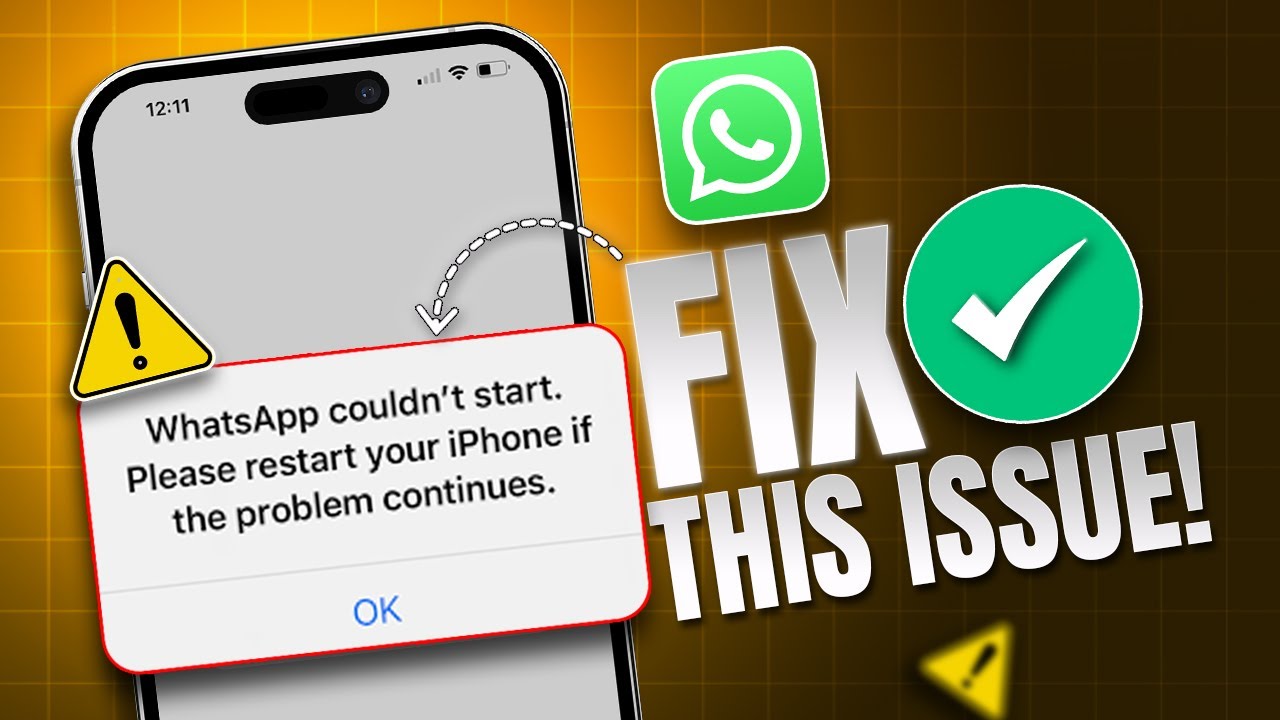
How to Fix 'WhatsApp Could Not Start, Please Restart Your iPhone' Error on iPhone
Wanna know how to fix the 'WhatsApp Couldn’t Start' error on your iPhone? In this video, I’ll show you exactly how to solve the 'WhatsApp Couldn’t Start' err...
DeviceCare+
17.4K views • Feb 2, 2025
About this video
Wanna know how to fix the 'WhatsApp Couldn’t Start' error on your iPhone? In this video, I’ll show you exactly how to solve the 'WhatsApp Couldn’t Start' error when you’re trying to open the app. If you’re asking, 'Why could WhatsApp not start?' or how to fix the issue, I’ll walk you through the exact steps to resolve the problem. Whether it’s a simple glitch or something more, I’ve got the solutions to fix WhatsApp on your iPhone and get it working again. Let’s get started
00:01- Video Intro
00:17- Solution 1: Clear WhatsApp Cache
00:35- Solution 2: Enable Background App Refresh
00:58- Solution 3: Change Date and Time
01:07- Solution 4: Update WhatsApp
01:22- Solution 5: Reset All Settings
01:41- Solution End
#WhatsAppError
#iPhoneFix
#RestartiPhone
#WhatsAppTips
#WhatsAppFix
00:01- Video Intro
00:17- Solution 1: Clear WhatsApp Cache
00:35- Solution 2: Enable Background App Refresh
00:58- Solution 3: Change Date and Time
01:07- Solution 4: Update WhatsApp
01:22- Solution 5: Reset All Settings
01:41- Solution End
#WhatsAppError
#iPhoneFix
#RestartiPhone
#WhatsAppTips
#WhatsAppFix
Tags and Topics
Browse our collection to discover more content in these categories.
Video Information
Views
17.4K
Likes
87
Duration
1:53
Published
Feb 2, 2025
User Reviews
4.1
(3) Related Trending Topics
LIVE TRENDSRelated trending topics. Click any trend to explore more videos.
No specific trending topics match this video yet.
Explore All Trends