Enable USB Data Transfer on Samsung Galaxy 📱
Learn how to enable USB data transfer on Samsung Galaxy phones to easily move files between your device and other devices.

ION HowTo
142.1K views • Mar 11, 2025
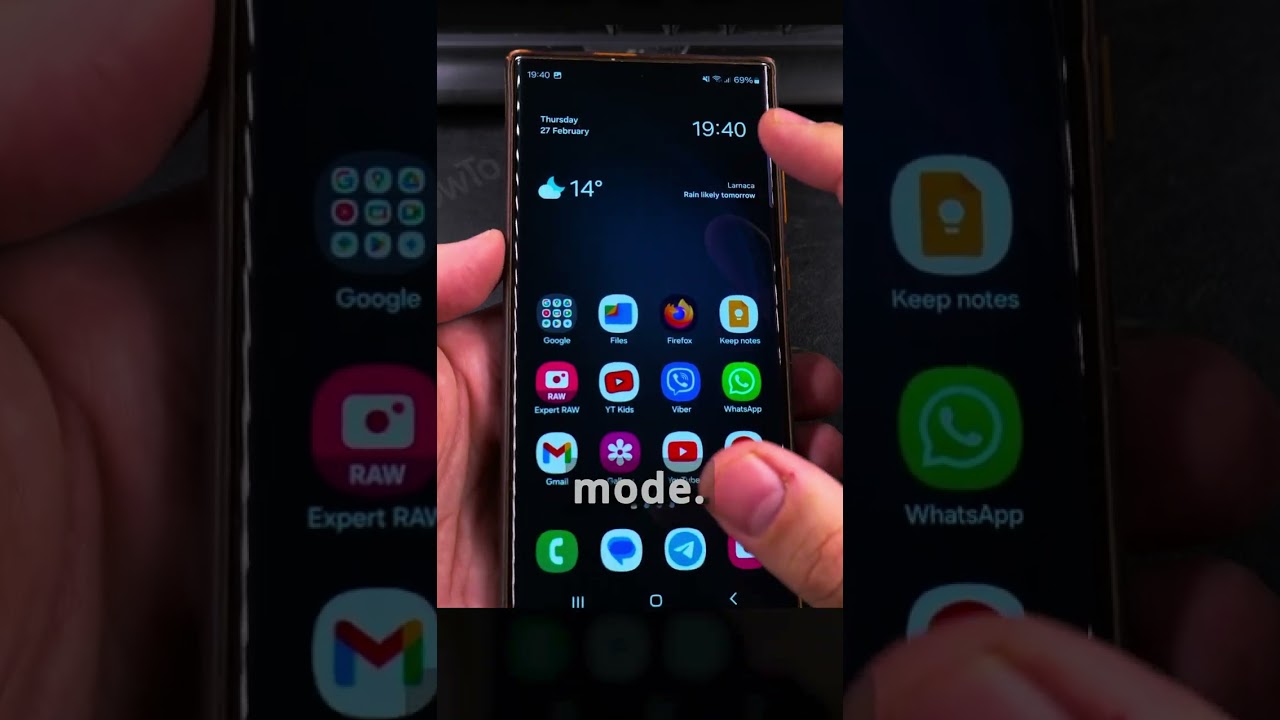
About this video
How to Enable USB Data Transfer on Samsung Galaxy Android.
How to enable USB data transfer on Samsung Galaxy phones.
Transfer files from Samsung Galaxy to computer.
Enable file transfer mode on Samsung Android. How to connect a Samsung phone to the computer via USB.
Amazon:* Accessories
https://rex.red/phone-accessories
Screen protectors
https://rex.red/phone-screen-protector
Cases https://rex.red/Android-phone-case
Tripods
https://rex.red/phone-tripod
Usb-c charger
https://rex.red/usb-c-charger
Usb-c cable
https://rex.red/usb-c-cable
Docking stations
https://rex.red/phone-docking-station
Wireless car chargers
https://rex.red/phone-wireless-car-charger
Wireless charger stand
https://rex.red/phone-wireless-charger-stand
SIM card removal tool https://rex.red/sim-card-removal-tool
SIM card holder https://rex.red/SIM-card-holder
Phone: Samsung Galaxy S23 Ultra 512GB Android 14 OneUI 6.1 smartphone.
In this video, I will show you how to enable USB data transfer on your Samsung Galaxy Android device. If you want to transfer files between your phone and a computer using a USB cable, this video is for you. I’ll show you the steps to enable USB data transfer mode on your Samsung phone so you can easily copy or move photos, videos, documents, and other files.
Learn how to connect your Samsung Galaxy device to a computer using a USB cable, access the USB settings, and select the file transfer option.
This method works for most Samsung Galaxy models, including the S series, Note series, and A series.
Learn to troubleshoot USB connection issues on Samsung. Samsung Galaxy USB settings for file transfer.
Transfer photos, videos, and documents using USB.
Fix phone not showing up on computer
USB data transfer for Samsung S series and A series.
Watch the video carefully without skipping to see all the steps needed in this video.
Subscribe and click the Bell to watch more videos.
IONHowTo https://www.youtube.com/channel/UCx4Qbp3iC97kQzj7e7g7slg
RedNumberONE https://m.youtube.com/channel/UCYdm-YlcfOvCbKeh60EkMZg
Buy merch https://store.ionhowto.com/
Check it, buy it, post it and tag it #ionhowto or #rednumberone
Join this channel to get access to perks:
https://www.youtube.com/channel/UCx4Qbp3iC97kQzj7e7g7slg/join
Contact for business enquiries Only diyrno (at) gmail.com
Any questions?
Feel free to ask in the comments section below.
Subscribe, Like and SHARE this video with your friends!
We earn money from qualifying purchases using our affiliate links.
Affiliate links are marked with a star. *
When you use our * links, you support this channel.
As an Amazon Associate I earn from qualifying purchases.
Website https://www.ionhowto.com/
Food Recipes: https://www.rednumberone.com/
How to enable USB data transfer on Samsung Galaxy phones.
Transfer files from Samsung Galaxy to computer.
Enable file transfer mode on Samsung Android. How to connect a Samsung phone to the computer via USB.
Amazon:* Accessories
https://rex.red/phone-accessories
Screen protectors
https://rex.red/phone-screen-protector
Cases https://rex.red/Android-phone-case
Tripods
https://rex.red/phone-tripod
Usb-c charger
https://rex.red/usb-c-charger
Usb-c cable
https://rex.red/usb-c-cable
Docking stations
https://rex.red/phone-docking-station
Wireless car chargers
https://rex.red/phone-wireless-car-charger
Wireless charger stand
https://rex.red/phone-wireless-charger-stand
SIM card removal tool https://rex.red/sim-card-removal-tool
SIM card holder https://rex.red/SIM-card-holder
Phone: Samsung Galaxy S23 Ultra 512GB Android 14 OneUI 6.1 smartphone.
In this video, I will show you how to enable USB data transfer on your Samsung Galaxy Android device. If you want to transfer files between your phone and a computer using a USB cable, this video is for you. I’ll show you the steps to enable USB data transfer mode on your Samsung phone so you can easily copy or move photos, videos, documents, and other files.
Learn how to connect your Samsung Galaxy device to a computer using a USB cable, access the USB settings, and select the file transfer option.
This method works for most Samsung Galaxy models, including the S series, Note series, and A series.
Learn to troubleshoot USB connection issues on Samsung. Samsung Galaxy USB settings for file transfer.
Transfer photos, videos, and documents using USB.
Fix phone not showing up on computer
USB data transfer for Samsung S series and A series.
Watch the video carefully without skipping to see all the steps needed in this video.
Subscribe and click the Bell to watch more videos.
IONHowTo https://www.youtube.com/channel/UCx4Qbp3iC97kQzj7e7g7slg
RedNumberONE https://m.youtube.com/channel/UCYdm-YlcfOvCbKeh60EkMZg
Buy merch https://store.ionhowto.com/
Check it, buy it, post it and tag it #ionhowto or #rednumberone
Join this channel to get access to perks:
https://www.youtube.com/channel/UCx4Qbp3iC97kQzj7e7g7slg/join
Contact for business enquiries Only diyrno (at) gmail.com
Any questions?
Feel free to ask in the comments section below.
Subscribe, Like and SHARE this video with your friends!
We earn money from qualifying purchases using our affiliate links.
Affiliate links are marked with a star. *
When you use our * links, you support this channel.
As an Amazon Associate I earn from qualifying purchases.
Website https://www.ionhowto.com/
Food Recipes: https://www.rednumberone.com/
Video Information
Views
142.1K
Likes
376
Duration
0:20
Published
Mar 11, 2025
User Reviews
4.0
(28) Related Trending Topics
LIVE TRENDSRelated trending topics. Click any trend to explore more videos.
Trending Now