How to Display Families in Revit: Essential Skills
Learn the fundamental techniques for showing families in Revit to enhance your project visualization and documentation skills.
Autodesk786
684 views • Feb 15, 2025
About this video
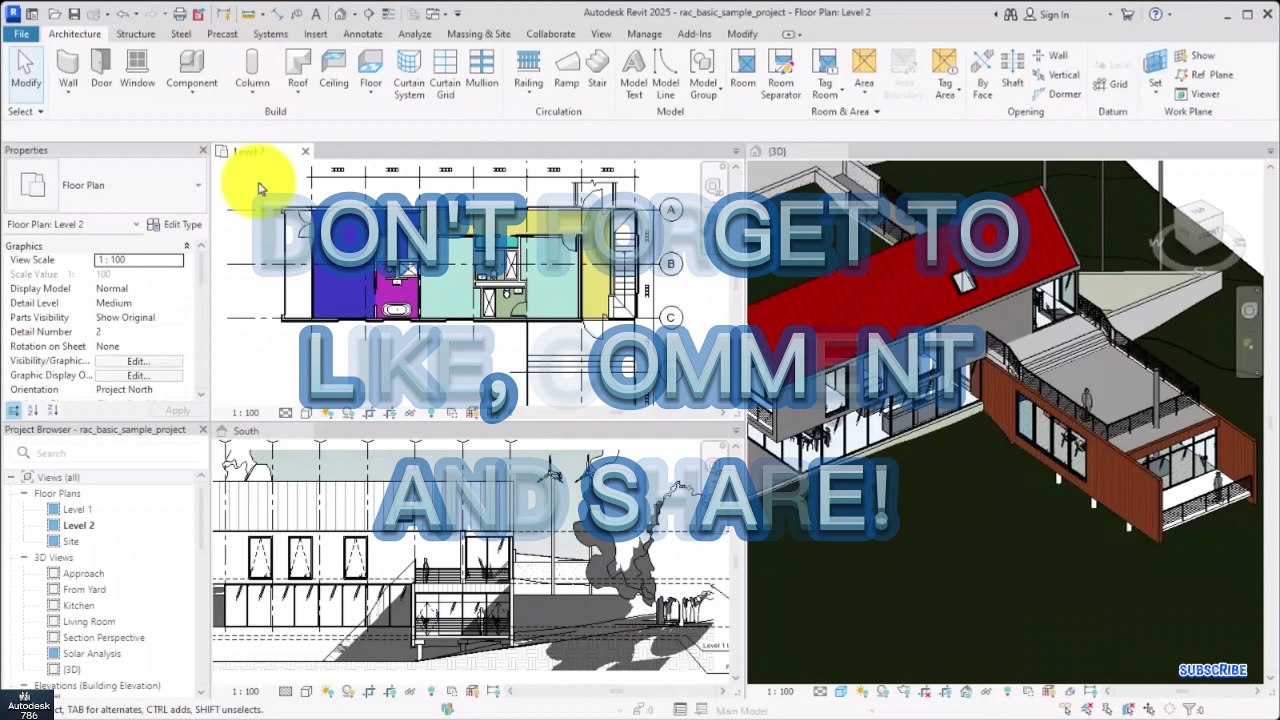
@autocad @CIVIL3D @autocadconcept @CivilSurveyor <br />https://dai.ly/x9dob6c<br />https://dai.ly/x9dob38<br />https://dai.ly/x9dgqem<br />https://dai.ly/x9d58e0<br />https://dai.ly/x9d2fm6<br />https://dai.ly/x9dob6c<br />How to Show Families in Revit – Essential Skills<br />In Autodesk Revit, families are the building blocks of a project. Sometimes, families may not be visible due to view settings, visibility controls, or incorrect placement. Here’s how to show and manage families in Revit.<br /><br />1. Checking the Project Browser for Families<br />Open the Project Browser (usually on the left side).<br />Expand the Families category to see all loaded families.<br />Drag a family into the model or use the Load Family option.<br />📌 Tip: If you can’t find a family, use Search in the Project Browser.<br /><br />2. Loading Families into a Project<br />If a family isn’t in the project:<br /><br />Go to Insert Tab → Load Family.<br />Select a .RFA file from the Revit library or custom folder.<br />Place it in the model using the appropriate tool (e.g., Door, Window).<br />📌 Tip: Some families (e.g., furniture, MEP components) need to be placed on a host (wall, floor, etc.).<br /><br />3. Checking Visibility & Graphics Settings<br />If a family is loaded but not visible:<br /><br />Press VG or go to View Tab → Visibility/Graphics (VV/VG).<br />Find the Category (e.g., Doors, Furniture, Lighting Fixtures).<br />Ensure the category is checked (visible).<br />Click Apply and OK.<br />📌 Tip: Use Reveal Hidden Elements (Lightbulb icon) to check if the family is hidden manually.<br /><br />4. Checking View Range & Detail Level<br />Sometimes, families are not visible due to view settings:<br /><br />View Range:<br />Go to Properties Panel → View Range.<br />Ensure the family is within the Cut Plane of the view.<br />Detail Level:<br />Set to Fine, Medium, or Coarse in the View Control Bar.<br />Some families only appear at a higher detail level.<br />📌 Tip: Structural, MEP, and annotation families may only be visible in specific view types (e.g., Plan, Section).<br /><br />5. Using "Select All Instances"<br />To locate a family in the model:<br /><br />Right-click on the family in the Project Browser.<br />Select Select All Instances → In Entire Project.<br />The selected families will be highlighted in the active view.<br />📌 Tip: Use Isolate Element (Temporary Hide/Isolate Tool) to focus on the family.<br /><br />6. Checking Worksets (For Worksharing Projects)<br />If working in a shared project:<br /><br />Open the Worksets Manager.<br />Ensure the family is assigned to a visible workset.<br />Reload the latest changes using Synchronize with Central.<br />🚀 Quick Fix Summary:<br />✅ Load Family from the library.<br />✅ Check View Visibility (VG/VV settings).<br />✅ Verify View Range & Detail Level.<br />✅ Use Reveal Hidden Elements.<br />✅ Select All Instances to locate families.<br /><br />If your family still isn't showing, let me know which type you're working with
Video Information
Views
684
Duration
1:19
Published
Feb 15, 2025
Related Trending Topics
LIVE TRENDSRelated trending topics. Click any trend to explore more videos.