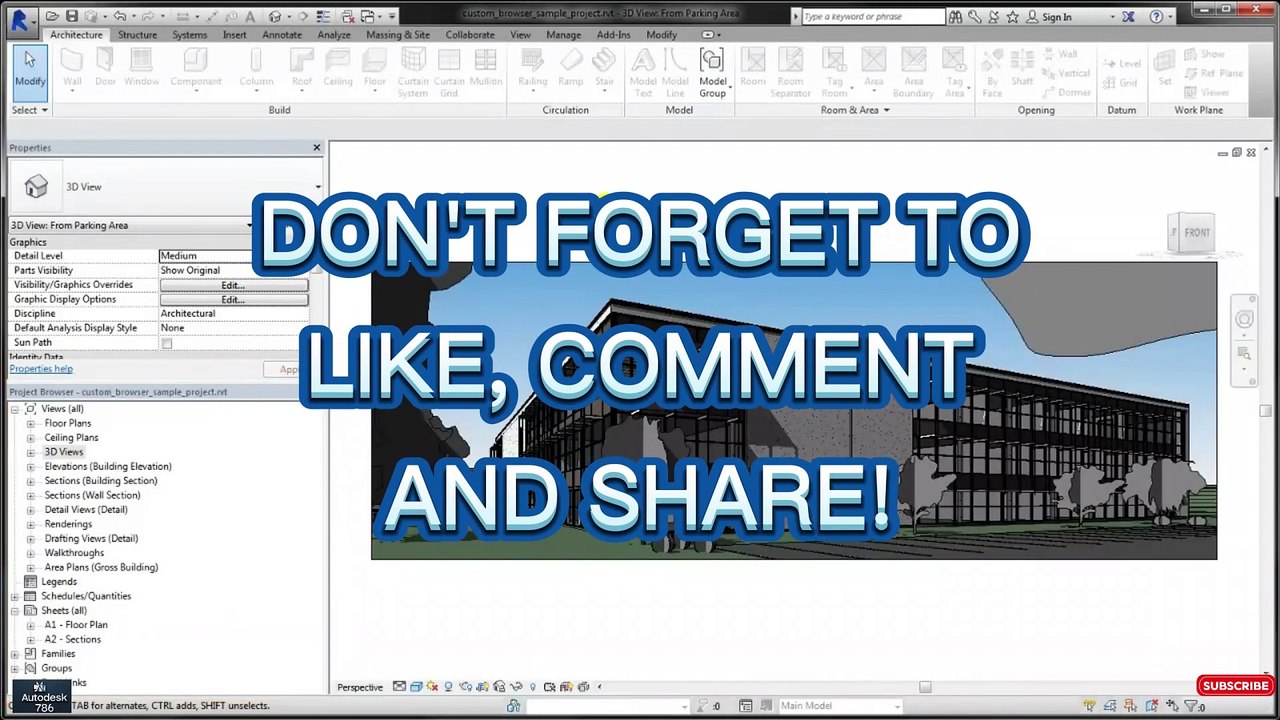
How to Customize the Project Browser in Revit | Part #27
Learn how to tailor the Project Browser in Revit for improved workflow and organization. This tutorial covers customization techniques suitable for architecture, civil, and 3D modeling projects using Autodesk Revit and Civil 3D.
Autodesk786
548 views • Feb 25, 2025
About this video
https://dai.ly/x9dob6c<br />https://dai.ly/x9dob38<br />https://dai.ly/x9dgqem<br />https://dai.ly/x9d58e0<br />https://dai.ly/x9d2fm6<br />https://dai.ly/x9dob6c<br />How to Customize the Project Browser in Revit<br />The Project Browser in Revit is a key tool for organizing and navigating views, sheets, families, and schedules. Customizing it helps improve workflow efficiency, making it easier to find specific project components.<br /><br />1. Accessing the Project Browser<br />If the Project Browser is missing:<br />✅ Go to View Tab → User Interface → Check "Project Browser".<br />✅ Alternatively, reset UI layout in Options → User Interface.<br /><br />2. Organizing the Project Browser<br />Revit allows custom sorting and filtering of the Project Browser based on parameters like:<br /><br />View Type (Floor Plans, Elevations, Schedules, etc.)<br />Phase (Existing, New Construction, etc.)<br />Discipline (Architectural, Structural, MEP)<br />A) Creating a Custom Browser Organization<br />Right-click in the Project Browser → Select "Browser Organization".<br />Click "New" and enter a name for the new organization.<br />In the Browser Organization Properties window:<br />Grouping Tab: Choose how to categorize views (e.g., by Level, Phase).<br />Filtering Tab: Set rules to hide unwanted views.<br />Click OK and apply changes.<br />📌 Tip: Use custom view parameters for advanced filtering.<br /><br />3. Sorting Views by Discipline or Sheet Number<br />To sort views logically, customize their organization:<br /><br />Go to View Tab → User Interface → Browser Organization.<br />Under the Views tab, create a New Sorting Rule.<br />Choose a sorting method:<br />By Discipline (Architectural, Structural, MEP).<br />By Sheet Number (for construction documentation).<br />Click Apply → OK.<br />📌 Tip: Sorting by "Phase" helps manage renovation projects.<br /><br />4. Customizing Family & Sheet Organization<br />Families: Sort by category or name for faster access.<br />Sheets: Organize by Sheet Number or Drawing Set for large projects.<br />A) Adjusting Family Organization<br />Right-click Project Browser → Browser Organization → Families.<br />Choose to sort by Family Name, Type, or Category.<br />B) Sorting Sheets by Discipline or Issue Date<br />Go to Sheets → Browser Organization.<br />Sort by Issue Date, Sheet Number, or Discipline.<br />Click Apply → OK.<br />📌 Tip: Use custom parameters for better sheet control.<br /><br />5. Creating a Searchable Project Browser<br />To find a specific view/sheet quickly:<br /><br />Right-click the Project Browser → Select "Search".<br />Type the view name or sheet number.<br />Click Find Next to locate it.<br />📌 Tip: Use consistent naming for easy searching.<br /><br />🚀 Quick Summary:<br />🔹 Right-click → Browser Organization to customize sorting.<br />🔹 Sort by View Type, Discipline, Phase, or Sheet Number.<br />🔹 Use search and filters to quickly find views.<br />🔹 Customize Families & Sheets organization for better management.
Video Information
Views
548
Duration
1:57
Published
Feb 25, 2025
Related Trending Topics
LIVE TRENDSRelated trending topics. Click any trend to explore more videos.
No specific trending topics match this video yet.
Explore All Trends