Create Rotating Cylinder Text in After Effects 🎥
Learn to make a rotating cylinder text animation in Adobe After Effects step by step. Type your text and animate easily.

TNO TM
398 views • Jun 8, 2024
About this video
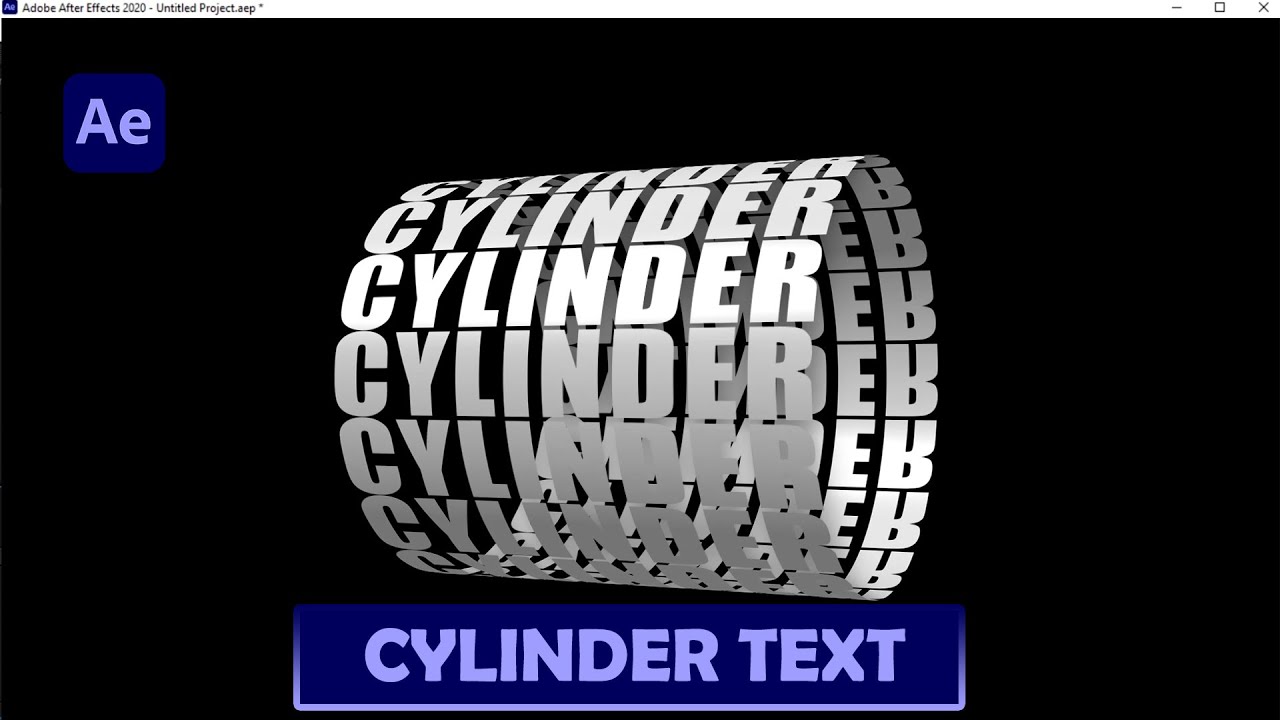
In this video, I want to tell you how to create a rotating Cylinder Text animation in Adobe After Effects. The first step, type the text using the Type Tool. In the text, I will rotate 90 degrees. The next step, go to Effects in the Menu. Stylize. And choose CC RepeTile.
On Expand Right and Left, I change the value to 1300. After that, go again to the Effect option in the menu. Perspective. And add the Drop Shadow effect. On Softness, I increased the value to 100. The next step, go once again to Effect. Perspective. Select CC Cylinder.
Expand the Position setting. For Position X, I changed it to 20. On Position Z, you can adjust the value as needed. Next step, expand the Rotation setting. On rotation X, I changed it to 25 degrees. Rotation Z, I will rotate it so that it looks horizontal and slightly tilted.
And for Rotation Y, I set it using the Expression code: Time, asterisk, 40. And the result will be like this. Thank you for watching. And see you in another tutorial.
For business inquiries: bxanimated@gmail.com
On Expand Right and Left, I change the value to 1300. After that, go again to the Effect option in the menu. Perspective. And add the Drop Shadow effect. On Softness, I increased the value to 100. The next step, go once again to Effect. Perspective. Select CC Cylinder.
Expand the Position setting. For Position X, I changed it to 20. On Position Z, you can adjust the value as needed. Next step, expand the Rotation setting. On rotation X, I changed it to 25 degrees. Rotation Z, I will rotate it so that it looks horizontal and slightly tilted.
And for Rotation Y, I set it using the Expression code: Time, asterisk, 40. And the result will be like this. Thank you for watching. And see you in another tutorial.
For business inquiries: bxanimated@gmail.com
Tags and Topics
Browse our collection to discover more content in these categories.
Video Information
Views
398
Likes
6
Duration
3:14
Published
Jun 8, 2024
Related Trending Topics
LIVE TRENDSRelated trending topics. Click any trend to explore more videos.
No specific trending topics match this video yet.
Explore All Trends