Create a Group Text on iPhone 📱
Learn how to easily create a group message on your iPhone with this simple tutorial.

Solve Your Tech
341.6K views • Sep 28, 2023
About this video
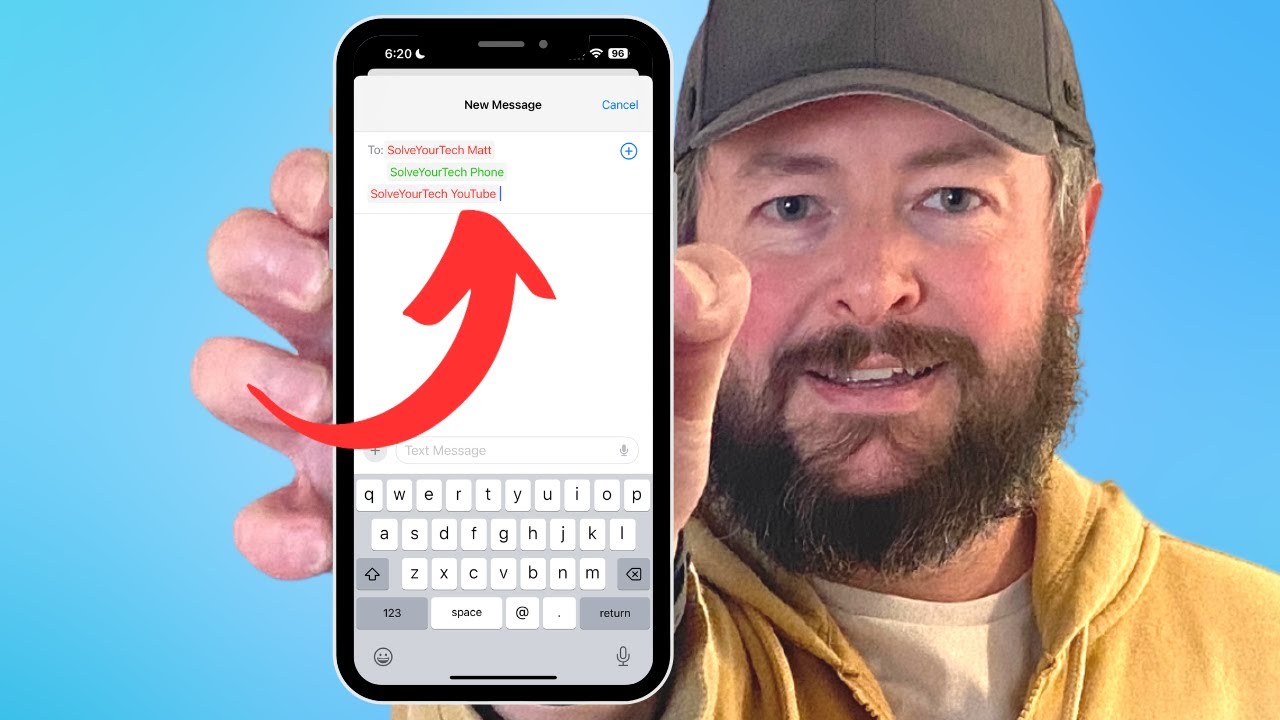
This video will show you how to create a group text on iPhone. Once you complete this tutorial, you will know how to create a text message with multiple people.
You can create a group message on an iPhone with the following steps:
1. Open Messages.
2. Tap the Compose button at the top-right.
3. Add all of the names or phone numbers of the people to include int the text into the To field.
4. Tap inside of the message field, type a message, then tap Send.
Tech We Use: https://www.amazon.com/shop/solveyourtech
Amazon Electronics Best Sellers: https://amzn.to/47udA5j
Amazon Tech Deals: https://amzn.to/3t53DMz
Affordable Laptops: https://amzn.to/3uzHoie
Popular Computers: https://amzn.to/3sXxYNg
Popular Smartphones: https://amzn.to/3R79KZ3
Popular Headphones: https://amzn.to/47DkpRY
Popular Monitors: https://amzn.to/4a2UUve
Apple AirPods Pro: https://amzn.to/4100fzn
The steps in this guide were performed on an iPhone 14 in the iOS 17 operating system, but work on many other iPhone models as well, such as the iPhone 11, iPhone 12, iPhone 13, and iPhone 15.
00:00 Introduction
00:15 How to Create a Group Text on iPhone
00:56 Outro
Related Questions and Issues This Video Can Help With:
- How to Create a Group Text on iPhone Mini
- How to Create a Group Text on iPhone Plus
- How to Create a Group Text on iPhone Pro
- How to Create a Group Text on iPhone Pro Max
#solveyourtech #apple #iphone #ios #howtoiphone #iphonetips #iphonetricks #iphonetipsandtricks #creategrouptextiphone #iphonecreategrouptext #howtocreategrouptextoniphone
Be sure to like this video and subscribe to our channel!
You can connect with us on our other social media accounts, too:
Facebook - https://www.facebook.com/solveyourtech/
Twitter - https://twitter.com/solveyourtech
Instagram - https://www.instagram.com/solveyourtech/
Pinterest - https://www.pinterest.com/solveyourtech/
Linkedin - https://www.linkedin.com/company/solve-your-tech/
SolveYourTech was founded in 2012 with the aim of providing how-to guides and tutorials that help people with problems on their phones, computers, and apps.
Since then, we have created thousands of guides focused on that goal. If you are looking for help with your smartphone, PC, or an application that you are using, then visit https://www.solveyourtech.com
DISCLOSURE: We frequently discuss or recommend products and services that we use and believe could be beneficial for you. Whenever feasible, we include referral links. This means that if you click on a link in this video or description and decide to buy something, we might get a small commission or other form of compensation.
We use Amazon a lot personally and for our business, and many of our links to products/gear are links to those products on Amazon. We are a participant in the Amazon Services LLC Associates Program, an affiliate advertising program designed to provide a means for us to earn fees by linking to Amazon.com and related sites.
You can create a group message on an iPhone with the following steps:
1. Open Messages.
2. Tap the Compose button at the top-right.
3. Add all of the names or phone numbers of the people to include int the text into the To field.
4. Tap inside of the message field, type a message, then tap Send.
Tech We Use: https://www.amazon.com/shop/solveyourtech
Amazon Electronics Best Sellers: https://amzn.to/47udA5j
Amazon Tech Deals: https://amzn.to/3t53DMz
Affordable Laptops: https://amzn.to/3uzHoie
Popular Computers: https://amzn.to/3sXxYNg
Popular Smartphones: https://amzn.to/3R79KZ3
Popular Headphones: https://amzn.to/47DkpRY
Popular Monitors: https://amzn.to/4a2UUve
Apple AirPods Pro: https://amzn.to/4100fzn
The steps in this guide were performed on an iPhone 14 in the iOS 17 operating system, but work on many other iPhone models as well, such as the iPhone 11, iPhone 12, iPhone 13, and iPhone 15.
00:00 Introduction
00:15 How to Create a Group Text on iPhone
00:56 Outro
Related Questions and Issues This Video Can Help With:
- How to Create a Group Text on iPhone Mini
- How to Create a Group Text on iPhone Plus
- How to Create a Group Text on iPhone Pro
- How to Create a Group Text on iPhone Pro Max
#solveyourtech #apple #iphone #ios #howtoiphone #iphonetips #iphonetricks #iphonetipsandtricks #creategrouptextiphone #iphonecreategrouptext #howtocreategrouptextoniphone
Be sure to like this video and subscribe to our channel!
You can connect with us on our other social media accounts, too:
Facebook - https://www.facebook.com/solveyourtech/
Twitter - https://twitter.com/solveyourtech
Instagram - https://www.instagram.com/solveyourtech/
Pinterest - https://www.pinterest.com/solveyourtech/
Linkedin - https://www.linkedin.com/company/solve-your-tech/
SolveYourTech was founded in 2012 with the aim of providing how-to guides and tutorials that help people with problems on their phones, computers, and apps.
Since then, we have created thousands of guides focused on that goal. If you are looking for help with your smartphone, PC, or an application that you are using, then visit https://www.solveyourtech.com
DISCLOSURE: We frequently discuss or recommend products and services that we use and believe could be beneficial for you. Whenever feasible, we include referral links. This means that if you click on a link in this video or description and decide to buy something, we might get a small commission or other form of compensation.
We use Amazon a lot personally and for our business, and many of our links to products/gear are links to those products on Amazon. We are a participant in the Amazon Services LLC Associates Program, an affiliate advertising program designed to provide a means for us to earn fees by linking to Amazon.com and related sites.
Tags and Topics
Browse our collection to discover more content in these categories.
Video Information
Views
341.6K
Likes
1.6K
Duration
1:10
Published
Sep 28, 2023
User Reviews
4.2
(68) Related Trending Topics
LIVE TRENDSRelated trending topics. Click any trend to explore more videos.
No specific trending topics match this video yet.
Explore All Trends