How to Convert Image to Word Document | Microsoft Word Tutorial
Do you like our content? Buy us a cup of coffee! https://ko-fi.com/burntolearn Premium Phone Cases & Accessories for Smart Devices | Case·Mate https://case...
Burn to Learn
9.2K views • Mar 1, 2023
About this video
Do you like our content? Buy us a cup of coffee!
https://ko-fi.com/burntolearn
Premium Phone Cases & Accessories for Smart Devices | Case·Mate
https://casemate.kxyi.net/burntolearn
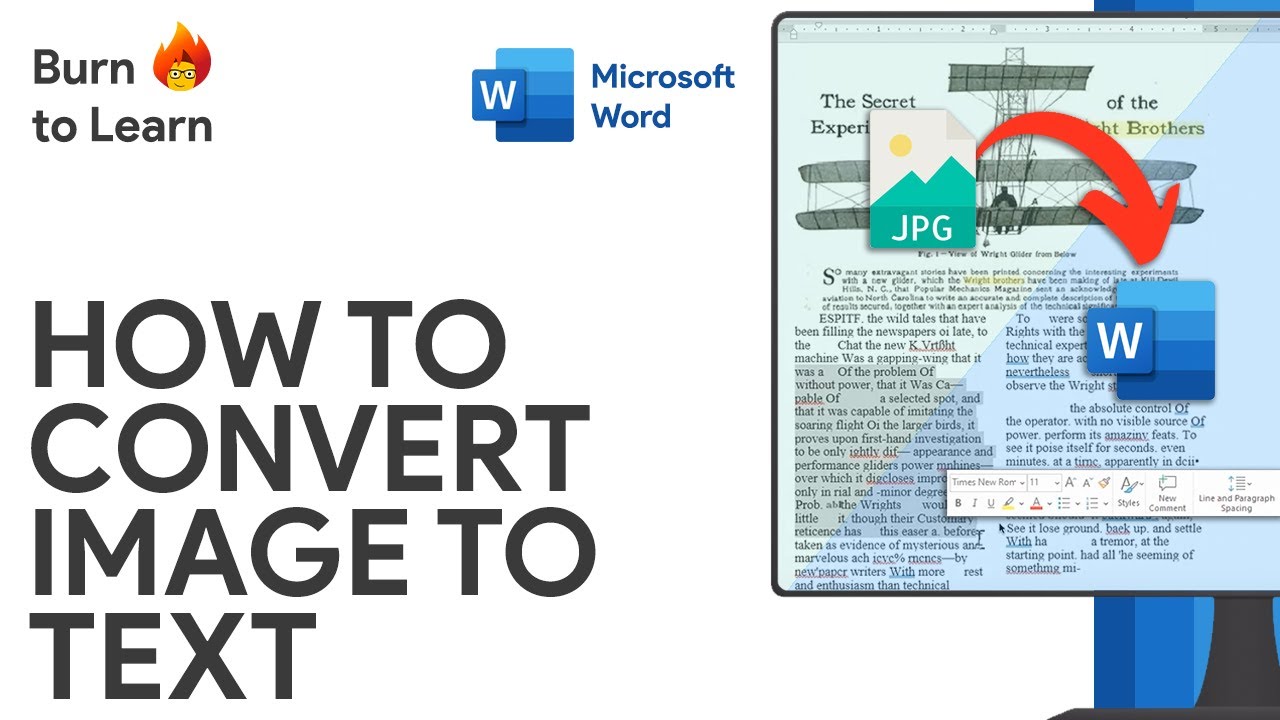
Go from a photo to a editable text in Word in three different ways
Converting a picture to a PDF document
A very important first step is to convert the picture to a PDF document. Let’s see how to do it.
Being in a word document go to the main menu and select the insert option. The file explorer is opened where you can choose the picture you’re using. Then click on the insert button. Center or cut your picture to make it more readable. Once you are happy with your result, go back to the main menu and click on the file option. Here select the save option. Type the name of your document in the file section. And in the save as type drop down menu, select the PDF option. Then click on the save button. Now your picture is a PDF document. The first step is done.
3 Ways to open and convert the PDF to a editable document
Now lets see 3 different ways to open and convert the PDF to an editable document:
First way: Right click on the document and select the open with option. A menu is opened, where you can click on the choose another app option and then choose Word. If you want to use Word to open PDF documents, select always use Word or select the second option: Just once.
Once you click on one of the options a message is opened to let you know that the PDF document will be converted into an editable document and this will take a while. When completed, your PDF document has been converted to an editable document. As simple as that.
Second way: Drag your pdf document and drop it into the Word program, as you can see now. As simple as that.
Third way: The third way is a little more elaborate, but just as effective as the previous two. In the main menu go the view option and click on the outline option. Then click on show document. Finally, click on the insert option. The file explorer is opened. Select your PDF document and click on the open button. And that's it!
Which of the three ways did you like the most?
Surely now you are thinking about what will be the photo or document where you will put this valuable tip into practice.
Please like this video and subscribe to our Burn to learn channel!
0:00 - Intro
0:19 - Converting Picture to a PDF
1:02 - First Way to Convert PDF to a Editable Document
1:57 - Second Way to Convert PDF to a Editable Document
2:06 - Third Way to Convert PDF to a Editable Document
Burn To Learn - T-Shirts
https://burntolearn.threadless.com/designs
Visit our website http://www.burntolearn.com. to see all our tutorials.
Facebook: https://www.facebook.com/burtolearn/
Twitter: https://twitter.com/btltutorials
Instagram - https://www.instagram.com/btltutorials/
LinkedIn - https://www.linkedin.com/company/burntolearn.com/
Reddit - https://www.reddit.com/user/burn-to-learn/
------------------------ --------------------------- ------------------------------
#Word #Microsoft #wordtips #wordtutorial #pdfconvert
https://ko-fi.com/burntolearn
Premium Phone Cases & Accessories for Smart Devices | Case·Mate
https://casemate.kxyi.net/burntolearn
Go from a photo to a editable text in Word in three different ways
Converting a picture to a PDF document
A very important first step is to convert the picture to a PDF document. Let’s see how to do it.
Being in a word document go to the main menu and select the insert option. The file explorer is opened where you can choose the picture you’re using. Then click on the insert button. Center or cut your picture to make it more readable. Once you are happy with your result, go back to the main menu and click on the file option. Here select the save option. Type the name of your document in the file section. And in the save as type drop down menu, select the PDF option. Then click on the save button. Now your picture is a PDF document. The first step is done.
3 Ways to open and convert the PDF to a editable document
Now lets see 3 different ways to open and convert the PDF to an editable document:
First way: Right click on the document and select the open with option. A menu is opened, where you can click on the choose another app option and then choose Word. If you want to use Word to open PDF documents, select always use Word or select the second option: Just once.
Once you click on one of the options a message is opened to let you know that the PDF document will be converted into an editable document and this will take a while. When completed, your PDF document has been converted to an editable document. As simple as that.
Second way: Drag your pdf document and drop it into the Word program, as you can see now. As simple as that.
Third way: The third way is a little more elaborate, but just as effective as the previous two. In the main menu go the view option and click on the outline option. Then click on show document. Finally, click on the insert option. The file explorer is opened. Select your PDF document and click on the open button. And that's it!
Which of the three ways did you like the most?
Surely now you are thinking about what will be the photo or document where you will put this valuable tip into practice.
Please like this video and subscribe to our Burn to learn channel!
0:00 - Intro
0:19 - Converting Picture to a PDF
1:02 - First Way to Convert PDF to a Editable Document
1:57 - Second Way to Convert PDF to a Editable Document
2:06 - Third Way to Convert PDF to a Editable Document
Burn To Learn - T-Shirts
https://burntolearn.threadless.com/designs
Visit our website http://www.burntolearn.com. to see all our tutorials.
Facebook: https://www.facebook.com/burtolearn/
Twitter: https://twitter.com/btltutorials
Instagram - https://www.instagram.com/btltutorials/
LinkedIn - https://www.linkedin.com/company/burntolearn.com/
Reddit - https://www.reddit.com/user/burn-to-learn/
------------------------ --------------------------- ------------------------------
#Word #Microsoft #wordtips #wordtutorial #pdfconvert
Tags and Topics
Browse our collection to discover more content in these categories.
Video Information
Views
9.2K
Likes
41
Duration
2:54
Published
Mar 1, 2023
User Reviews
4.0
(1) Related Trending Topics
LIVE TRENDSRelated trending topics. Click any trend to explore more videos.
Trending Now