Convert CHM to PDF Easily 📄
Learn how to convert CHM files to PDF with this simple tutorial. Visit http://howtech.tv/ for more free how-to videos!

Video Editing and 3D Modelling Tutorials and Courses from HowTech
25.0K views • Aug 11, 2013
About this video
In this tutorial you will learn how to convert Chm to PDF.
Don't forget to check out our site http://howtech.tv/ for more free how-to videos!
http://youtube.com/ithowtovids - our feed
http://www.facebook.com/howtechtv - join us on facebook
https://plus.google.com/103440382717658277879 - our group in Google+
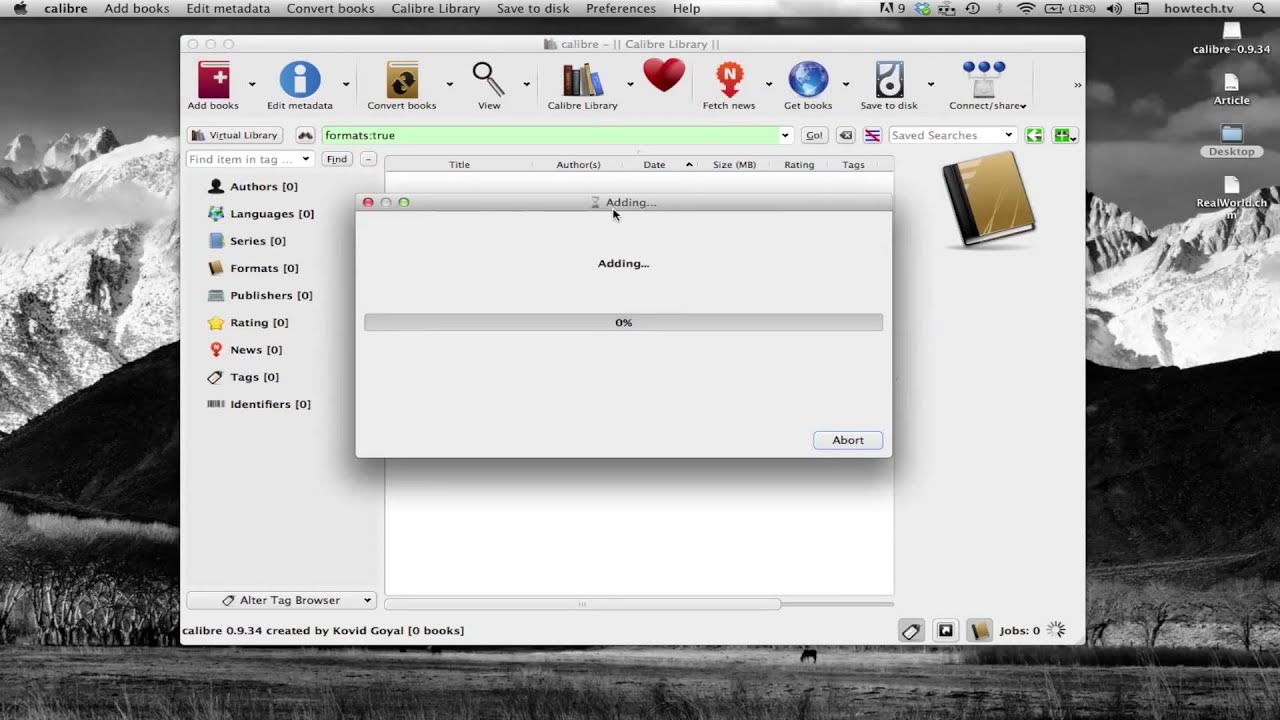
This tutorial will show you how to convert Chm to PDF. We will be downloading and using the free application called Calibre. This allows for easy conversions amongst various file formats such as html, eBook, PDF, and more.
Step #1 -- Download the Calibre Application
You can find a free download at the following link. Make sure you choose the right Operating System for your computer.
http://calibre-ebook.com/download
Step #2 --Open the app
Step #3 -- Click Add Books
You will now locate your Chm file to convert. Once it has loaded into the screen, click the convert books icon. From here, tap "Ok" at the bottom right corner of the screen. Your chm will now be converted to PDF!
Leave your comments below or contact us by email. This was a Howtech.tv tutorial. Thanks for watching!
Don't forget to check out our site http://howtech.tv/ for more free how-to videos!
http://youtube.com/ithowtovids - our feed
http://www.facebook.com/howtechtv - join us on facebook
https://plus.google.com/103440382717658277879 - our group in Google+
This tutorial will show you how to convert Chm to PDF. We will be downloading and using the free application called Calibre. This allows for easy conversions amongst various file formats such as html, eBook, PDF, and more.
Step #1 -- Download the Calibre Application
You can find a free download at the following link. Make sure you choose the right Operating System for your computer.
http://calibre-ebook.com/download
Step #2 --Open the app
Step #3 -- Click Add Books
You will now locate your Chm file to convert. Once it has loaded into the screen, click the convert books icon. From here, tap "Ok" at the bottom right corner of the screen. Your chm will now be converted to PDF!
Leave your comments below or contact us by email. This was a Howtech.tv tutorial. Thanks for watching!
Tags and Topics
Browse our collection to discover more content in these categories.
Video Information
Views
25.0K
Likes
46
Duration
0:45
Published
Aug 11, 2013
User Reviews
3.9
(5) Related Trending Topics
LIVE TRENDSRelated trending topics. Click any trend to explore more videos.
No specific trending topics match this video yet.
Explore All Trends