Change Google Chrome Search Language to English
Learn how to easily switch your Google Chrome search language back to English with this simple guide. 🔧

Discover You
28.1K views • Apr 30, 2025
About this video
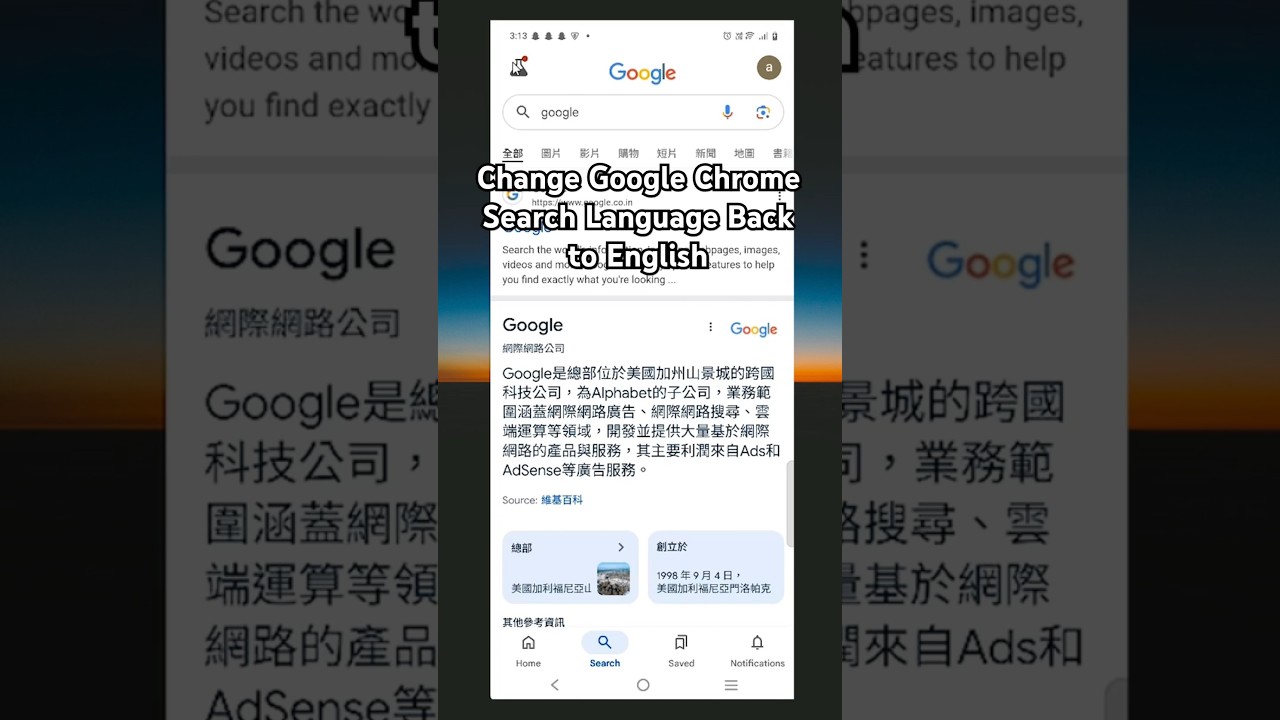
Did your Google Chrome search language switch to a language you don’t prefer? In this simple tutorial, we’ll walk you through how to change the Google Chrome search language back to English using the Settings menu. Follow these easy steps—open Chrome, go to Settings, navigate to Other settings, and adjust the Language option—to restore your preferred browsing experience. Perfect for anyone who wants their Chrome interface and search results in English!
Steps to Change Google Chrome Search Language Back to English:
Open Google Chrome on your PC or laptop.
Click the three-dot menu in the top-right corner and select Settings.
Scroll down and click on Other settings (or look for additional options under the main Settings menu).
Click on Language to open the language settings.
In the “Preferred languages” section, click Add languages and select English (United States) or English (United Kingdom).
Drag English to the top of the list to set it as your primary language.
Click the three-dot menu next to English and choose Display Google Chrome in this language.
Restart Chrome to apply the changes.
To ensure search results are in English, go to google.com, click Settings (bottom right), then Search settings, and under “Region Settings,” select an English-speaking region (e.g., United States).
Why Change the Search Language?
Switching the language back to English ensures your browser interface, menus, and search results align with your preferences, avoiding confusion from unintended language changes.
Additional Tips:
If the language doesn’t update after restarting, clear your browser cache (Settings → Privacy and security → Clear browsing data).
Check your operating system language settings, as they can influence Chrome (Control Panel → Clock and Region → Region).
If “Other settings” isn’t visible, look under Advanced or use the search bar in Settings to type “Language.”
Hit the Subscribe button and turn on notifications 🔔 for more Google Chrome tips, tech tutorials, and troubleshooting guides! Facing language issues in Chrome? Drop your questions in the comments, and we’ll help you out!
#GoogleChrome #ChangeLanguage #ChromeSettings #EnglishLanguage #TechTutorial #HowTo #BrowserTips #ChromeCustomization #TechSupport
Steps to Change Google Chrome Search Language Back to English:
Open Google Chrome on your PC or laptop.
Click the three-dot menu in the top-right corner and select Settings.
Scroll down and click on Other settings (or look for additional options under the main Settings menu).
Click on Language to open the language settings.
In the “Preferred languages” section, click Add languages and select English (United States) or English (United Kingdom).
Drag English to the top of the list to set it as your primary language.
Click the three-dot menu next to English and choose Display Google Chrome in this language.
Restart Chrome to apply the changes.
To ensure search results are in English, go to google.com, click Settings (bottom right), then Search settings, and under “Region Settings,” select an English-speaking region (e.g., United States).
Why Change the Search Language?
Switching the language back to English ensures your browser interface, menus, and search results align with your preferences, avoiding confusion from unintended language changes.
Additional Tips:
If the language doesn’t update after restarting, clear your browser cache (Settings → Privacy and security → Clear browsing data).
Check your operating system language settings, as they can influence Chrome (Control Panel → Clock and Region → Region).
If “Other settings” isn’t visible, look under Advanced or use the search bar in Settings to type “Language.”
Hit the Subscribe button and turn on notifications 🔔 for more Google Chrome tips, tech tutorials, and troubleshooting guides! Facing language issues in Chrome? Drop your questions in the comments, and we’ll help you out!
#GoogleChrome #ChangeLanguage #ChromeSettings #EnglishLanguage #TechTutorial #HowTo #BrowserTips #ChromeCustomization #TechSupport
Tags and Topics
Browse our collection to discover more content in these categories.
Video Information
Views
28.1K
Likes
226
Duration
1:06
Published
Apr 30, 2025
User Reviews
4.2
(5) Related Trending Topics
LIVE TRENDSRelated trending topics. Click any trend to explore more videos.
No specific trending topics match this video yet.
Explore All Trends