Add Digital Signature to PDF Easily ✍️
Learn how to sign PDFs with a digital certificate quickly and easily in this step-by-step guide.

pdf-tips
35.5K views • Nov 21, 2022
About this video
In this video, we'll show you how to sign a PDF document with a digital certificate signature. With this method, you can easily sign documents without having to print them out and take them to an office or mail / post them.
If you're looking to improve your office efficiency or learn how to sign documents digitally with a digital certificate, then this video is for you! We'll show you how to sign a PDF document with a digital certificate signature, and discuss some of the benefits of using this method. After watching this video, you'll be able to sign documents effortlessly!
Easy step-by-step guide. more details can be found here: https://pdf-tips.com/how-to-add-a-digital-signature-certificate-to-a-pdf/
FREE Adobe Reader can be downloaded here:
https://get.adobe.com/uk/reader/
or
Adobe Acrobat Trial can be downloaded here: https://www.adobe.com/uk/acrobat/free-trial-download.html
Note once this is setup it's a 3-step process to sign a document, to setup please follow the below step-by-step instructions:-
1. Make sure Adobe Reader full version is installed
2. Open the PDF or Word Document in Adobe Acrobat
3. Click on Tools in the main menu
4. in the Search tools box enter: Digital
5. Now you will see Certificates below, click on the Digitally Sign button on the right-hand side
6. Create a box where you want to sign the document, i.e. left mouse click hold down and drag the mouse to the bottom right and release
7. On the next screen 'Configure a Digital ID for Signing' click the "Create a new Digital ID" option and click the "Continue" button
8. Enter your name, address and email details and click the "Save" button when done
9. Now select the ID to use and click the "Continue" button
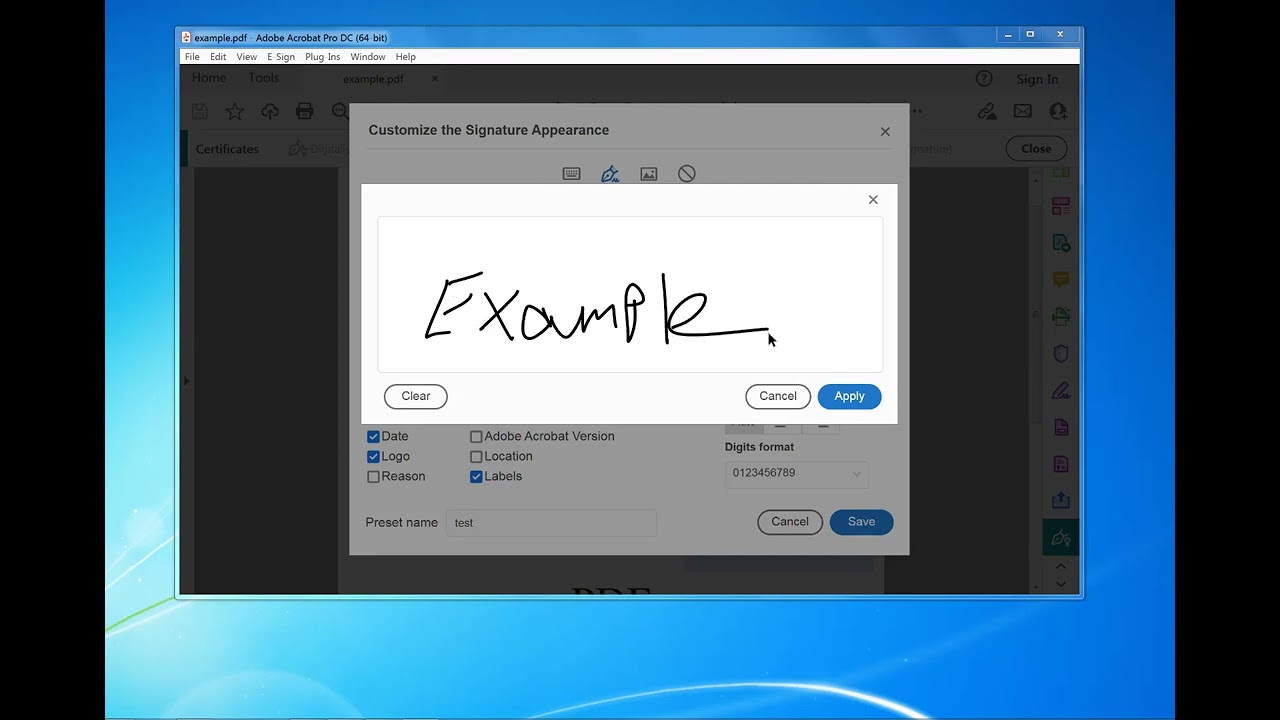
10. To add a Signature Image click the "Edit" button
11. Click the "Draw" icon, if an image is already present to clear it click the "Text" then "Edit" buttons again
12. Draw your Signature
13. Click the "Save" button
14. Click the "Sign" button
15. Save your pdf to a new name e.g. example-signed.pdf
All done.
Next time you need to sign a document you can simply click "Digitally Sign" (Step 5 above)
Select the Area you wish to sign on the pdf page, choose the Digital ID Signature to use and click "Sign"
That's it!
Extra Tip: To lock the file from further changes after signing click the "Lock document after signing" checkbox on the "Sign As" screen.
#pdf-tips #pdf #tips #howto #adobe
www.pdf-tips.com
If you're looking to improve your office efficiency or learn how to sign documents digitally with a digital certificate, then this video is for you! We'll show you how to sign a PDF document with a digital certificate signature, and discuss some of the benefits of using this method. After watching this video, you'll be able to sign documents effortlessly!
Easy step-by-step guide. more details can be found here: https://pdf-tips.com/how-to-add-a-digital-signature-certificate-to-a-pdf/
FREE Adobe Reader can be downloaded here:
https://get.adobe.com/uk/reader/
or
Adobe Acrobat Trial can be downloaded here: https://www.adobe.com/uk/acrobat/free-trial-download.html
Note once this is setup it's a 3-step process to sign a document, to setup please follow the below step-by-step instructions:-
1. Make sure Adobe Reader full version is installed
2. Open the PDF or Word Document in Adobe Acrobat
3. Click on Tools in the main menu
4. in the Search tools box enter: Digital
5. Now you will see Certificates below, click on the Digitally Sign button on the right-hand side
6. Create a box where you want to sign the document, i.e. left mouse click hold down and drag the mouse to the bottom right and release
7. On the next screen 'Configure a Digital ID for Signing' click the "Create a new Digital ID" option and click the "Continue" button
8. Enter your name, address and email details and click the "Save" button when done
9. Now select the ID to use and click the "Continue" button
10. To add a Signature Image click the "Edit" button
11. Click the "Draw" icon, if an image is already present to clear it click the "Text" then "Edit" buttons again
12. Draw your Signature
13. Click the "Save" button
14. Click the "Sign" button
15. Save your pdf to a new name e.g. example-signed.pdf
All done.
Next time you need to sign a document you can simply click "Digitally Sign" (Step 5 above)
Select the Area you wish to sign on the pdf page, choose the Digital ID Signature to use and click "Sign"
That's it!
Extra Tip: To lock the file from further changes after signing click the "Lock document after signing" checkbox on the "Sign As" screen.
#pdf-tips #pdf #tips #howto #adobe
www.pdf-tips.com
Tags and Topics
Browse our collection to discover more content in these categories.
Video Information
Views
35.5K
Likes
45
Duration
3:45
Published
Nov 21, 2022
User Reviews
3.9
(7) Related Trending Topics
LIVE TRENDSRelated trending topics. Click any trend to explore more videos.
No specific trending topics match this video yet.
Explore All Trends