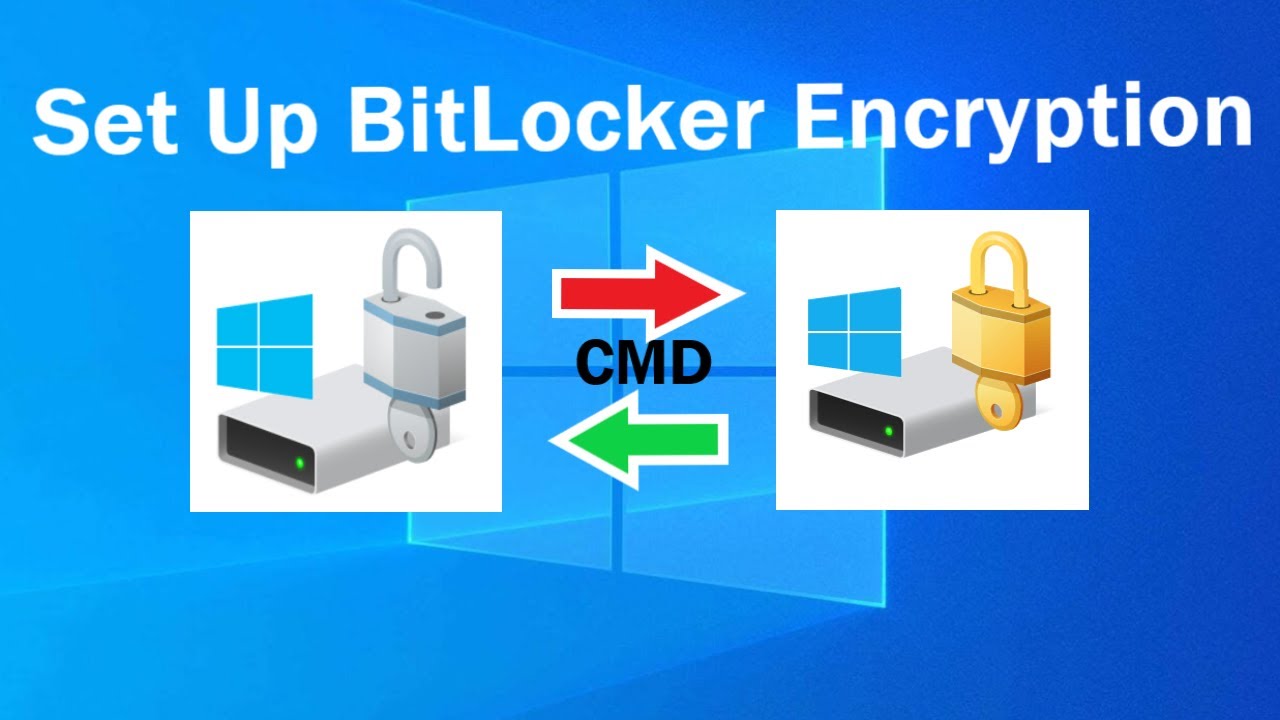
Guide to Managing BitLocker Encrypted Drives Using Command Prompt
Learn how to enable, lock, unlock, and disable BitLocker encryption on drives through Command Prompt without restarting Windows, facilitating efficient management of non-bootable drives.

Snapshot Tech Tips
40.5K views • Aug 5, 2022
About this video
Knowing how to set up BitLocker Drive via CMD without restarting Windows allows for convenient encryption of non-bootable drives.
#BitLocker #WindowsBitLocker
manage-bde -protectors -add Drive Letter: -password
manage-bde -protectors -add Drive Letter: -rp
manage-bde -on Drive Letter:
manage-bde -status Drive Letter:
manage-bde -lock Drive Letter:
manage-bde -unlock Drive Letter: -password
manage-bde -off Drive Letter:
manage-bde -protectors -get Drive Letter:
or
manage-bde -protectors Drive Letter: -get
Note: USB Encrypted drive will change status (lock) if it is being plugged into a different computer.
Yellow Triangle Warning on Encrypted Drive
An error occurred (code 0x80310021)
An error occurred (code 0x8031004e)
Fix: manage-bde -on Drive Letter:
Hints:
The Windows Local Disk C cannot be locked because it contains the running OS
You can’t retrieve BitLocker Password with Password ID
You can’t retrieve BitLocker Recovery Key with Numerical Password
If BitLocker Encrypted Drive was locked:
In the command line, you type manage-bde -protectors -get Drive Letter:
You won't see the BitLocker Recovery Key
If BitLocker Encrypted Drive was unlocked:
In the command line, you type manage-bde -protectors -get Drive Letter:
Yon can able to see the BitLocker Recovery Key.
Unlock, Turn off BitLocker ENCRYPTED Drive WITHOUT a RECOVERY KEY in 1 Minute
https://www.youtube.com/watch?v=5PYY_zTg_I8
Unlock, Turn off and Bypass the Windows BitLocker in ONE MINUTE | If You are WELL PREPARED
https://www.youtube.com/watch?v=qNtpQ_mlxhs
Music from YouTube Audio Library
#BitLocker #WindowsBitLocker
manage-bde -protectors -add Drive Letter: -password
manage-bde -protectors -add Drive Letter: -rp
manage-bde -on Drive Letter:
manage-bde -status Drive Letter:
manage-bde -lock Drive Letter:
manage-bde -unlock Drive Letter: -password
manage-bde -off Drive Letter:
manage-bde -protectors -get Drive Letter:
or
manage-bde -protectors Drive Letter: -get
Note: USB Encrypted drive will change status (lock) if it is being plugged into a different computer.
Yellow Triangle Warning on Encrypted Drive
An error occurred (code 0x80310021)
An error occurred (code 0x8031004e)
Fix: manage-bde -on Drive Letter:
Hints:
The Windows Local Disk C cannot be locked because it contains the running OS
You can’t retrieve BitLocker Password with Password ID
You can’t retrieve BitLocker Recovery Key with Numerical Password
If BitLocker Encrypted Drive was locked:
In the command line, you type manage-bde -protectors -get Drive Letter:
You won't see the BitLocker Recovery Key
If BitLocker Encrypted Drive was unlocked:
In the command line, you type manage-bde -protectors -get Drive Letter:
Yon can able to see the BitLocker Recovery Key.
Unlock, Turn off BitLocker ENCRYPTED Drive WITHOUT a RECOVERY KEY in 1 Minute
https://www.youtube.com/watch?v=5PYY_zTg_I8
Unlock, Turn off and Bypass the Windows BitLocker in ONE MINUTE | If You are WELL PREPARED
https://www.youtube.com/watch?v=qNtpQ_mlxhs
Music from YouTube Audio Library
Tags and Topics
Browse our collection to discover more content in these categories.
Video Information
Views
40.5K
Likes
163
Duration
5:19
Published
Aug 5, 2022
User Reviews
4.1
(8) Related Trending Topics
LIVE TRENDSRelated trending topics. Click any trend to explore more videos.
No specific trending topics match this video yet.
Explore All Trends