Guide to Adjusting Heading Sizes in Microsoft Word
Learn how to change heading sizes in Microsoft Word with this simple tutorial, covering methods to modify font size for headings.
Mr. Devotor
253 views • Dec 17, 2024
About this video
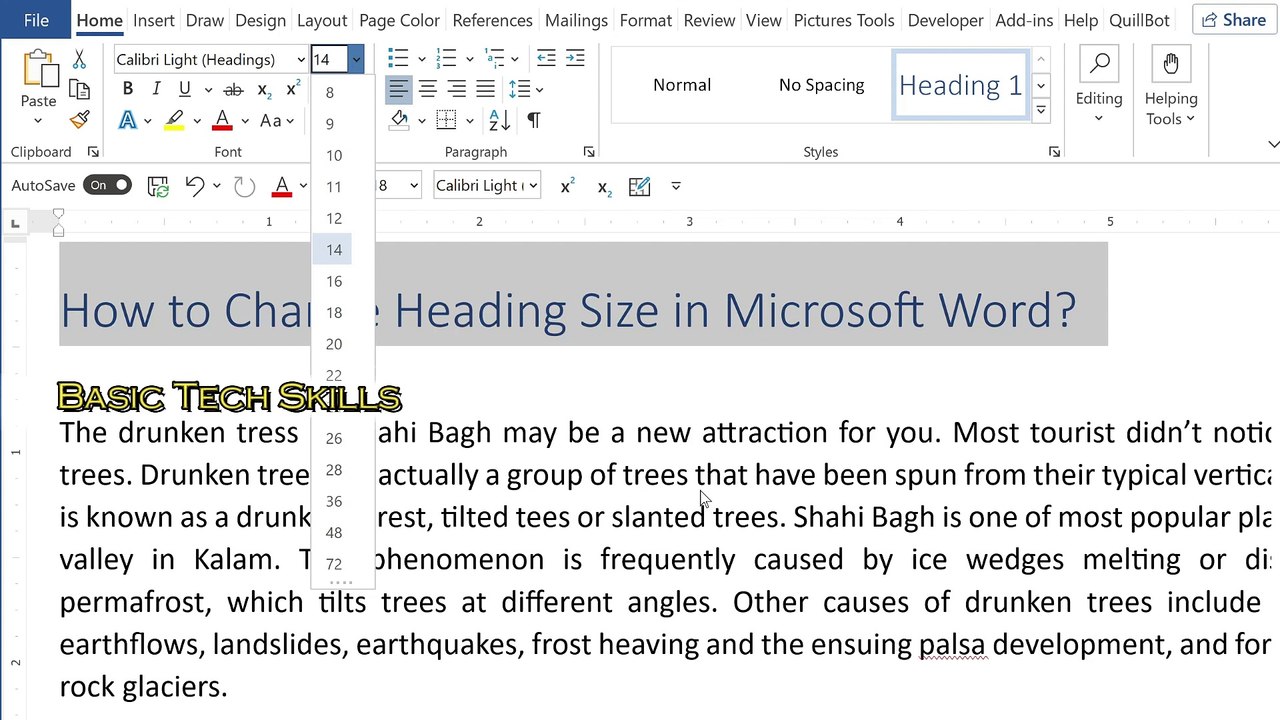
Need to adjust heading sizes in Microsoft Word? 📝 In this quick and easy tutorial, I'll show you how to change heading sizes using both the font size option and pre-defined heading styles. Whether you're working on a document for school, work, or personal projects, this guide will help you format headings like a pro How to Change Heading Size in Microsoft Word<br />If you want to change the heading size in a Word document, follow these simple steps:<br /><br />Steps to Change Heading Size<br />Highlight the Heading<br /><br />Click and drag to select the heading text you want to change.<br />Go to the Font Size Option<br /><br />At the top of the Word window, look for the "Home" tab.<br />In the Font group, you'll see a dropdown menu with numbers (e.g., 11, 12, 14, etc.).<br />Click the dropdown arrow to select a font size.<br />Choose or Type the Desired Font Size<br /><br />You can pick a preset size from the list.<br />Or manually type in a number (e.g., 18, 24, 32) and press Enter.<br />For Pre-Defined Headings (Heading Styles):<br />If you’re using Word's built-in heading styles like "Heading 1," "Heading 2," etc.:<br /><br />Go to the "Home" tab.<br />Right-click on the heading style (e.g., Heading 1).<br />Select "Modify" from the menu.<br />In the Modify Style window:<br />Change the font size under "Formatting."<br />Click OK to save changes.<br /><br />#MicrosoftWord #WordTutorial #HeadingSize #WordTips #DocumentFormatting #MicrosoftOffice #TextEditing #WordHelp #FormattingTips #TechTutorial
Video Information
Views
253
Duration
2:38
Published
Dec 17, 2024
Related Trending Topics
LIVE TRENDSRelated trending topics. Click any trend to explore more videos.
Trending Now