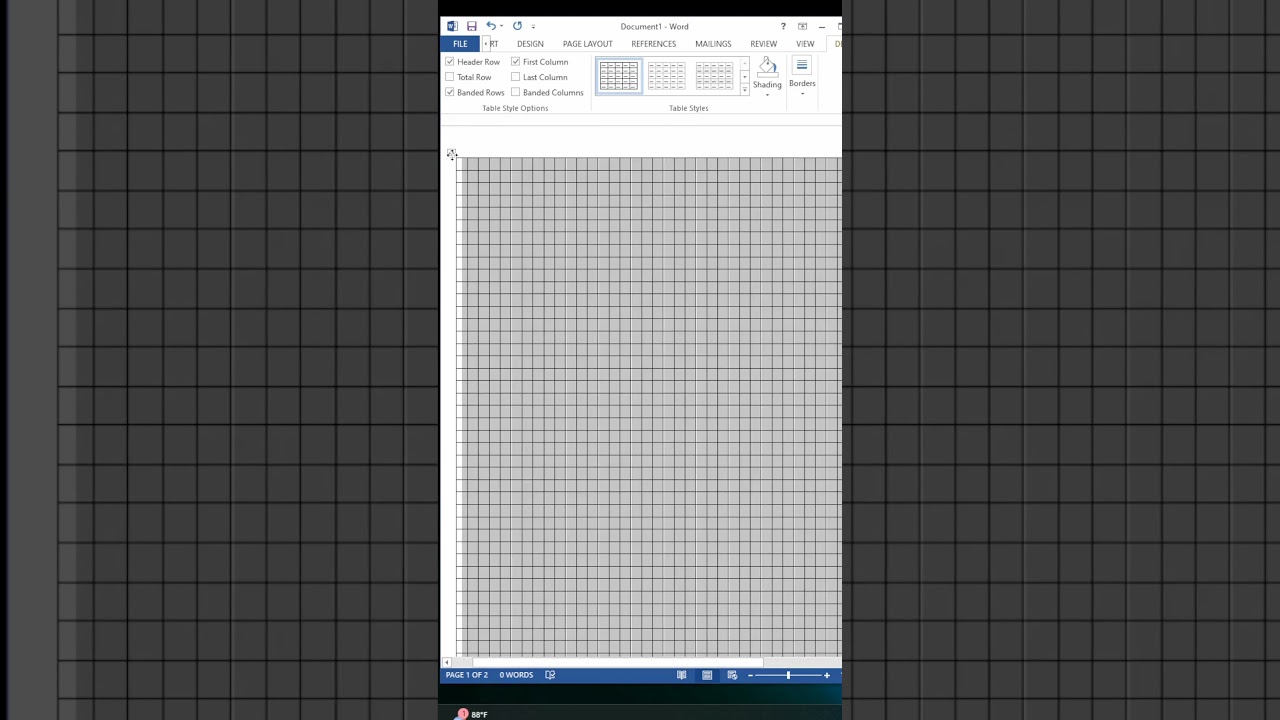
Create Graph Paper in MS Word 📊
Learn how to make graph paper in MS Word easily with this quick tutorial. Perfect for students and designers! 👍

Edu Tech Tree
15.5K views • Oct 6, 2024
About this video
#word #wordtricks #wordtutorial #words #computertricks #computertutorial #computer #viralshorts
✌✌ If You like my work and efforts PLEASE
🙏🙏 LIKE, COMMENT & SUBSCRIBE My Channel......
Your Queries - how to get graph paper on word, graph paper, how to get graph paper on microsoft word, how to make graph paper in excel, how to create graph paper in excel, how to create a graph paper in excel and ms word, create graph paper in excel, make a graph paper in ms word, how to get graph paper in word, how to make graph paper in microsoft word, graph paper on word, how to make graph paper, how to make a graph paper, create graph paper
How to Get Graph Paper in Microsoft Word and Excel
Graph paper is useful for a wide range of applications, from plotting graphs and charts to designing layouts and creating grids. Microsoft Word and Excel both provide ways to create graph paper. Here’s a step-by-step guide on how to get graph paper in both Microsoft Word and Excel, helping you easily create custom grids for your projects.
How to Get Graph Paper on Microsoft Word
If you're looking to use graph paper in Microsoft Word, you can follow these steps to create or insert one:
Option 1: Use a Template
Open Microsoft Word.
Go to the File menu, and click on New.
In the search bar, type “graph paper.”
Select a graph paper template from the options provided and click Create.
Once the template opens, you can customize the graph paper by resizing the grid or adjusting the page layout.
Option 2: Create Graph Paper Manually
If you prefer to create your own graph paper manually:
Open a new blank document in Word.
Go to the Insert tab and click on Table.
Create a table by selecting the number of rows and columns you want e.g., 10x10 for a small grid.
Adjust the row height and column width to make them equal, creating a perfect square for each cell.
If needed, format the table by removing the borders or changing the cell size further until you achieve the desired grid.
How to Make Graph Paper in Microsoft Word Using Shapes
You can also create graph paper by inserting lines to form grids.
Go to the Insert tab and select Shapes.
Use the Line tool to draw horizontal and vertical lines that will form the graph paper grid.
Duplicate the lines and adjust them evenly across the page to create a grid-like pattern.
How to Make Graph Paper in Excel
Creating graph paper in Microsoft Excel is quite easy because of Excel's built-in grid system. Here’s how you can make it:
Steps to Create Graph Paper in Excel:
Open Excel and select a new workbook.
Select all the cells -click the small triangle at the top-left corner of the sheet.
Right-click on any of the selected cells and choose Row Height. Set the height to match your preferred size e.g., 20.
Next, right-click on the column letters at the top and choose Column Width. Set the width equal to the height e.g., 20 to ensure that each cell is square, creating a grid similar to graph paper.
You can adjust the line colors or borders by selecting the cells and using the Borders option under the Home tab.
How to Customize Graph Paper in Excel
Create Larger or Smaller Grids: Adjust the row height and column width to make the squares larger or smaller depending on your needs.
Add Gridlines: Under the View tab, make sure the Gridlines checkbox is checked. This will show the default gridlines on your worksheet.
Print Gridlines: If you want to print the graph paper, go to Page Layout, select Sheet Options, and ensure the Print Gridlines option is checked.
Using Templates for Graph Paper in Word and Excel
For quick access, you can use pre-made templates for both Word and Excel:
Search for Graph Paper Templates: Open Microsoft Word or Excel, go to File then click New, and search for “graph paper” templates.
Download Online Templates: You can also download various graph paper templates online. Once downloaded, open them in Word or Excel and customize them according to your needs.
Conclusion
Whether you need to create graph paper in Word or Excel, both programs provide a range of options. Microsoft Word allows you to manually create tables or use pre-made templates, while Excel's grid system is ideal for quickly generating graph paper by adjusting the row heights and column widths. Both methods enable easy customization, so you can create grid layouts that perfectly fit your projects. Whether you’re planning to design charts, draw sketches, or organize data, you now know how to make graph paper in Microsoft Word and Excel
#MicrosoftWord
#MSWordTips
#WordShortcuts
#DrawingInMSWord
#CreativeMSWord
#MSWordHacks
#TechTutorials
#MSOffice
#OfficeTips
#WordDesign
#WordTutorial
#ProductivityHacks
#GraphicDesignInWord
#TechTips
#MSWordDrawing
#ShortcutKeys
#LearnWithMe
#MSWordTricks
#CreativeDrawing
#DrawingTutorial
#SimpleDrawing
#Office365
#DigitalDrawing
#tshirtdesign
#MicrosoftTips
#QuickTutorial
#OfficeShortcuts
#DesignInWord
#LearnMSWord
#TechSkills
#MSWordForBeginners
#WordTools#LearnOnline
✌✌ If You like my work and efforts PLEASE
🙏🙏 LIKE, COMMENT & SUBSCRIBE My Channel......
Your Queries - how to get graph paper on word, graph paper, how to get graph paper on microsoft word, how to make graph paper in excel, how to create graph paper in excel, how to create a graph paper in excel and ms word, create graph paper in excel, make a graph paper in ms word, how to get graph paper in word, how to make graph paper in microsoft word, graph paper on word, how to make graph paper, how to make a graph paper, create graph paper
How to Get Graph Paper in Microsoft Word and Excel
Graph paper is useful for a wide range of applications, from plotting graphs and charts to designing layouts and creating grids. Microsoft Word and Excel both provide ways to create graph paper. Here’s a step-by-step guide on how to get graph paper in both Microsoft Word and Excel, helping you easily create custom grids for your projects.
How to Get Graph Paper on Microsoft Word
If you're looking to use graph paper in Microsoft Word, you can follow these steps to create or insert one:
Option 1: Use a Template
Open Microsoft Word.
Go to the File menu, and click on New.
In the search bar, type “graph paper.”
Select a graph paper template from the options provided and click Create.
Once the template opens, you can customize the graph paper by resizing the grid or adjusting the page layout.
Option 2: Create Graph Paper Manually
If you prefer to create your own graph paper manually:
Open a new blank document in Word.
Go to the Insert tab and click on Table.
Create a table by selecting the number of rows and columns you want e.g., 10x10 for a small grid.
Adjust the row height and column width to make them equal, creating a perfect square for each cell.
If needed, format the table by removing the borders or changing the cell size further until you achieve the desired grid.
How to Make Graph Paper in Microsoft Word Using Shapes
You can also create graph paper by inserting lines to form grids.
Go to the Insert tab and select Shapes.
Use the Line tool to draw horizontal and vertical lines that will form the graph paper grid.
Duplicate the lines and adjust them evenly across the page to create a grid-like pattern.
How to Make Graph Paper in Excel
Creating graph paper in Microsoft Excel is quite easy because of Excel's built-in grid system. Here’s how you can make it:
Steps to Create Graph Paper in Excel:
Open Excel and select a new workbook.
Select all the cells -click the small triangle at the top-left corner of the sheet.
Right-click on any of the selected cells and choose Row Height. Set the height to match your preferred size e.g., 20.
Next, right-click on the column letters at the top and choose Column Width. Set the width equal to the height e.g., 20 to ensure that each cell is square, creating a grid similar to graph paper.
You can adjust the line colors or borders by selecting the cells and using the Borders option under the Home tab.
How to Customize Graph Paper in Excel
Create Larger or Smaller Grids: Adjust the row height and column width to make the squares larger or smaller depending on your needs.
Add Gridlines: Under the View tab, make sure the Gridlines checkbox is checked. This will show the default gridlines on your worksheet.
Print Gridlines: If you want to print the graph paper, go to Page Layout, select Sheet Options, and ensure the Print Gridlines option is checked.
Using Templates for Graph Paper in Word and Excel
For quick access, you can use pre-made templates for both Word and Excel:
Search for Graph Paper Templates: Open Microsoft Word or Excel, go to File then click New, and search for “graph paper” templates.
Download Online Templates: You can also download various graph paper templates online. Once downloaded, open them in Word or Excel and customize them according to your needs.
Conclusion
Whether you need to create graph paper in Word or Excel, both programs provide a range of options. Microsoft Word allows you to manually create tables or use pre-made templates, while Excel's grid system is ideal for quickly generating graph paper by adjusting the row heights and column widths. Both methods enable easy customization, so you can create grid layouts that perfectly fit your projects. Whether you’re planning to design charts, draw sketches, or organize data, you now know how to make graph paper in Microsoft Word and Excel
#MicrosoftWord
#MSWordTips
#WordShortcuts
#DrawingInMSWord
#CreativeMSWord
#MSWordHacks
#TechTutorials
#MSOffice
#OfficeTips
#WordDesign
#WordTutorial
#ProductivityHacks
#GraphicDesignInWord
#TechTips
#MSWordDrawing
#ShortcutKeys
#LearnWithMe
#MSWordTricks
#CreativeDrawing
#DrawingTutorial
#SimpleDrawing
#Office365
#DigitalDrawing
#tshirtdesign
#MicrosoftTips
#QuickTutorial
#OfficeShortcuts
#DesignInWord
#LearnMSWord
#TechSkills
#MSWordForBeginners
#WordTools#LearnOnline
Tags and Topics
Browse our collection to discover more content in these categories.
Video Information
Views
15.5K
Likes
134
Duration
0:37
Published
Oct 6, 2024
User Reviews
4.3
(3) Related Trending Topics
LIVE TRENDSRelated trending topics. Click any trend to explore more videos.
No specific trending topics match this video yet.
Explore All Trends