FL Studio Beginner Tutorial: Make a Lofi Beat 🎶
Learn the basics and new workflow features in FL Studio 20.1+ to create a chill Lofi Hip Hop beat.

FL Studio
625.6K views • Jul 10, 2020
About this video
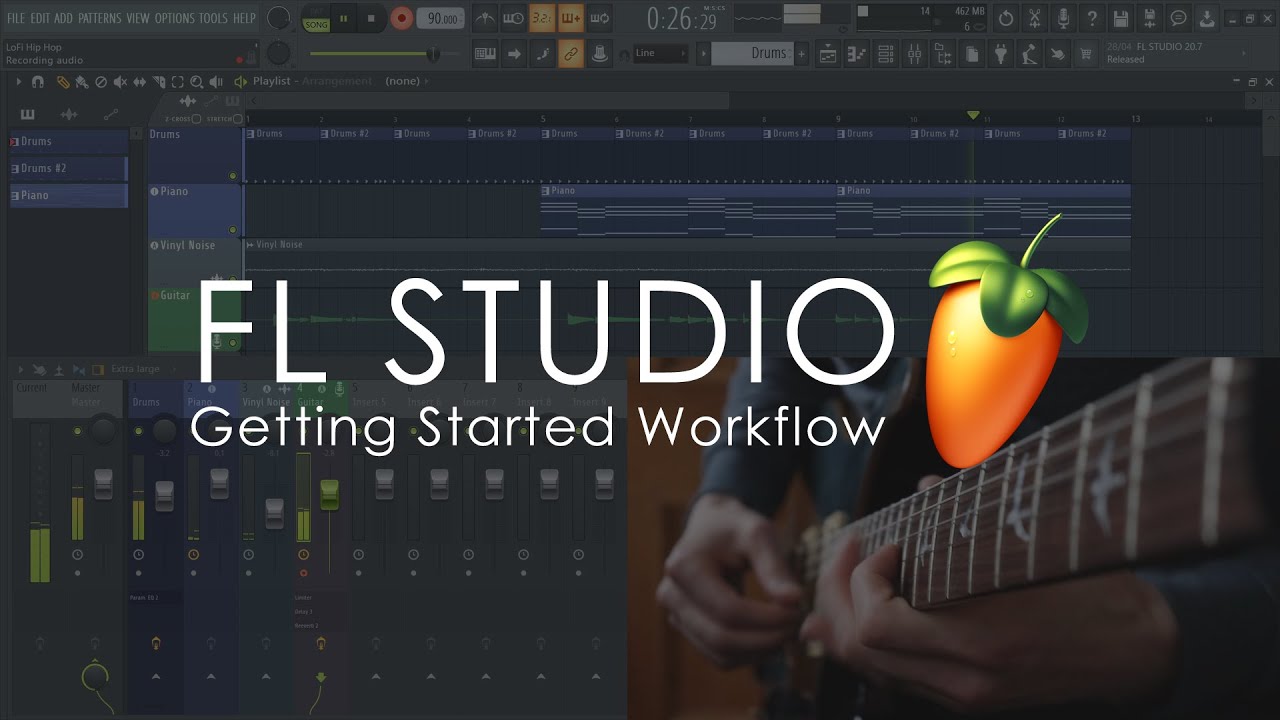
In this tutorial we're back to basics and show how to work with the new workflow features added since FL Studio 20.1 and make a Lofi Hip hop style beat.
Quick links:
TRY FL STUDIO ( Time Unlimited ) - https://www.image-line.com/fl-studio-download/
BUY FL STUDIO ( Lifetime Free Updates ) - https://support.image-line.com/jshop/shop.php
LEARN FL STUDIO ( Resources ) - https://www.image-line.com/fl-studio-learning/
Recommended video:
AUDIO RECORDING TUTORIAL - https://www.youtube.com/watch?v=blGbMgvhETk
0:00 - Introduction
0:17 - Empty template
0:24 - Channel Rack (Create the beat with the Stepsequencer)
0:33 - Browser (Find samples)
0:47 - Loading samples (Drag and drop from Browser to Channel Rack)
0:57 - Rename and color Channels (Middle-Click or Right-Click and select Rename)
1:03 - Set the tempo and Metronome
1:12 - Create a new pattern to hold your beat
1:18 - Using the Stepsequencer
1:41 - Hi-hat sequencing tips
1:53 - Leveling the sounds. Channel Rack volume and pan controls
2:08 - Graph Editor (Pitch, Velocity, Fine pitch, Pan, Mod X/Y controls)
2:25 - Swing control (affects notes on the off-beats, Hi-hats here)
2:37 - The Mixer (Mix volume levels and add effects)
2:44 - Routing Channels to the Mixer
3:03 - Adding Patterns to the Playlist (Pattern Picker. The Brush Tool allows you to click-and-drag)
3:24 - Cloning Patterns (Copying them to make variations)
3:43 - Copy Pattern workflow tips
3:53 - Adding instruments for melodies (Plugin Picker e.g. FLEX)
4:23 - Open instruments by clicking on the Track Header (Instrument Track workflow)
4:37 - Piano roll (Adding notes for melodies)
5:24 - Note copying tips (Ctrl+B)
5:39 - Playlist (Arranging Patterns)
6:10 - Adding external audio (Drag and drop into FL Studio from the Operating System File Browser)
6:38 - Adding Effects to the Mixer Tracks (Parametric EQ2)
7:02 - Audio Recording live sounds (Record vocals, Guitar or Instruments)
7:10 - Audio Device Settings (Select FL Studio ASIO or your Audio Interface Device).
7:21 - Select an Audio Input from the Mixer Track INPUT menu.
7:53 - Select a Playlist Track to record onto.
8:12 - Start recording
8:47 - Edit and arrange the recording + effects
9:24 - Outro (thanks for watching)
9:41 - TRY, BUY or LEARN FL Studio (Links in the video info)
NEWS - https://www.image-line.com/fl-studio-news/
Image-Line Software
Quick links:
TRY FL STUDIO ( Time Unlimited ) - https://www.image-line.com/fl-studio-download/
BUY FL STUDIO ( Lifetime Free Updates ) - https://support.image-line.com/jshop/shop.php
LEARN FL STUDIO ( Resources ) - https://www.image-line.com/fl-studio-learning/
Recommended video:
AUDIO RECORDING TUTORIAL - https://www.youtube.com/watch?v=blGbMgvhETk
0:00 - Introduction
0:17 - Empty template
0:24 - Channel Rack (Create the beat with the Stepsequencer)
0:33 - Browser (Find samples)
0:47 - Loading samples (Drag and drop from Browser to Channel Rack)
0:57 - Rename and color Channels (Middle-Click or Right-Click and select Rename)
1:03 - Set the tempo and Metronome
1:12 - Create a new pattern to hold your beat
1:18 - Using the Stepsequencer
1:41 - Hi-hat sequencing tips
1:53 - Leveling the sounds. Channel Rack volume and pan controls
2:08 - Graph Editor (Pitch, Velocity, Fine pitch, Pan, Mod X/Y controls)
2:25 - Swing control (affects notes on the off-beats, Hi-hats here)
2:37 - The Mixer (Mix volume levels and add effects)
2:44 - Routing Channels to the Mixer
3:03 - Adding Patterns to the Playlist (Pattern Picker. The Brush Tool allows you to click-and-drag)
3:24 - Cloning Patterns (Copying them to make variations)
3:43 - Copy Pattern workflow tips
3:53 - Adding instruments for melodies (Plugin Picker e.g. FLEX)
4:23 - Open instruments by clicking on the Track Header (Instrument Track workflow)
4:37 - Piano roll (Adding notes for melodies)
5:24 - Note copying tips (Ctrl+B)
5:39 - Playlist (Arranging Patterns)
6:10 - Adding external audio (Drag and drop into FL Studio from the Operating System File Browser)
6:38 - Adding Effects to the Mixer Tracks (Parametric EQ2)
7:02 - Audio Recording live sounds (Record vocals, Guitar or Instruments)
7:10 - Audio Device Settings (Select FL Studio ASIO or your Audio Interface Device).
7:21 - Select an Audio Input from the Mixer Track INPUT menu.
7:53 - Select a Playlist Track to record onto.
8:12 - Start recording
8:47 - Edit and arrange the recording + effects
9:24 - Outro (thanks for watching)
9:41 - TRY, BUY or LEARN FL Studio (Links in the video info)
NEWS - https://www.image-line.com/fl-studio-news/
Image-Line Software
Tags and Topics
Browse our collection to discover more content in these categories.
Video Information
Views
625.6K
Likes
9.5K
Duration
9:57
Published
Jul 10, 2020
User Reviews
4.7
(125) Related Trending Topics
LIVE TRENDSRelated trending topics. Click any trend to explore more videos.