Fix 'File Type Not Supported in Protected View' Error in Excel 🛠️
Learn simple steps to resolve the 'File Type Not Supported' issue in Excel's Protected View. Disable Protected View safely and access your files without hassle.

IT Analysts
8.6K views • Dec 11, 2024
About this video
Solutions to Fix the Error
1. Disable Protected View
If you are confident that the file is safe, you can disable Protected View:
Open Excel.
Go to File Options.
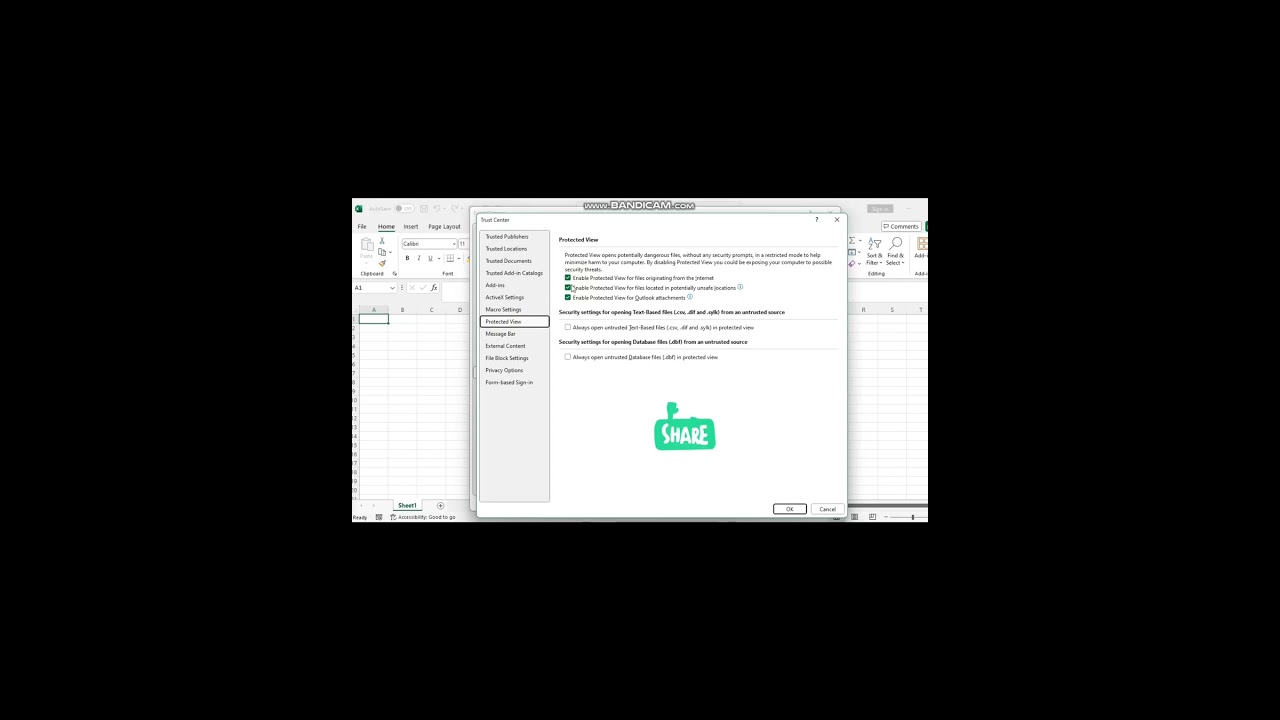
Select Trust Center Trust Center Settings.
Click on the Protected View tab.
Uncheck all three options related to Protected View:
Enable Protected View for files originating from the Internet
Enable Protected View for files located in potentially unsafe locations
Enable Protected View for Outlook attachments
Click OK to save your changes and restart Excel
1. Disable Protected View
If you are confident that the file is safe, you can disable Protected View:
Open Excel.
Go to File Options.
Select Trust Center Trust Center Settings.
Click on the Protected View tab.
Uncheck all three options related to Protected View:
Enable Protected View for files originating from the Internet
Enable Protected View for files located in potentially unsafe locations
Enable Protected View for Outlook attachments
Click OK to save your changes and restart Excel
Tags and Topics
Browse our collection to discover more content in these categories.
Video Information
Views
8.6K
Duration
0:37
Published
Dec 11, 2024
User Reviews
3.8
(1) Related Trending Topics
LIVE TRENDSRelated trending topics. Click any trend to explore more videos.
Trending Now