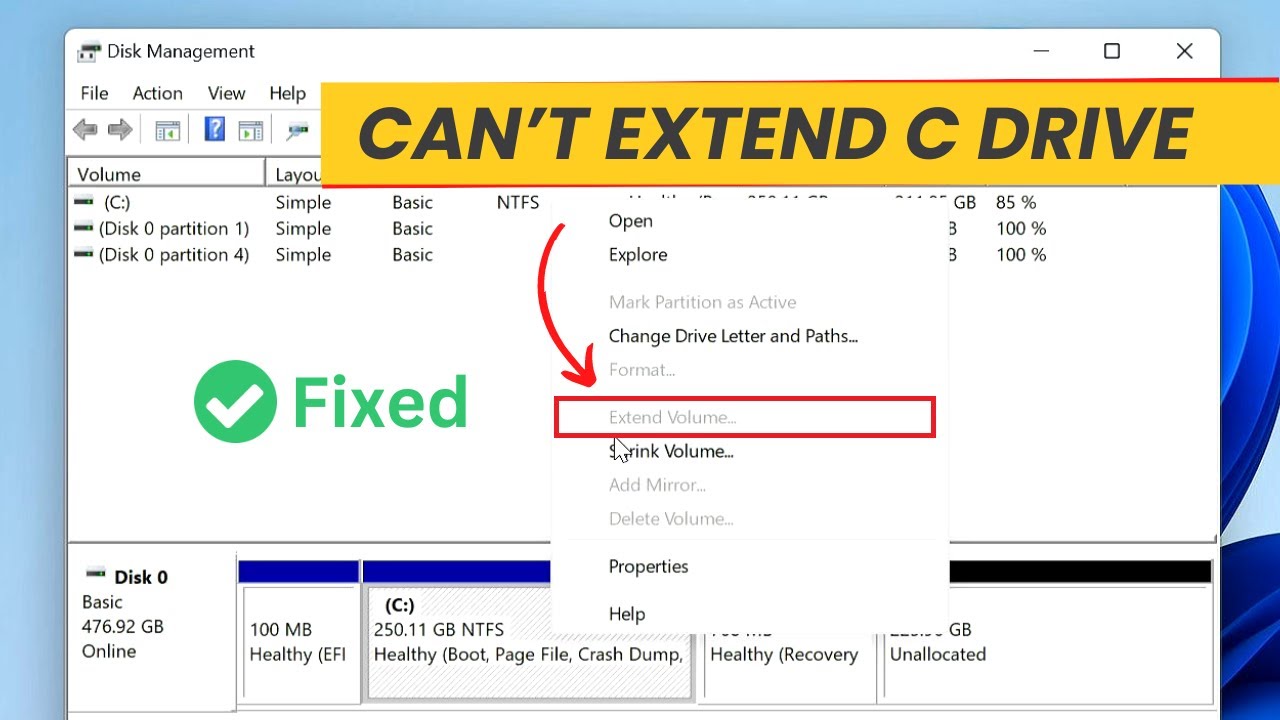
Fix "Can't Extend C Drive with Unallocated Space" in Windows 10/11
👉 Full step-by-step Guide: https://techydruid.com/extend-c-drive-fix/ Are you struggling to extend your C drive with unallocated space on your Windows 10 or...

Techy Druid
991.4K views • Aug 14, 2024
About this video
👉 Full step-by-step Guide: https://techydruid.com/extend-c-drive-fix/
Are you struggling to extend your C drive with unallocated space on your Windows 10 or 11 PC? You’re not alone! In this video, we'll guide you step-by-step through the process of solving this common issue. Whether you're running out of storage or just need to manage your disk space better, our tutorial will help you unlock that unallocated space and extend your C drive with ease.
💡 Why This Happens:
Many users encounter this issue because unallocated space is not adjacent to the C drive, or due to system-reserved partitions. Our video will show you how to move the unallocated space next to your C drive to bypass these limitations.
# Delete the Recovery Partition
reagentc /disable
diskpart
list partition
select partition x
detail partition
delete partition override
# Re-create the Recovery Partition
list partition
select partition x
set id=
gpt attributes=
list volume
select volume y
remove letter=y
exit
reagentc /enable
Note: x=disk or partition number, y=volume letter.
Are you struggling to extend your C drive with unallocated space on your Windows 10 or 11 PC? You’re not alone! In this video, we'll guide you step-by-step through the process of solving this common issue. Whether you're running out of storage or just need to manage your disk space better, our tutorial will help you unlock that unallocated space and extend your C drive with ease.
💡 Why This Happens:
Many users encounter this issue because unallocated space is not adjacent to the C drive, or due to system-reserved partitions. Our video will show you how to move the unallocated space next to your C drive to bypass these limitations.
# Delete the Recovery Partition
reagentc /disable
diskpart
list partition
select partition x
detail partition
delete partition override
# Re-create the Recovery Partition
list partition
select partition x
set id=
gpt attributes=
list volume
select volume y
remove letter=y
exit
reagentc /enable
Note: x=disk or partition number, y=volume letter.
Tags and Topics
Browse our collection to discover more content in these categories.
Video Information
Views
991.4K
Likes
22.5K
Duration
4:26
Published
Aug 14, 2024
User Reviews
4.8
(198) Related Trending Topics
LIVE TRENDSRelated trending topics. Click any trend to explore more videos.
No specific trending topics match this video yet.
Explore All Trends