Run GPT-OSS-20B Locally for Free with LM Studio 🚀
Learn how to set up GPT-OSS-20B on your laptop privately and free using LM Studio and Ubuntu. No API needed!
Learn Technology With Nikhil - Tech Simplified !
176 views • Mar 16, 2026
About this video
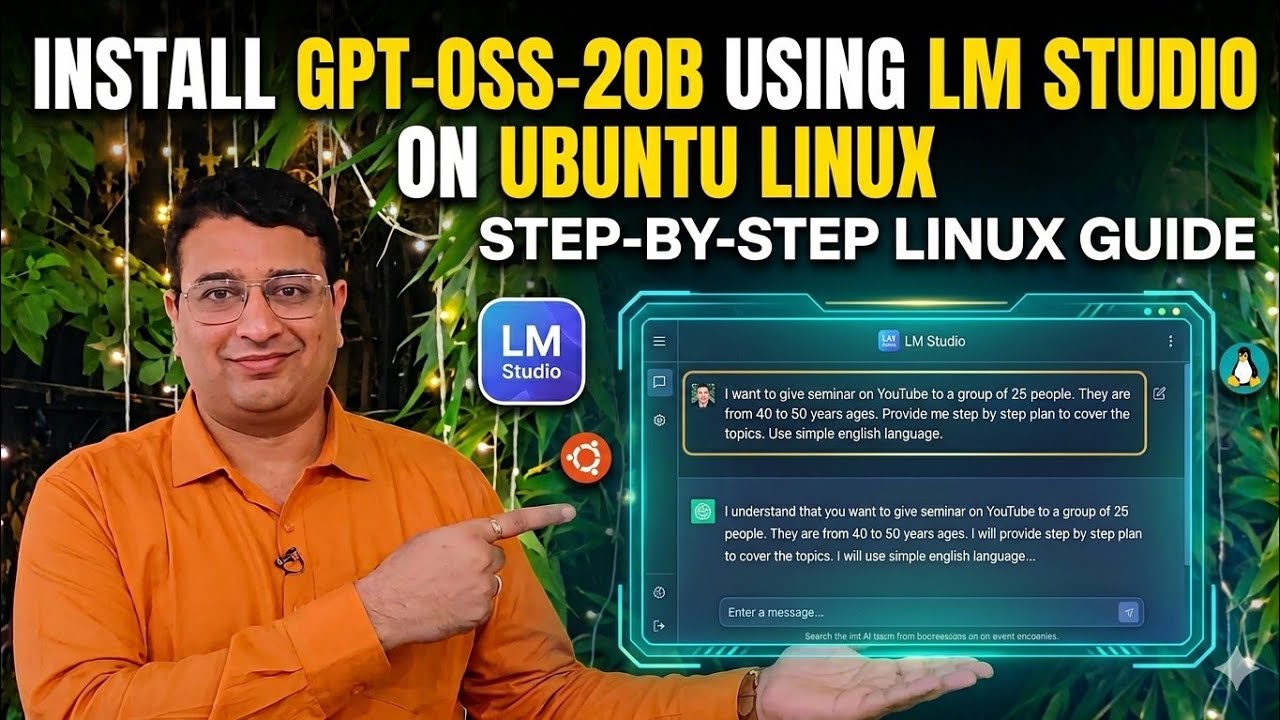
Run GPT-OSS-20B Locally on Your Laptop (FREE & Private) 🚀 | LM Studio + Ubuntu Guide
Want to run a powerful LLM locally without paying for APIs or exposing your data? In this step-by-step tutorial, learn how to install and run GPT-OSS-20B using LM Studio on Ubuntu Linux — even without a dedicated GPU.
⚡ What You’ll Learn:
- How to download and run GPT-OSS-20B locally
- Install and configure LM Studio on Ubuntu
- System requirements (CPU-only setup explained)
- Choosing the right model for your hardware
- Understanding reasoning levels (Low / Medium / High)
- Optimize performance on low-resource machines
💻 My Laptop Configuration
- Lenovo ThinkPad e16 Gen 2
- Processor: Intel Core Ultra i5
- RAM: 16 GB
- GPU: I don't have
- OS: Ubuntu Linux
🔥 Why Run AI Locally?
- 100% Privacy (No cloud / No data sharing)
- Free to use (no API cost)
- Works offline
- Full control over your AI workflows
Before installing the model, most important point is to check the system requirements. I have a laptop running core ultra i5 processor with 16 GB RAM but no dedicated GPU. I chose the lightweight model for installation - OpenAI GPT-OSS-20B.
Once the download finishes and you open the chat window, select the appropriate reasoning level,
1) Low Reasoning: Ideal for faster, less complex queries. It uses fewer tokens. Also provides quicker response.
2) Medium Reasoning: A balanced setting for general purpose tasks that require moderate logical thinking.
3) High Reasoning: Best for complex problems, deep research or coding tasks. More tokens and also more time is required for output generation.
👍 If this helped you:
Like 👍
Subscribe 🔔
#AI #LLM #LocalAI #LMStudio #OpenSource #Ubuntu #MachineLearning #AIDevelopment #PrivateAI
Audience Queries -
run ai locally
ai offline
best offline ai
gpt oss 20b
00:11 Step 1: Finding GPT-OSS Models on OpenAI
01:01 Step 2: Downloading LM Studio for Ubuntu
01:50 Step 3: Searching and Downloading the 20B Model
01:56 Step 4 : Download and install OpenAI GPT-OSS-20B
02:56 Step 5: Managing and Locating Model Files on Disk
04:16 Step 6: Testing the AI with a YouTube Seminar Prompt
05:27 Step 7 :Performance Tips: Running AI without a GPU
Want to run a powerful LLM locally without paying for APIs or exposing your data? In this step-by-step tutorial, learn how to install and run GPT-OSS-20B using LM Studio on Ubuntu Linux — even without a dedicated GPU.
⚡ What You’ll Learn:
- How to download and run GPT-OSS-20B locally
- Install and configure LM Studio on Ubuntu
- System requirements (CPU-only setup explained)
- Choosing the right model for your hardware
- Understanding reasoning levels (Low / Medium / High)
- Optimize performance on low-resource machines
💻 My Laptop Configuration
- Lenovo ThinkPad e16 Gen 2
- Processor: Intel Core Ultra i5
- RAM: 16 GB
- GPU: I don't have
- OS: Ubuntu Linux
🔥 Why Run AI Locally?
- 100% Privacy (No cloud / No data sharing)
- Free to use (no API cost)
- Works offline
- Full control over your AI workflows
Before installing the model, most important point is to check the system requirements. I have a laptop running core ultra i5 processor with 16 GB RAM but no dedicated GPU. I chose the lightweight model for installation - OpenAI GPT-OSS-20B.
Once the download finishes and you open the chat window, select the appropriate reasoning level,
1) Low Reasoning: Ideal for faster, less complex queries. It uses fewer tokens. Also provides quicker response.
2) Medium Reasoning: A balanced setting for general purpose tasks that require moderate logical thinking.
3) High Reasoning: Best for complex problems, deep research or coding tasks. More tokens and also more time is required for output generation.
👍 If this helped you:
Like 👍
Subscribe 🔔
#AI #LLM #LocalAI #LMStudio #OpenSource #Ubuntu #MachineLearning #AIDevelopment #PrivateAI
Audience Queries -
run ai locally
ai offline
best offline ai
gpt oss 20b
00:11 Step 1: Finding GPT-OSS Models on OpenAI
01:01 Step 2: Downloading LM Studio for Ubuntu
01:50 Step 3: Searching and Downloading the 20B Model
01:56 Step 4 : Download and install OpenAI GPT-OSS-20B
02:56 Step 5: Managing and Locating Model Files on Disk
04:16 Step 6: Testing the AI with a YouTube Seminar Prompt
05:27 Step 7 :Performance Tips: Running AI without a GPU
Tags and Topics
Browse our collection to discover more content in these categories.
Video Information
Views
176
Likes
10
Duration
5:47
Published
Mar 16, 2026
Related Trending Topics
LIVE TRENDSRelated trending topics. Click any trend to explore more videos.
No specific trending topics match this video yet.
Explore All Trends