Enhance Your Interior Designs with High-Quality Cosmos Assets in SketchUp ✨
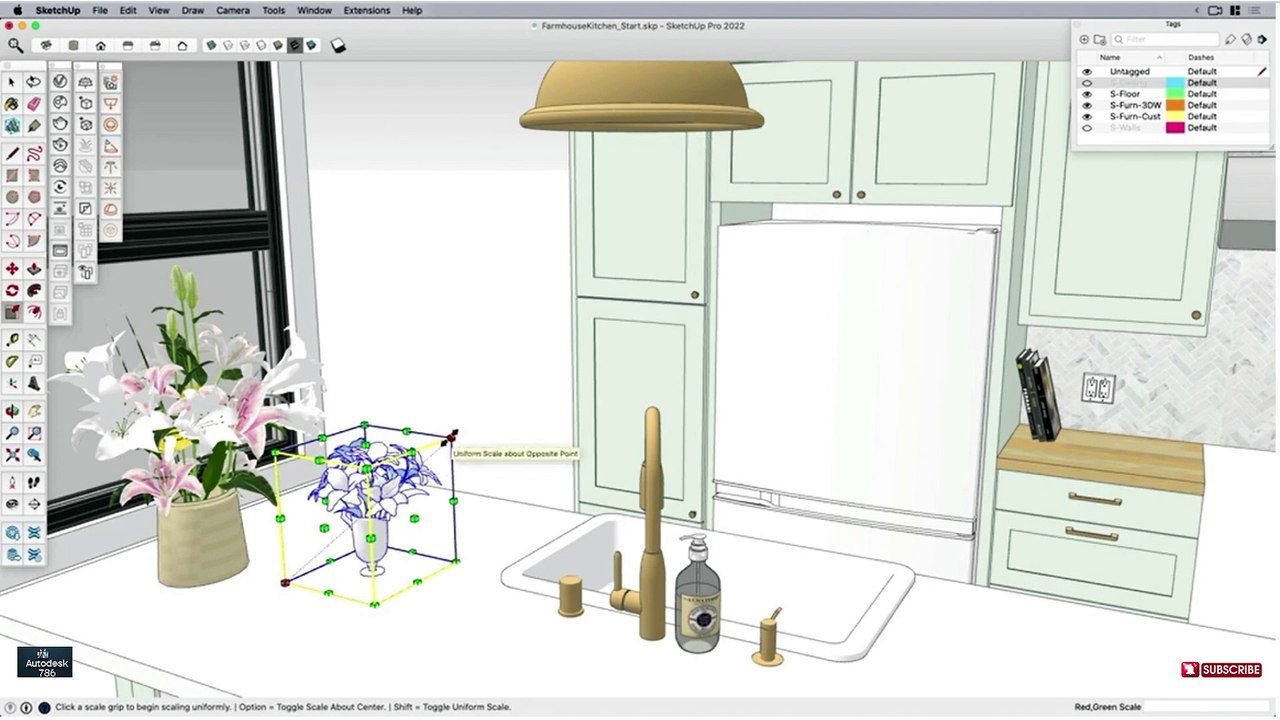
Discover how to elevate your interior design projects using premium V-Ray Cosmos assets in SketchUp. Part 06 of our series covers tips and techniques for realistic and stunning 3D models. Perfect for architects and designers! #interiordesign #sketchup #ci
Autodesk786
309 views • Mar 20, 2025
About this video
#interiordesign #architecture #sketchupmodels #sketchup #revit #civil3d #autocadcivil3d #3ddesign <br /><br />✅ Using High-Quality Assets from V-Ray Cosmos in SketchUp<br />V-Ray Cosmos is an online asset library built into V-Ray, offering high-quality 3D models, materials, HDRIs, and decals optimized for realistic rendering in SketchUp.<br /><br />🎯 Step 1: Access V-Ray Cosmos in SketchUp<br />Open SketchUp and make sure V-Ray is installed.<br /><br />Click the V-Ray Toolbar Cosmos Browser (🌐 icon).<br /><br />The V-Ray Cosmos Library will open, showing categories like:<br /><br />Furniture 🛋️<br /><br />Vehicles 🚗<br /><br />People 👤<br /><br />Plants & Trees 🌳<br /><br />Lighting Assets 💡<br /><br />HDRI Environments 🌅<br /><br />🛠️ Step 2: Download & Import High-Quality Assets<br />Browse & Select an asset (e.g., a realistic chair).<br /><br />Click Download (assets are downloaded to your local library).<br /><br />Click Import to place the asset directly into your SketchUp scene.<br /><br />✨ Step 3: Optimize V-Ray Cosmos Assets<br />✅ Why Cosmos Assets Are Great:<br /><br />Optimized for V-Ray (no need for extra tweaking).<br /><br />High-quality textures & realistic materials.<br /><br />Pre-set lighting & reflections for better rendering.<br /><br />🔧 Customization Tips:<br />Modify Materials:<br /><br />Open V-Ray Asset Editor Materials.<br /><br />Adjust bump, reflection, or displacement for better realism.<br /><br />Use V-Ray Proxies:<br /><br />Convert heavy objects into V-Ray Proxies to improve performance.<br /><br />Enhance Lighting:<br /><br />Add V-Ray Lights or HDRI Environments for natural illumination.<br /><br />🎬 Step 4: Render High-Quality Cosmos Assets in V-Ray<br />Set Render Quality to High or Ultra.<br /><br />Use Global Illumination (GI) and Ambient Occlusion (AO).<br /><br />Adjust Light Intensity & Shadows for the best results.<br /><br />✅ Pro Tips:<br />✔ Use Cosmos Trees & Grass instead of SketchUp's default models for better realism.<br />✔ Mix Cosmos furniture with custom assets to create unique interiors.<br />✔ Use HDRI backgrounds from Cosmos for realistic outdoor lighting.
Video Information
Views
309
Duration
5:06
Published
Mar 20, 2025
Related Trending Topics
LIVE TRENDSRelated trending topics. Click any trend to explore more videos.
No specific trending topics match this video yet.
Explore All Trends