Easily Edit PDFs in Google Docs with PDFfiller Add-On 📄
Learn how to quickly install and use the PDFfiller Google Docs Add-On to edit, sign, and manage PDFs directly within your documents. Step-by-step guide included!
pdfFiller
3.3K views • Apr 17, 2015
About this video
To install the add-on, open a Google Doc, click Add-ons in the document menu, then "Get add-ons."
Search for PDFfiller, then click the blue Free button on the search result and click accept on the permissions popup to install.
A popup will appear below Add-ons in the document menu to indicate a successful installation.
To use the add-on, click Add-ons in the document menu, then PDFfiller and "Edit as PDF."
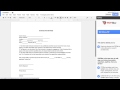
A sidebar will appear to the right of the page detailing the add-on and PDFfiller.
Click the blue "Edit as PDF" button to open your document in PDFfiller
You can then use PDFfiller’s annotation tools to edit and sign your document as desired.
When you’ve finished editing, click Done to access PDFfiller’s export tools to print, save, and send your document, invite others to collaborate on the document, or request digital signatures.
Learn more about PDFfiller at http://www.pdffiller.com
Get the add-on at https://www.pdffiller.com/en/chrome/google-docs-pdf-application.htm
See all of the ways PDFfiller works with Google apps at https://www.pdffiller.com/en/chrome/google-pdf-editor.htm
Search for PDFfiller, then click the blue Free button on the search result and click accept on the permissions popup to install.
A popup will appear below Add-ons in the document menu to indicate a successful installation.
To use the add-on, click Add-ons in the document menu, then PDFfiller and "Edit as PDF."
A sidebar will appear to the right of the page detailing the add-on and PDFfiller.
Click the blue "Edit as PDF" button to open your document in PDFfiller
You can then use PDFfiller’s annotation tools to edit and sign your document as desired.
When you’ve finished editing, click Done to access PDFfiller’s export tools to print, save, and send your document, invite others to collaborate on the document, or request digital signatures.
Learn more about PDFfiller at http://www.pdffiller.com
Get the add-on at https://www.pdffiller.com/en/chrome/google-docs-pdf-application.htm
See all of the ways PDFfiller works with Google apps at https://www.pdffiller.com/en/chrome/google-pdf-editor.htm
Tags and Topics
Browse our collection to discover more content in these categories.
Video Information
Views
3.3K
Likes
9
Duration
0:51
Published
Apr 17, 2015
User Reviews
3.9
(3) Related Trending Topics
LIVE TRENDSRelated trending topics. Click any trend to explore more videos.
No specific trending topics match this video yet.
Explore All Trends