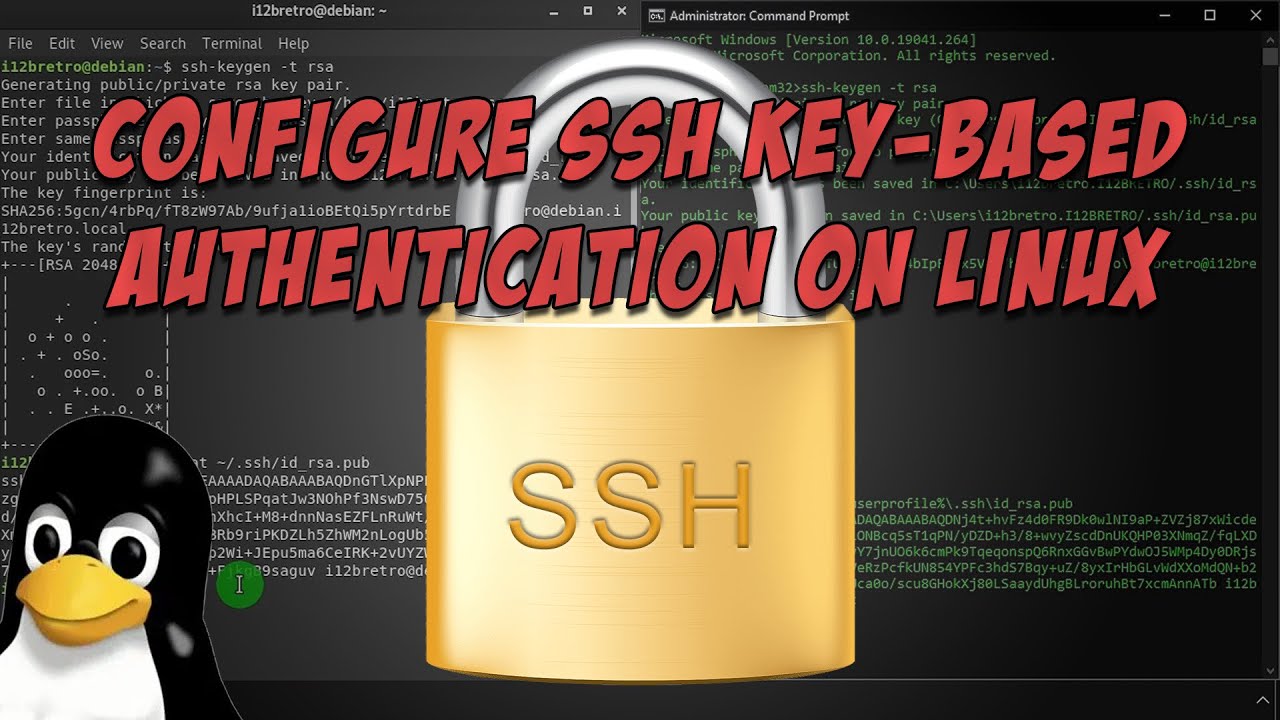
Set Up SSH Key Authentication on Linux 🔑
Learn how to configure SSH key-based authentication on Linux with step-by-step instructions. Full guide at https://i12bretro.github.io/tutorials/0554.html

i12bretro
4.5K views • Jun 5, 2023
About this video
#SSH #Linux #KeyBasedAuthentication #Certificates
Full steps can be found at https://i12bretro.github.io/tutorials/0554.html
--------------------------------------------------------------------
Connecting from a Linux Host
--------------------------------------------------------------------
01. Log into the source Linux host
02. Run the following command in a terminal window
# generate a new ssh key pair
ssh-keygen -t rsa
03. Press enter to accept the default location
04. Optionally, set a password for the key pair
NOTE: If you don't provide a password, anyone with the key and access to the target host can connect using the key. Proceed with caution
05. Continue with the following command
# output the public key
cat ~/.ssh/id_rsa.pub
06. Copy the output ssh-rsa public key to the clipboard
07. Log into the target Linux machine
08. Run the following command in a terminal window
# create .ssh directory
mkdir ~/.ssh -p
# edit the authorized_keys file
nano ~/.ssh/authorized_keys
09. Paste the copied public key to the bottom of the file
10. Press CTRL+O, Enter, CTRL+X to write the changes
11. Back on the source Linux device, connect to the Linux target using ssh (ie ssh username@hostname)
12. Type yes and press Enter the first time connecting with a new public key to accept the connection
--------------------------------------------------------------------
Connecting from a Windows Host
--------------------------------------------------------------------
01. Log into the Windows host
02. Right click the Start menu ≫ Run ≫ Type cmd ≫ Press Enter
03. Run the following command in the command prompt
# generate a new ssh key pair
ssh-keygen -t rsa
04. Press enter to accept the default location
05. Optionally, set a password for the key pair
NOTE: If you don't provide a password, anyone with the public key and access to the target host can connect using the key
06. Continue with the following command
# output the public key
type %userprofile%\.ssh\id_rsa.pub
07. Copy the output ssh-rsa public key to the clipboard
08. Log into the target Linux machine
09. Run the following command in a terminal window
# create .ssh directory
mkdir ~/.ssh -p
# edit the authorized_keys file
nano ~/.ssh/authorized_keys
10. Paste the copied public key to the bottom of the file
11. Press CTRL+O, Enter, CTRL+X to write the changes
12. Back on the Windows device, connect to the Linux target using ssh (ie ssh username@hostname)
13. Type yes and press Enter the first time connecting with a new public key to accept the connection
### Connect with me and others ###
★ Discord: https://discord.com/invite/EzenvmSHW8
★ Reddit: https://reddit.com/r/i12bretro
★ Twitter: https://twitter.com/i12bretro
Full steps can be found at https://i12bretro.github.io/tutorials/0554.html
--------------------------------------------------------------------
Connecting from a Linux Host
--------------------------------------------------------------------
01. Log into the source Linux host
02. Run the following command in a terminal window
# generate a new ssh key pair
ssh-keygen -t rsa
03. Press enter to accept the default location
04. Optionally, set a password for the key pair
NOTE: If you don't provide a password, anyone with the key and access to the target host can connect using the key. Proceed with caution
05. Continue with the following command
# output the public key
cat ~/.ssh/id_rsa.pub
06. Copy the output ssh-rsa public key to the clipboard
07. Log into the target Linux machine
08. Run the following command in a terminal window
# create .ssh directory
mkdir ~/.ssh -p
# edit the authorized_keys file
nano ~/.ssh/authorized_keys
09. Paste the copied public key to the bottom of the file
10. Press CTRL+O, Enter, CTRL+X to write the changes
11. Back on the source Linux device, connect to the Linux target using ssh (ie ssh username@hostname)
12. Type yes and press Enter the first time connecting with a new public key to accept the connection
--------------------------------------------------------------------
Connecting from a Windows Host
--------------------------------------------------------------------
01. Log into the Windows host
02. Right click the Start menu ≫ Run ≫ Type cmd ≫ Press Enter
03. Run the following command in the command prompt
# generate a new ssh key pair
ssh-keygen -t rsa
04. Press enter to accept the default location
05. Optionally, set a password for the key pair
NOTE: If you don't provide a password, anyone with the public key and access to the target host can connect using the key
06. Continue with the following command
# output the public key
type %userprofile%\.ssh\id_rsa.pub
07. Copy the output ssh-rsa public key to the clipboard
08. Log into the target Linux machine
09. Run the following command in a terminal window
# create .ssh directory
mkdir ~/.ssh -p
# edit the authorized_keys file
nano ~/.ssh/authorized_keys
10. Paste the copied public key to the bottom of the file
11. Press CTRL+O, Enter, CTRL+X to write the changes
12. Back on the Windows device, connect to the Linux target using ssh (ie ssh username@hostname)
13. Type yes and press Enter the first time connecting with a new public key to accept the connection
### Connect with me and others ###
★ Discord: https://discord.com/invite/EzenvmSHW8
★ Reddit: https://reddit.com/r/i12bretro
★ Twitter: https://twitter.com/i12bretro
Tags and Topics
Browse our collection to discover more content in these categories.
Video Information
Views
4.5K
Likes
60
Duration
2:04
Published
Jun 5, 2023
User Reviews
4.4
(4)