Beginner's Guide: Create Your First Java Project with NetBeans IDE in 2025 🚀
Learn step-by-step how to set up and create your very first Java project using NetBeans IDE. Perfect for beginners eager to start coding in Java!
ProgrammingKnowledge2
4.2K views • Jan 18, 2025
About this video
Are you ready to start coding in Java? This tutorial is perfect for beginners looking to create their very first Java project using NetBeans IDE. We’ll guide you step-by-step through the process, from installing NetBeans to writing, compiling, and running your first Java program.
By the end of this video, you’ll have a fully functional Java project, and you’ll be familiar with the NetBeans IDE environment. Let’s get started and bring your Java ideas to life!
---
### What You'll Learn in This Tutorial:
1. **Install NetBeans IDE**:
- Quick steps to download and install the NetBeans IDE on your system.
2. **Set Up Your First Java Project**:
- Create a new Java project and understand its structure.
- Set up the main class for your project.
3. **Write Your First Java Code**:
- Add a simple "Hello, World!" program.
- Learn about the main method and basic syntax.
4. **Compile and Run Your Java Program**:
- How to compile and execute the program directly from NetBeans.
- View the output and debug any issues.
5. **Explore Additional Features of NetBeans**:
- Using code suggestions and shortcuts.
- Navigating through project files and managing packages.
---
### Why Use NetBeans IDE?
NetBeans is a powerful, beginner-friendly Integrated Development Environment (IDE) for Java development. It provides features like:
- A user-friendly interface for managing your projects.
- Built-in tools for debugging and error checking.
- Support for other languages and frameworks.
---
### Steps in Brief:
1. Open NetBeans IDE.
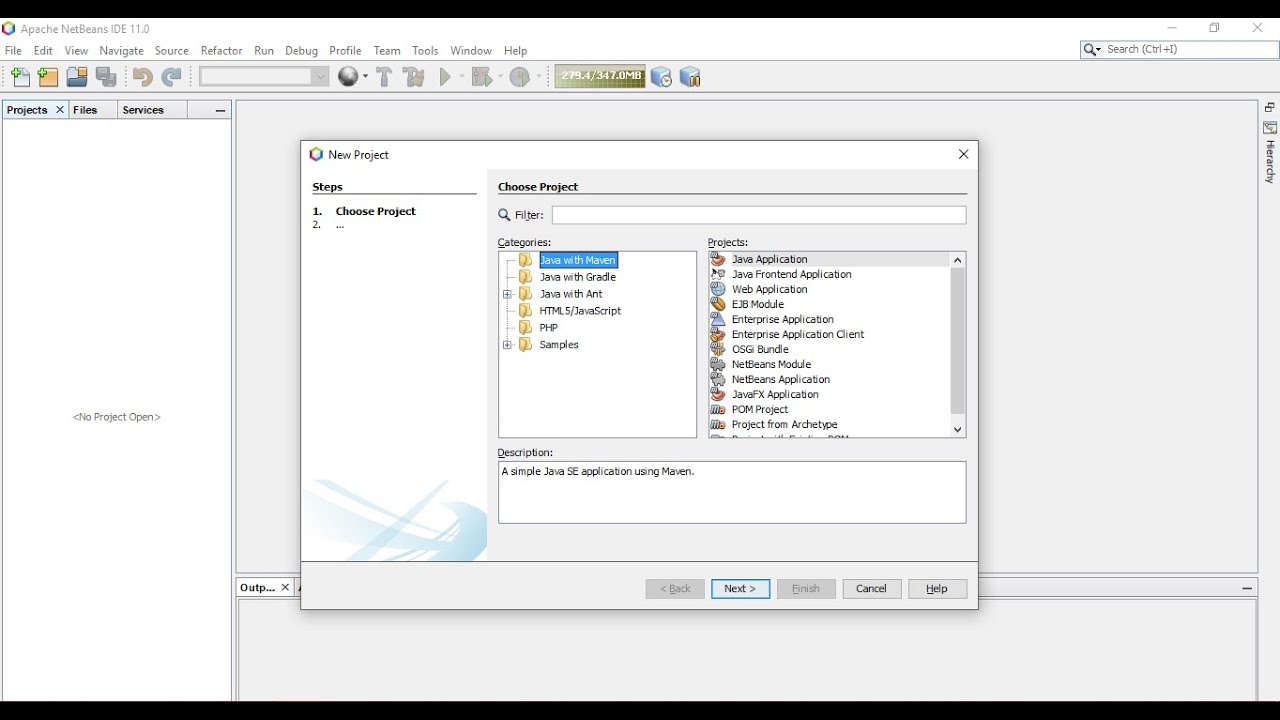
2. Go to **File - New Project** and select **Java Application**.
3. Name your project and choose a directory to save it.
4. Open the `Main.java` file in the project and write your Java code.
5. Click the **Run Project** button or press `Shift + F6` to execute your program.
---
Get started with Java programming today and let NetBeans simplify your coding journey!
#NetBeansIDE #JavaProject #JavaProgramming #JavaTutorial #LearnJava
By the end of this video, you’ll have a fully functional Java project, and you’ll be familiar with the NetBeans IDE environment. Let’s get started and bring your Java ideas to life!
---
### What You'll Learn in This Tutorial:
1. **Install NetBeans IDE**:
- Quick steps to download and install the NetBeans IDE on your system.
2. **Set Up Your First Java Project**:
- Create a new Java project and understand its structure.
- Set up the main class for your project.
3. **Write Your First Java Code**:
- Add a simple "Hello, World!" program.
- Learn about the main method and basic syntax.
4. **Compile and Run Your Java Program**:
- How to compile and execute the program directly from NetBeans.
- View the output and debug any issues.
5. **Explore Additional Features of NetBeans**:
- Using code suggestions and shortcuts.
- Navigating through project files and managing packages.
---
### Why Use NetBeans IDE?
NetBeans is a powerful, beginner-friendly Integrated Development Environment (IDE) for Java development. It provides features like:
- A user-friendly interface for managing your projects.
- Built-in tools for debugging and error checking.
- Support for other languages and frameworks.
---
### Steps in Brief:
1. Open NetBeans IDE.
2. Go to **File - New Project** and select **Java Application**.
3. Name your project and choose a directory to save it.
4. Open the `Main.java` file in the project and write your Java code.
5. Click the **Run Project** button or press `Shift + F6` to execute your program.
---
Get started with Java programming today and let NetBeans simplify your coding journey!
#NetBeansIDE #JavaProject #JavaProgramming #JavaTutorial #LearnJava
Tags and Topics
Browse our collection to discover more content in these categories.
Video Information
Views
4.2K
Likes
39
Duration
6:56
Published
Jan 18, 2025
User Reviews
4.2
(4) Related Trending Topics
LIVE TRENDSRelated trending topics. Click any trend to explore more videos.
No specific trending topics match this video yet.
Explore All Trends