Android: Prevent In-App Purchases (Part 3) 📱
Learn how to block in-app purchases on Android by requiring authentication and disabling biometric options. Full video linked.

ION HowTo
160.1K views • Aug 20, 2024
About this video
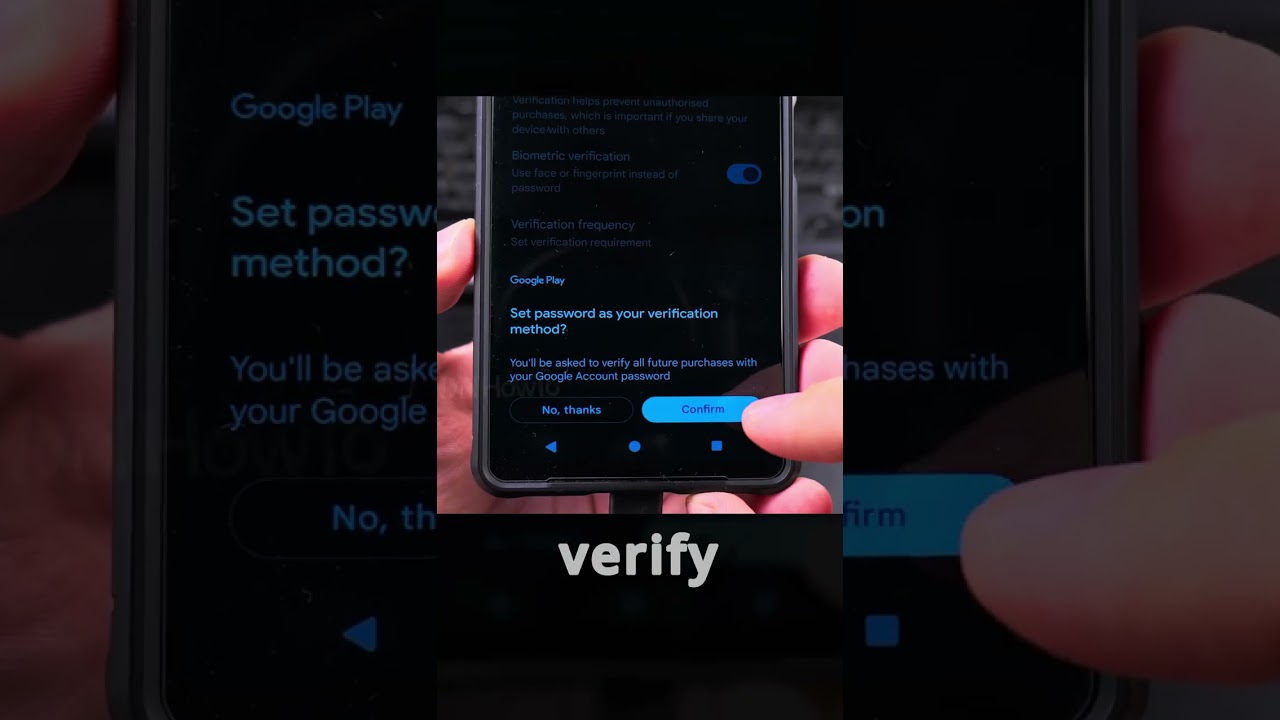
Android how to prevent in app purchases. Google Play Store require authentication for all purchases and disable biometric authentication such as fingerprint or face id for purchases. Require Google account password for all purchases instead of fingerprint authentication to prevent accidentally making an in-app purchase.
How to Prevent In-App Purchases on Android and Disable Biometric Automatic Purchase Authentication
How to prevent in-app purchases on Android. Disable in-app purchases on Android and stop accidental purchases on Android.
Android in-app purchase settings how to secure Android from in-app purchases.
Google Play Store require authentication for purchases and disable biometric authentication for purchases.
Amazon:*
SIM card removal tool https://rex.red/sim-card-removal-tool
SIM card holder https://rex.red/SIM-card-holder
SIM card adapter https://rex.red/SIM-card-adapter
iPhone case https://rex.red/iPhone-case
Android phone case https://rex.red/Android-phone-case
Newest android phone https://rex.red/newest-android-phone
Newest iPhone https://rex.red/newest-iphone
Newest iPad https://rex.red/newest-ipad
Newest android phone https://rex.red/newest-android-phone
Newest android tablet https://rex.red/newest-android-tablet
In this video, you learn how to prevent in-app purchases on your Android device by requiring Google account password authentication for all purchases and disabling biometric authentication such as fingerprint or face ID. This is crucial for avoiding accidental purchases, especially if you have children using your device or if you want to ensure that no unauthorized transactions occur.
Steps to Prevent In-App Purchases on Android:
1. Open the Google Play Store app on your Android device.
2. Tap your profile icon in the upper right corner.
3. Select Settings from the pop-up menu.
4. Tap Authentication and then Require authentication for purchases.
5. Choose For all purchases through Google Play on this device.
6. Enter your Google account password to confirm the changes.
7. To disable biometric authentication, go to Settings in the Google Play Store.
8. Tap Biometric authentication and toggle it off.
9. Confirm by entering your Google account password.
By following these steps, you can ensure that every in-app purchase requires your Google account password, preventing accidental or unauthorized or accidentally approving in-app purchases or app transactions. Disabling biometric authentication, such as fingerprint or face ID, adds an extra layer of security, ensuring that only you can authorize purchases. This is particularly useful for parents who want to control their children's spending on apps and games, as well as for anyone looking to secure their device from unwanted charges.
This video will guide you through the entire process of disabling in-app purchases on Android, making it easy to manage and secure your device. Whether you are using the latest Android version or an older one, these steps will help you prevent unwanted in-app purchases effectively.
Watch the video carefully without skipping to see all the steps needed in this video.
Subscribe and click the Bell to watch more videos.
IONHowTo https://www.youtube.com/channel/UCx4Qbp3iC97kQzj7e7g7slg
RedNumberONE https://m.youtube.com/channel/UCYdm-YlcfOvCbKeh60EkMZg
Buy merch https://store.ionhowto.com/
Check it, buy it, post it and tag it #ionhowto or #rednumberone
Join this channel to get access to perks:
https://www.youtube.com/channel/UCx4Qbp3iC97kQzj7e7g7slg/join
Contact for business enquiries Only diyrno (at) gmail.com
Any questions?
Feel free to ask in the comments section below.
Subscribe, Like and SHARE this video with your friends!
We earn money from qualifying purchases using our affiliate links.
Affiliate links are marked with a star. *
When you use our * links, you support this channel.
As an Amazon Associate I earn from qualifying purchases.
Website https://www.ionhowto.com/
Food Recipes: https://www.rednumberone.com/
How to Prevent In-App Purchases on Android and Disable Biometric Automatic Purchase Authentication
How to prevent in-app purchases on Android. Disable in-app purchases on Android and stop accidental purchases on Android.
Android in-app purchase settings how to secure Android from in-app purchases.
Google Play Store require authentication for purchases and disable biometric authentication for purchases.
Amazon:*
SIM card removal tool https://rex.red/sim-card-removal-tool
SIM card holder https://rex.red/SIM-card-holder
SIM card adapter https://rex.red/SIM-card-adapter
iPhone case https://rex.red/iPhone-case
Android phone case https://rex.red/Android-phone-case
Newest android phone https://rex.red/newest-android-phone
Newest iPhone https://rex.red/newest-iphone
Newest iPad https://rex.red/newest-ipad
Newest android phone https://rex.red/newest-android-phone
Newest android tablet https://rex.red/newest-android-tablet
In this video, you learn how to prevent in-app purchases on your Android device by requiring Google account password authentication for all purchases and disabling biometric authentication such as fingerprint or face ID. This is crucial for avoiding accidental purchases, especially if you have children using your device or if you want to ensure that no unauthorized transactions occur.
Steps to Prevent In-App Purchases on Android:
1. Open the Google Play Store app on your Android device.
2. Tap your profile icon in the upper right corner.
3. Select Settings from the pop-up menu.
4. Tap Authentication and then Require authentication for purchases.
5. Choose For all purchases through Google Play on this device.
6. Enter your Google account password to confirm the changes.
7. To disable biometric authentication, go to Settings in the Google Play Store.
8. Tap Biometric authentication and toggle it off.
9. Confirm by entering your Google account password.
By following these steps, you can ensure that every in-app purchase requires your Google account password, preventing accidental or unauthorized or accidentally approving in-app purchases or app transactions. Disabling biometric authentication, such as fingerprint or face ID, adds an extra layer of security, ensuring that only you can authorize purchases. This is particularly useful for parents who want to control their children's spending on apps and games, as well as for anyone looking to secure their device from unwanted charges.
This video will guide you through the entire process of disabling in-app purchases on Android, making it easy to manage and secure your device. Whether you are using the latest Android version or an older one, these steps will help you prevent unwanted in-app purchases effectively.
Watch the video carefully without skipping to see all the steps needed in this video.
Subscribe and click the Bell to watch more videos.
IONHowTo https://www.youtube.com/channel/UCx4Qbp3iC97kQzj7e7g7slg
RedNumberONE https://m.youtube.com/channel/UCYdm-YlcfOvCbKeh60EkMZg
Buy merch https://store.ionhowto.com/
Check it, buy it, post it and tag it #ionhowto or #rednumberone
Join this channel to get access to perks:
https://www.youtube.com/channel/UCx4Qbp3iC97kQzj7e7g7slg/join
Contact for business enquiries Only diyrno (at) gmail.com
Any questions?
Feel free to ask in the comments section below.
Subscribe, Like and SHARE this video with your friends!
We earn money from qualifying purchases using our affiliate links.
Affiliate links are marked with a star. *
When you use our * links, you support this channel.
As an Amazon Associate I earn from qualifying purchases.
Website https://www.ionhowto.com/
Food Recipes: https://www.rednumberone.com/
Video Information
Views
160.1K
Likes
681
Duration
0:13
Published
Aug 20, 2024
User Reviews
4.1
(32) Related Trending Topics
LIVE TRENDSRelated trending topics. Click any trend to explore more videos.
Trending Now