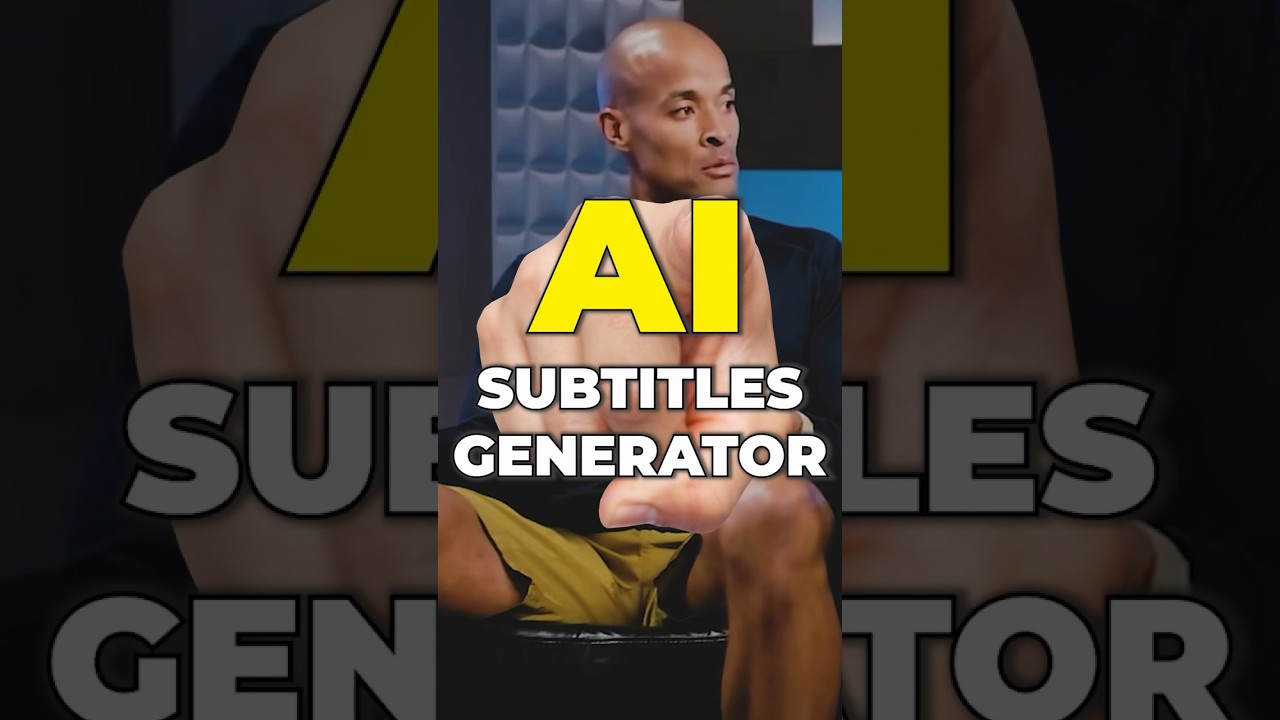
AI Subtitle Generator: Auto-Captions & Translation 🎬
Create accurate, styled subtitles and translate instantly online with Flixier. Try it free today!

Flixier
78.5K views • Oct 30, 2023
About this video
Create accurate subtitles in a few clicks, translate them instantly and style them — all in your browser.
▶ Try it free: https://flixier.com/ai/ai-subtitle-generator
Key benefits
• One-click Auto-Subtitle with speaker detection and punctuation
• Translate captions into 100+ languages inside the same panel
• Style presets & full font/colour control, animated word highlights
• Export SRT, VTT, TXT or burn captions straight into the video
• Cloud-powered: runs smoothly on Chromebooks and low-spec PCs, free to start
Resources
• AI Subtitle Generator → https://flixier.com/ai/ai-subtitle-generator
• Blog: Why captions boost watch-time → https://flixier.com/blog/why-subtitles-matter
• Playlist: Captions & Accessibility → https://www.youtube.com/playlist?list=PL6Mgzo4PGDghKRA24tquRRmvdWQK_nTqC
How to use AI generated subtitles
1️⃣ Upload your video
Click on Get Started to open the Flixier app in your web browser. You don’t need to have an account to try out this feature, but keep in mind that free users can only generate 5 minutes of AI generated subtitles per month. After you open Flixier, drag the videos that you want to subtitle over to your library. You can also bring videos over from cloud storage platforms or copy and paste in YouTube or TikTok links to import videos that way.
2️⃣ Generate your subtitles
To generate your subtitles using IA, drag the video down to the timeline. Then, click on it to select it and open the Subtitles tab on the left side menu and choose Auto Subtitle. If your video isn't in English, you can uncheck the Automatic Language Detection checkbox and choose your language manually from the drop-down list. Afterwards, click on Start Auto Subtitle and your subtitle will be ready for you in no time!
When that's done, you can select your subtitle on the timeline and edit the contents manually from the left side of the screen. You can also use the right side menu to translate your subtitle into different languages or change the way it looks. You can choose from multiple preset looks, but you also have full control over each parameter if you want to customize it manually.
3️⃣ Save your video or subtitles
If you want to save the subtitle to your computer, you can select it and go to the Subtitle tab in the right side menu to download it. If you want to save the entire video with the overlaid subtitles, click the Export button in the top right corner of the screen and then hit Export and Download.
Try Flixier now to create subtitles for your videos in minutes with the help of an AI caption generator! 🤖
#Flixier #aisubtitles #captiongenerator #videoaccesibility
▶ Try it free: https://flixier.com/ai/ai-subtitle-generator
Key benefits
• One-click Auto-Subtitle with speaker detection and punctuation
• Translate captions into 100+ languages inside the same panel
• Style presets & full font/colour control, animated word highlights
• Export SRT, VTT, TXT or burn captions straight into the video
• Cloud-powered: runs smoothly on Chromebooks and low-spec PCs, free to start
Resources
• AI Subtitle Generator → https://flixier.com/ai/ai-subtitle-generator
• Blog: Why captions boost watch-time → https://flixier.com/blog/why-subtitles-matter
• Playlist: Captions & Accessibility → https://www.youtube.com/playlist?list=PL6Mgzo4PGDghKRA24tquRRmvdWQK_nTqC
How to use AI generated subtitles
1️⃣ Upload your video
Click on Get Started to open the Flixier app in your web browser. You don’t need to have an account to try out this feature, but keep in mind that free users can only generate 5 minutes of AI generated subtitles per month. After you open Flixier, drag the videos that you want to subtitle over to your library. You can also bring videos over from cloud storage platforms or copy and paste in YouTube or TikTok links to import videos that way.
2️⃣ Generate your subtitles
To generate your subtitles using IA, drag the video down to the timeline. Then, click on it to select it and open the Subtitles tab on the left side menu and choose Auto Subtitle. If your video isn't in English, you can uncheck the Automatic Language Detection checkbox and choose your language manually from the drop-down list. Afterwards, click on Start Auto Subtitle and your subtitle will be ready for you in no time!
When that's done, you can select your subtitle on the timeline and edit the contents manually from the left side of the screen. You can also use the right side menu to translate your subtitle into different languages or change the way it looks. You can choose from multiple preset looks, but you also have full control over each parameter if you want to customize it manually.
3️⃣ Save your video or subtitles
If you want to save the subtitle to your computer, you can select it and go to the Subtitle tab in the right side menu to download it. If you want to save the entire video with the overlaid subtitles, click the Export button in the top right corner of the screen and then hit Export and Download.
Try Flixier now to create subtitles for your videos in minutes with the help of an AI caption generator! 🤖
#Flixier #aisubtitles #captiongenerator #videoaccesibility
Tags and Topics
Browse our collection to discover more content in these categories.
Video Information
Views
78.5K
Likes
1.8K
Duration
0:48
Published
Oct 30, 2023
User Reviews
4.7
(15) Related Trending Topics
LIVE TRENDSRelated trending topics. Click any trend to explore more videos.
No specific trending topics match this video yet.
Explore All Trends