How To Animate Characters From Audio in Adobe Express
Adobe Express: How To Animate Characters From Audio This tutorial will show you how to animate characters with your own voice using Animate From Audio in Ad...
Mike Murphy Co
6.0K views • Sep 26, 2023
About this video
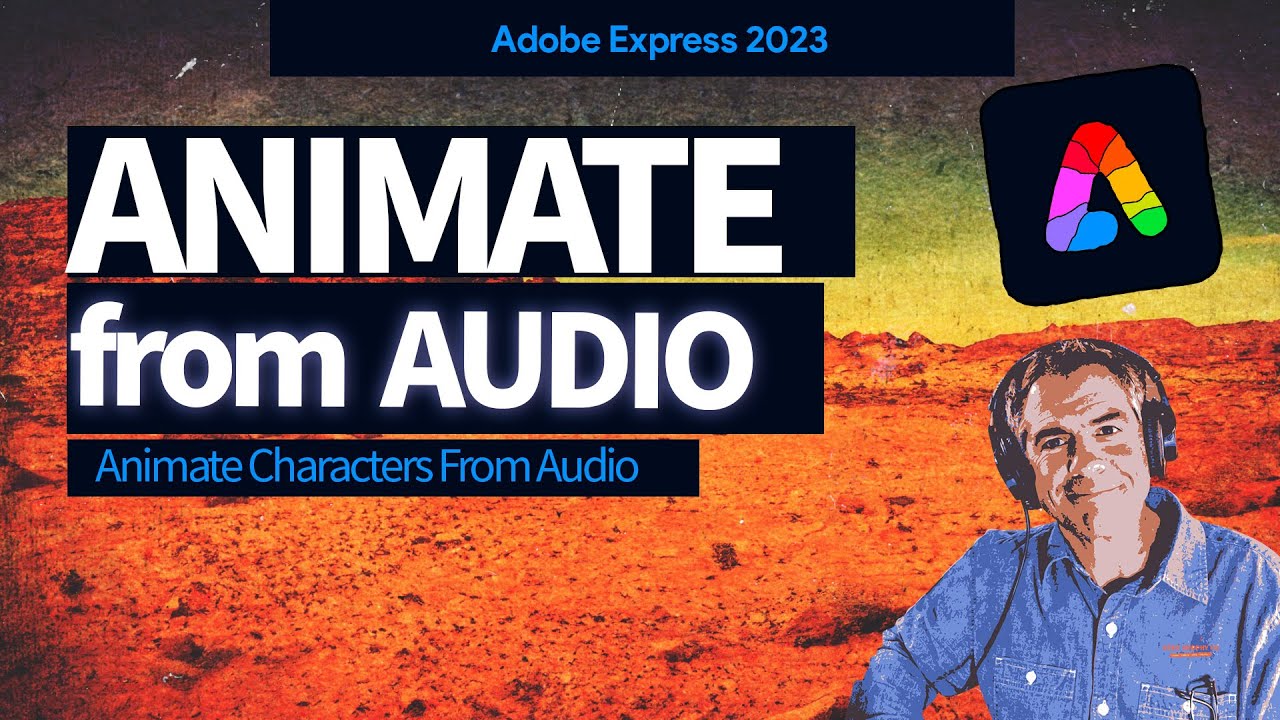
Adobe Express: How To Animate Characters From Audio
This tutorial will show you how to animate characters with your own voice using Animate From Audio in Adobe Express.
Adobe Express:https://adobe.com/express
Animate From Audio (Adobe Express):https://www.adobe.com/express/feature/video/animate/audio
Help Article:https://adobe.ly/3rkYcZk
Chapters:
00:00 Intro: About The Tutorial
00:13 Visit Adobe Express (Web Browser)
00:22 Click on 'Quick Actions' & 'Upload Your Video'
00:35 Visit Adobe Express (CC Desktop App)
01:04 Animate From Audio (Set up Animation)
01:17 Select Character
01:29 Click on 'Background'
01:41 Transparent Background
01:56 Select Size (Aspect Ratio + Resolution)
02:16 Upload Pre-Recorded Audio File
02:27 Click on 'Record' to start recording
02:40 'Enhance Speech' Toggle
03:12 Click 'Done' to Stop
03:26 Preview & Trim Animation
03:54 Click 'Download' or 'Open in Editor'
04:04 Adobe Express Editor (Customize)
04:20 Download Video To Computer
———————
To try or buy Adobe Character Animator CC 2023:
https://mikemurphy.co/adobe (affiliate link)
⭕️ Check out my new Domestika Course on Adobe Audition:
https://mikemurphy.co/domestika
———————
How To Access Animate From Audio in Adobe Express (Web Browser):
1. Open a web browser
2. Visit https://adobe.com/express
3. Click on ‘Quick Actions’
4. Click on ‘Animate from Audio’
5. Click on ‘Upload Your Video’ to open the Editor
How To Access Animate From Audio (Creative Cloud App):
1. Open Adobe CC Desktop App
2. Click on Home Icon
3. Click on ‘Adobe Express’ in the Shortcuts section
4. Click on ‘Video’
5. Click on ‘Animate from Audio’ in the Quick Links Section
How To Animate From Audio in Adobe Express:
1. Select a Character (click to Preview)
2. Click on character to resize and drag tomove position
3. Click on ‘Background’ and choose a background (color, transparent or image)
4. Click ‘Upload Image’ to upload a custom background image
5. Click ‘Size’
6. Click drop-down menu for ‘Resize’ for
7. Select social platform to share video
8. Select Aspect Ratio & Size (16:9, 1920 x 1080)
9. Check ‘Audio Hardware’ settings to confirm your system is set to good microphone
10. Toggle on ‘Enhance Speech’ (optional to improve audio quality)
11. Click ‘Record’ to start recording dialogue
12. Click ‘Cancel’ to stop and start over
13. Click ‘Done’ when completed
14. Wait several minutes to process
15. Hover cursor over preview and click on Play icon to preview animation
16. Use scrubber to scrub through video
17. Click on handles to Trim video
18. Click on ‘Back’ to re-record
19. Click ‘Download’ to download to computer’
20. Click ‘Open in Editor’ to open in Adobe Express for customization
---------------------------------------------------------------
➜Amazon Influencer Store: https://www.amazon.com/shop/mikemurphyco
➜See All My Gear: https://www.mikemurphy.co/podgear
➜ Get Adobe Creative Cloud: https://mikemurphy.co/adobe
➜Screencast Software:
Screenflow: https://mikemurphy.co/screenflow
---------------------------------------------------------------
➜ VISIT MY WEBSITE:
- https://mikemurphy.co
➜ SUBSCRIBE TO PODCAST
-https://mikemurphy.co/mmu
➜ SOCIAL MEDIA:
- Instagram: http://instagram.com/mikeunplugged
- Facebook: https://mikemurphy.co/facebook
- Twitter: http://twitter.com/mikeunplugged
- YouTube: https://mikemurphy.co/youtube
Amazon Associates Disclosure:
Mike Murphy is a participant in the Amazon Services LLC Associates Program, an affiliate advertising program designed to provide a means for sites to earn advertising fees by advertising and linking to Amazon.com
This tutorial will show you how to animate characters with your own voice using Animate From Audio in Adobe Express.
Adobe Express:https://adobe.com/express
Animate From Audio (Adobe Express):https://www.adobe.com/express/feature/video/animate/audio
Help Article:https://adobe.ly/3rkYcZk
Chapters:
00:00 Intro: About The Tutorial
00:13 Visit Adobe Express (Web Browser)
00:22 Click on 'Quick Actions' & 'Upload Your Video'
00:35 Visit Adobe Express (CC Desktop App)
01:04 Animate From Audio (Set up Animation)
01:17 Select Character
01:29 Click on 'Background'
01:41 Transparent Background
01:56 Select Size (Aspect Ratio + Resolution)
02:16 Upload Pre-Recorded Audio File
02:27 Click on 'Record' to start recording
02:40 'Enhance Speech' Toggle
03:12 Click 'Done' to Stop
03:26 Preview & Trim Animation
03:54 Click 'Download' or 'Open in Editor'
04:04 Adobe Express Editor (Customize)
04:20 Download Video To Computer
———————
To try or buy Adobe Character Animator CC 2023:
https://mikemurphy.co/adobe (affiliate link)
⭕️ Check out my new Domestika Course on Adobe Audition:
https://mikemurphy.co/domestika
———————
How To Access Animate From Audio in Adobe Express (Web Browser):
1. Open a web browser
2. Visit https://adobe.com/express
3. Click on ‘Quick Actions’
4. Click on ‘Animate from Audio’
5. Click on ‘Upload Your Video’ to open the Editor
How To Access Animate From Audio (Creative Cloud App):
1. Open Adobe CC Desktop App
2. Click on Home Icon
3. Click on ‘Adobe Express’ in the Shortcuts section
4. Click on ‘Video’
5. Click on ‘Animate from Audio’ in the Quick Links Section
How To Animate From Audio in Adobe Express:
1. Select a Character (click to Preview)
2. Click on character to resize and drag tomove position
3. Click on ‘Background’ and choose a background (color, transparent or image)
4. Click ‘Upload Image’ to upload a custom background image
5. Click ‘Size’
6. Click drop-down menu for ‘Resize’ for
7. Select social platform to share video
8. Select Aspect Ratio & Size (16:9, 1920 x 1080)
9. Check ‘Audio Hardware’ settings to confirm your system is set to good microphone
10. Toggle on ‘Enhance Speech’ (optional to improve audio quality)
11. Click ‘Record’ to start recording dialogue
12. Click ‘Cancel’ to stop and start over
13. Click ‘Done’ when completed
14. Wait several minutes to process
15. Hover cursor over preview and click on Play icon to preview animation
16. Use scrubber to scrub through video
17. Click on handles to Trim video
18. Click on ‘Back’ to re-record
19. Click ‘Download’ to download to computer’
20. Click ‘Open in Editor’ to open in Adobe Express for customization
---------------------------------------------------------------
➜Amazon Influencer Store: https://www.amazon.com/shop/mikemurphyco
➜See All My Gear: https://www.mikemurphy.co/podgear
➜ Get Adobe Creative Cloud: https://mikemurphy.co/adobe
➜Screencast Software:
Screenflow: https://mikemurphy.co/screenflow
---------------------------------------------------------------
➜ VISIT MY WEBSITE:
- https://mikemurphy.co
➜ SUBSCRIBE TO PODCAST
-https://mikemurphy.co/mmu
➜ SOCIAL MEDIA:
- Instagram: http://instagram.com/mikeunplugged
- Facebook: https://mikemurphy.co/facebook
- Twitter: http://twitter.com/mikeunplugged
- YouTube: https://mikemurphy.co/youtube
Amazon Associates Disclosure:
Mike Murphy is a participant in the Amazon Services LLC Associates Program, an affiliate advertising program designed to provide a means for sites to earn advertising fees by advertising and linking to Amazon.com
Tags and Topics
Browse our collection to discover more content in these categories.
Video Information
Views
6.0K
Likes
69
Duration
4:47
Published
Sep 26, 2023
User Reviews
4.4
(1) Related Trending Topics
LIVE TRENDSRelated trending topics. Click any trend to explore more videos.